
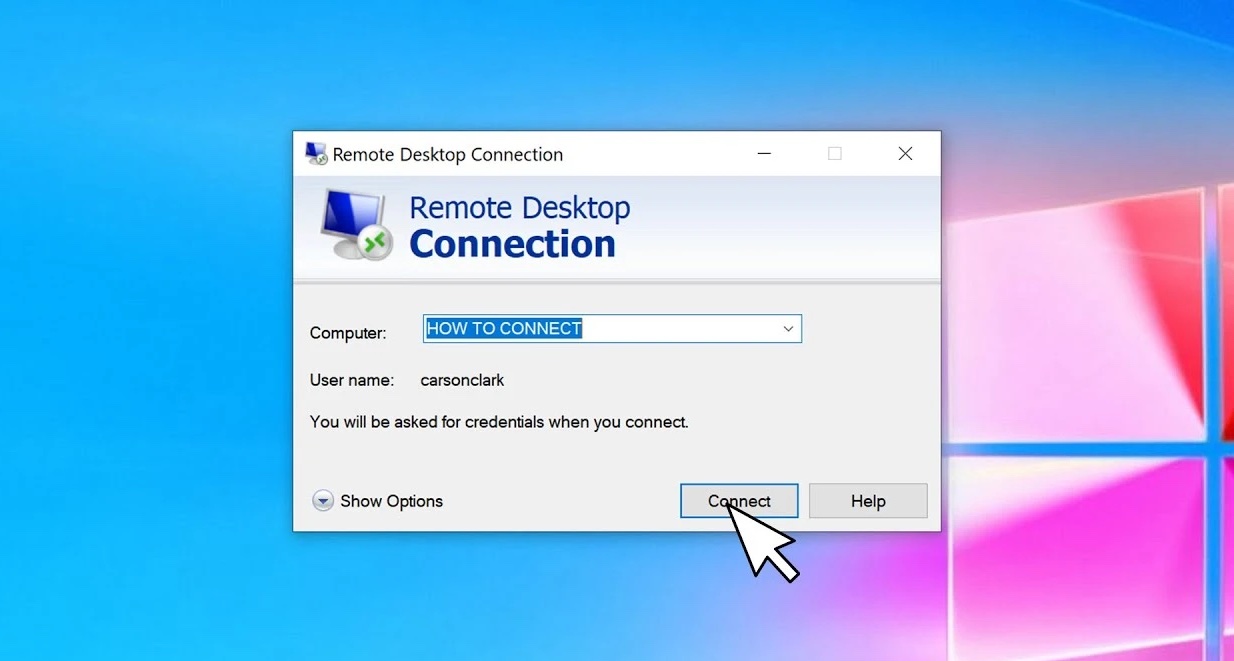
You work with a Windows server through Remote Desktop, using the RDP protocol. You see the server's desktop in a separate window and control it with your mouse and keyboard just like your own computer. The program you need is already built into Windows, so there is nothing to download.
What you need
The server's IP address, username and password are emailed to you once the server is up. You can also find them in the client area under the Instructions button, and we showed where to find it in the article on ordering a server.
1. Open Remote Desktop Connection
The program is included in every version of Windows, and you can start it in two ways:
- open the Start menu, start typing “Remote Desktop Connection” and choose the program in the search results;
- or press Win + R, type
mstscand press Enter.
.png)
The Remote Desktop Connection window
2. Enter the server details
- In the Computer field, enter the server's IP address.
- Click Connect.
- In the sign-in window, enter the server's username and password. The username is usually Administrator, and the exact details are in the email and under Instructions.
On the first connection, Windows warns that it can't verify the identity of the remote computer. This is normal for a new server, because it doesn't have a certificate from a well-known authority yet. Tick Don't ask me again for connections to this computer so that Windows stops asking about this server, and click Yes.
After a few seconds, the server's desktop opens.
.png)
The connection options, where you can also save the connection
Save the connection
To avoid entering the details every time, save the connection to a file. Click Show Options, enter the username in the User name field and tick Allow me to save credentials. Then click Save As... and put the RDP file somewhere handy, for example on your desktop. Next time, simply double-click this file.
Why RDP won't connect
If you get an error saying the connection to the remote computer failed instead of the server's desktop, go through this list:
- the IP address has no typos, and the server's status in the client area is Active;
- the server hasn't just been created or reinstalled. After installation, Windows needs a few more minutes to boot and set itself up, so wait and try again;
- the internet on your computer works. Some office networks and public Wi-Fi block the RDP port, so try connecting from a different network, for example through your phone's hotspot;
- the port is correct. By default, RDP uses port 3389, and if you changed it on the server, add the number to the address after a colon, for example
203.0.113.10:3390.
Check whether the server responds
Open PowerShell on your computer and run the command below.
# Check whether the server accepts connections on the RDP port.
# Replace 203.0.113.10 with your server's IP address
Test-NetConnection 203.0.113.10 -Port 3389
If the output contains the line TcpTestSucceeded : True, the server is reachable and the problem is with signing in, so go to the next section.
If it says False, the server isn't accepting connections on this port. Most often this means that remote access is turned off in Windows or the port is blocked by a firewall.
Turn on remote access
If someone has turned off Remote Desktop on the server, log in to the server with the Console button in the client area. It opens the server's screen right in your browser and works even without RDP. Then:
- Press Win + R, type
SystemPropertiesRemoteand press Enter. - In the Remote Desktop section, choose Allow remote connections to this computer.
- Click OK and try connecting again.
Why you can't sign in
If the sign-in window appears but Windows says your credentials did not work, check the following:
- It is best not to type the password but to copy it from the email or Instructions and paste it with Ctrl + V. Make sure no spaces get copied along with it.
- If you type the password by hand, switch to the English keyboard layout and check that Caps Lock is off.
- Sometimes Windows fills in your own computer's username or your Microsoft account in the sign-in window. In that case, click More choices, choose Use a different account and enter the server's username and password again.
CredSSP authentication error
If the error text mentions CredSSP, your computer and the server have Windows updates of different ages. Install all updates through Windows Update on your computer, and if that doesn't help, on the server too, logging in to it through Console.
Nothing helped?
If nothing helped, open a ticket with us and attach a screenshot of the error, and we'll help you sort it out.
Our resources
Telegram channel: https://t.me/f3cloud_news
F3 Cloud: https://f3cloud.com