
OpenVPN is one of the best-known VPN protocols. It encrypts all traffic between your device and the server, and you go online from the server's IP address.
Installing OpenVPN by hand takes a long time, so we use the open-source openvpn-install script from GitHub. It installs OpenVPN, creates the certificates, sets up the network and gives you a ready file for connecting, all by itself. We checked every step on an F3 Cloud server with Debian 12.
The script does not work on every system
The openvpn-install script needs Ubuntu 22.04 or newer, Debian 11 or newer, AlmaLinux, Rocky Linux or CentOS 9 and newer, or Fedora. On Ubuntu 20.04 and AlmaLinux 8 the script will refuse to run. In that case, first reinstall the system with a newer one.
You do not need a powerful plan. OpenVPN itself used less than 10 MB of memory on our server.
Step 1. Install OpenVPN
Connect to the server via SSH as the root user and run the command.
cd /root && wget https://raw.githubusercontent.com/Nyr/openvpn-install/master/openvpn-install.sh -O openvpn-install.sh && bash openvpn-install.shThe script will ask a few questions. If you are not sure what to choose, just press Enter, because the default values will do.
- Which IPv4 address should be used? – which IP address to use. This question only appears if the server has several addresses. Choose the public one, which is your server's IP from the client area.
- Protocol – leave
1(UDP), as it is faster. TCP is only needed if UDP does not work on your network. - Port – the server port, 1194 by default.
- DNS server – which DNS servers your devices will get.
3(1.1.1.1) or2(Google) will do. - Name – the name of the first client, for example
laptop. The connection file is named after it.
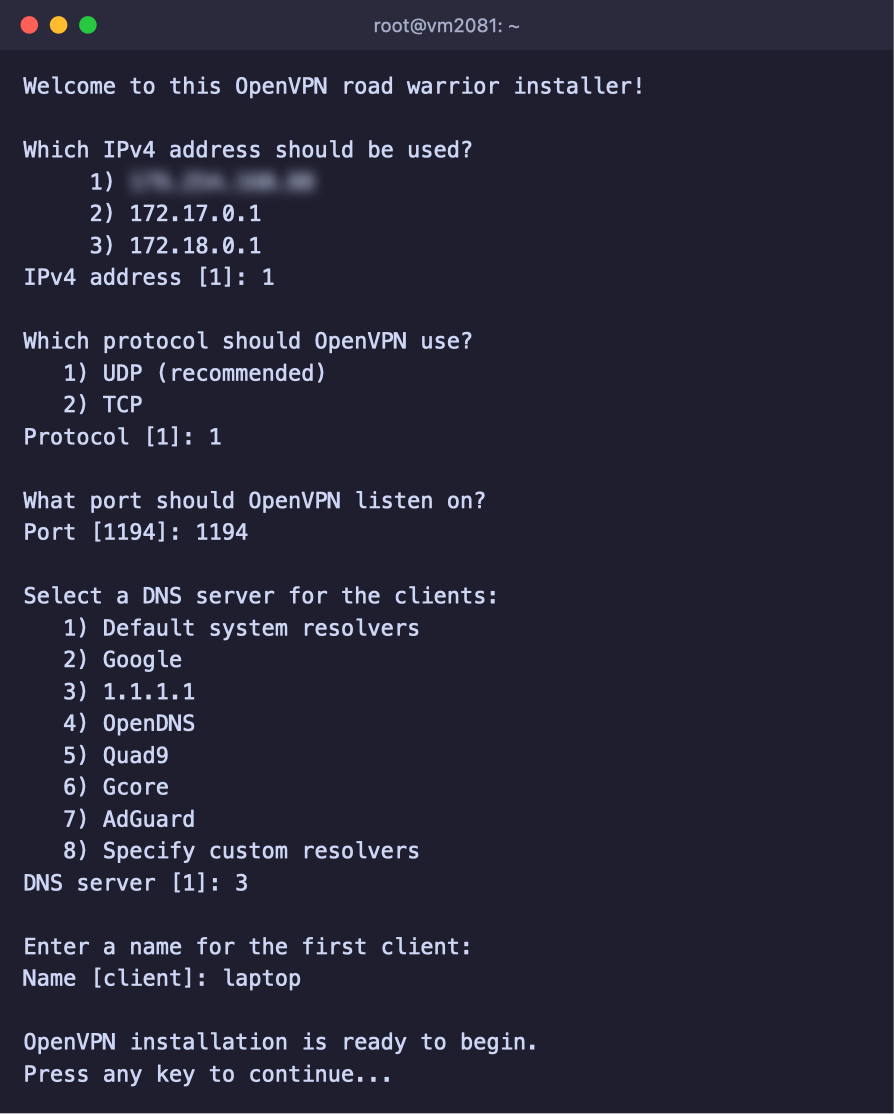
Answers to the installer's questions
Use only Latin letters, digits, hyphens and underscores in the client name, because the script replaces any other characters with _. Then press any key, and the installation begins. It takes less than a minute.
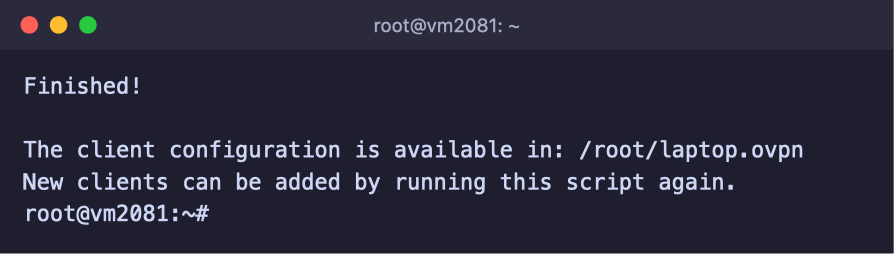
OpenVPN is installed and the connection file is ready
The ready connection file is in the /root folder and is named after the client, in our example /root/laptop.ovpn. OpenVPN is already running and will start by itself after the server reboots.
Step 2. Download the connection file
The .ovpn file needs to be moved from the server to the device you will connect from. The easiest way is the scp command on your own computer. Replace SERVER-IP with your server's address.
scp root@SERVER-IP:/root/laptop.ovpn .The command saves the file to the current folder. macOS and Linux have it out of the box, and in Windows 10 and 11 it comes with the OpenSSH client and runs in PowerShell. If PowerShell does not recognise the command, turn on the OpenSSH Client component in the Windows optional features. If you prefer using the mouse, you can download the file over SFTP in Termius or MobaXterm.
The connection file is the key to your VPN
Anyone who has your .ovpn file can connect to your server. Do not publish it or send it through public chats. Create a separate file for each person, as shown in step 4.
Step 3. Connect to the VPN
To connect, you need the official OpenVPN Connect app.
- Download OpenVPN Connect from the official website and install it.
- Open the app, go to the FILE tab and click BROWSE. Choose the downloaded
.ovpnfile.
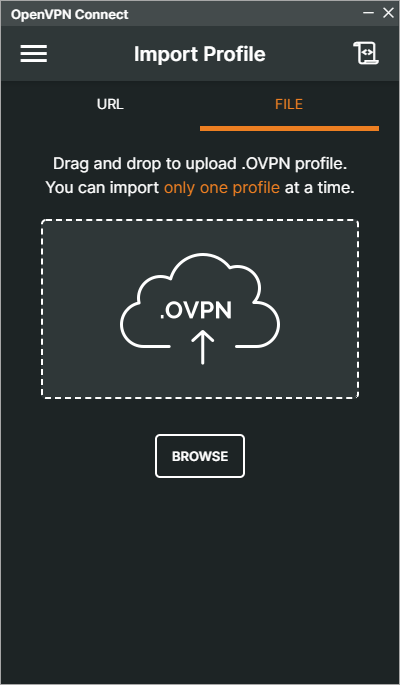
Importing the connection file
- Turn on the switch next to the profile. When CONNECTED appears, the VPN is working.
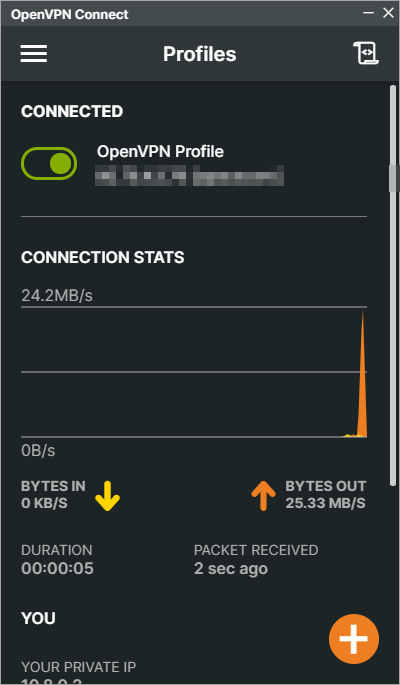
The connection is established
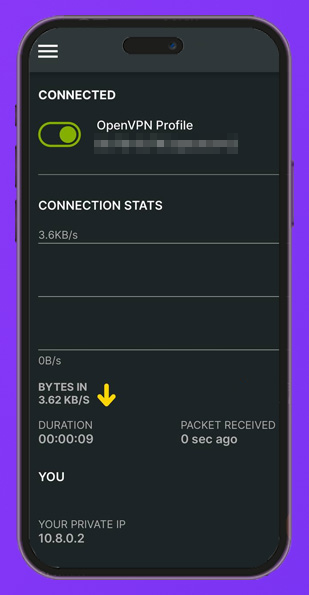
To make sure your traffic goes through the VPN, open api.ipify.org in your browser. It should show your server's IP address.
Step 4. Add devices and people
One connection file can only be used on one device at a time. If you connect with the same file from a second device, the first one disconnects. That is why you should create a separate file for your phone, your laptop and each person.
Run the script again.
bash /root/openvpn-install.shThis time it shows a menu.
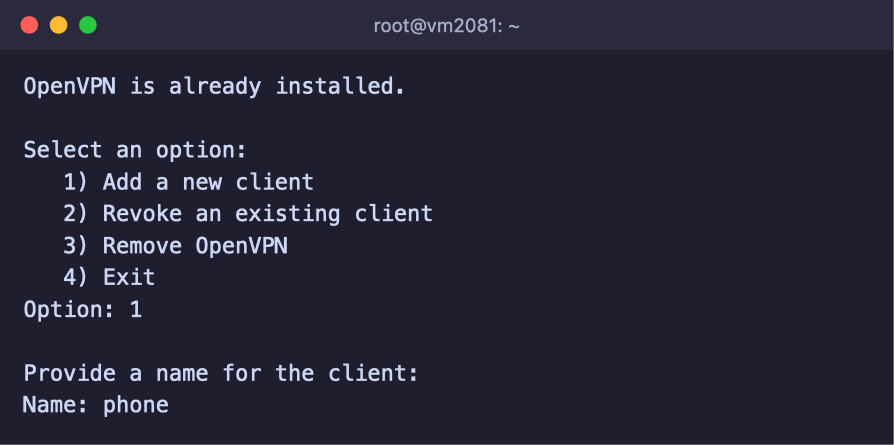
Adding the phone client
| Option | What it does |
|---|---|
1 Add a new client | Creates a new client and its /root/name.ovpn file |
2 Revoke an existing client | Revokes a client, and its file stops working at once |
3 Remove OpenVPN | Completely removes OpenVPN from the server |
4 Exit | Exits the script |
To add a client, choose 1 and enter a name, for example phone. At the end, the script shows where the new file is, for example phone added. Configuration available in: /root/phone.ovpn.
To close someone's access, choose 2, enter the client's number in the list and confirm the revocation with y. The server stops accepting that client's file straight away, and the other clients keep working.
Frequently asked questions
The app does not connect
First check that OpenVPN is running with the systemctl status openvpn-server@server command. The Active line should say active (running). If the ufw firewall is enabled on the server, open the OpenVPN port in it with the ufw allow 1194/udp command. If you chose a different port or TCP, use those instead.
OpenVPN does not work on my network
Some networks block OpenVPN traffic. Try reinstalling OpenVPN with the TCP protocol. To do this, remove it with option 3 in the menu and run the installation again. If that does not help either, use protocols that are harder to block, for example Amnezia or VLESS Reality in 3X-UI.
The script says “Ubuntu 22.04 or higher is required”
The system on the server is too old, and the script does not support it. Reinstall the system with Ubuntu 22.04 or 24.04 or Debian 12 and run the installation again.
The VPN disconnects on the second device
You are connecting with the same file from two devices. In this case the server keeps only the latest connection. Create a separate file for the second device with option 1 in the menu.
How to remove OpenVPN completely
Run bash /root/openvpn-install.sh, choose 3 and confirm with y. The script removes OpenVPN, its settings and its network rules. The .ovpn files in the /root folder stay, but they no longer work, and you can delete them by hand.
Our resources
Telegram channel: https://t.me/f3cloud_news
F3 Cloud: https://f3cloud.com