
When you need to move a site to a new server, make a copy of a data folder or send a backup to another server every night, a plain cp is no longer enough. Linux has rsync for tasks like these. It copies files both locally and over the network via SSH, and when you run it again, it transfers only what has changed. In this article we look at how rsync decides what to copy, learn to use its main options and avoid two mistakes that leave data in the wrong place or make it disappear altogether. We tested all commands on a test server with Debian 12.
Why rsync and not cp
The cp command copies everything you point it to on every run, regardless of what is already in the destination folder. For a one-time copy this is not a problem, but if the folder weighs tens of gigabytes and only a couple of files in it have changed, copying the whole volume again takes a lot of time and, when the destination is another server, all of the channel's bandwidth. rsync works differently. Before transferring anything, it compares the list of files in the source and in the destination. By default a file is considered unchanged if its size and last modification time match, and such a file is skipped entirely.
rsync does not always transfer changed files in full either. If the old version of a file already exists on the other side, the receiving side splits it into blocks and sends their checksums. The sending side looks for matching blocks in the new version of the file and sends only what did not match, and the receiving side assembles the new file from its old blocks and the pieces it received. For a large file with a few lines appended to it, very little goes over the network. On the test server we copied a folder of 8.2 MB, then appended a line to one file and ran the same command again. The second time rsync transferred only that file and sent a little over a kilobyte.
To make the copy exact, rsync can preserve permissions, the owner, the modification time and symbolic links. Almost everyone uses the -a option for this, the archive mode, which turns all of it on at once. Over the network rsync works on top of SSH. You do not need a separate service on the server. It is enough for the rsync program itself to be installed on both sides and for you to be able to connect to the server over SSH.
What you will need
rsync on both servers. Our Debian 12 image does not include it by default. Install it with the command below on every server involved in the copying.
bashapt install -y rsyncSSH access to the second server if you copy over the network.
1. Copy a folder on the same server
rsync -avh /srv/site/ /backup/site/-ais the archive mode. It preserves permissions, the owner, the time and links, and copies folders with everything inside them.-vprints the list of files being copied.-hshows sizes in a readable form, for example8.21M.
Run the same command again after the files change, and rsync will transfer only what has changed.

The second run transferred one changed file instead of the whole folder
2. Remember the slash rule
A slash at the end of the source path changes the result. Without it rsync copies the folder itself, with it only the folder's contents.
# A site folder will appear inside /tmp/t1
rsync -a /srv/site /tmp/t1/

# The files and folders from site will end up in /tmp/t2
rsync -a /srv/site/ /tmp/t2/
Without the slash a site folder appeared inside, with it only the contents
The most reliable way not to get confused by this rule is to always put a slash at the end of both paths when you need to sync the contents of one folder with the contents of another.
3. Copy files to another server
The address of a remote server is written as user@IP:/path. The -z option compresses data during the transfer, and --progress shows how the copying of each file is going.
# From this server to another one
rsync -avzh --progress /srv/site/ root@SERVER_IP:/var/www/site/

# From another server to this one
rsync -avzh --progress root@SERVER_IP:/var/www/site/ /srv/site/
If SSH on the second server does not run on port 22, or you log in with a key from a non-standard file, pass the SSH options through -e.
rsync -avzh -e "ssh -p 2222 -i ~/.ssh/my_key" /srv/site/ root@SERVER_IP:/var/www/site/You can exclude files you do not need with the --exclude option. The path in it is relative to the source.
rsync -avzh --exclude "logs/" --exclude "*.tmp" /srv/site/ root@SERVER_IP:/var/www/site/For the test we sent the folder over SSH to this same server and excluded the logs folder. For a real transfer, put the IP address of the second server instead of 127.0.0.1.

The files were transferred over SSH, the logs folder was excluded
4. Make an exact copy with --delete
By default rsync only adds and updates files, but it does not delete files in the destination that no longer exist in the source. To make the copy an exact mirror, add --delete. This is the most dangerous rsync option, so first run the command in dry run mode with the -n option. It shows everything that will be done but changes nothing.
# Dry run, changes nothing
rsync -avhn --delete /srv/site/ /backup/site/

# If the list contains only what really needs to be deleted, run it without -n
rsync -avh --delete /srv/site/ /backup/site/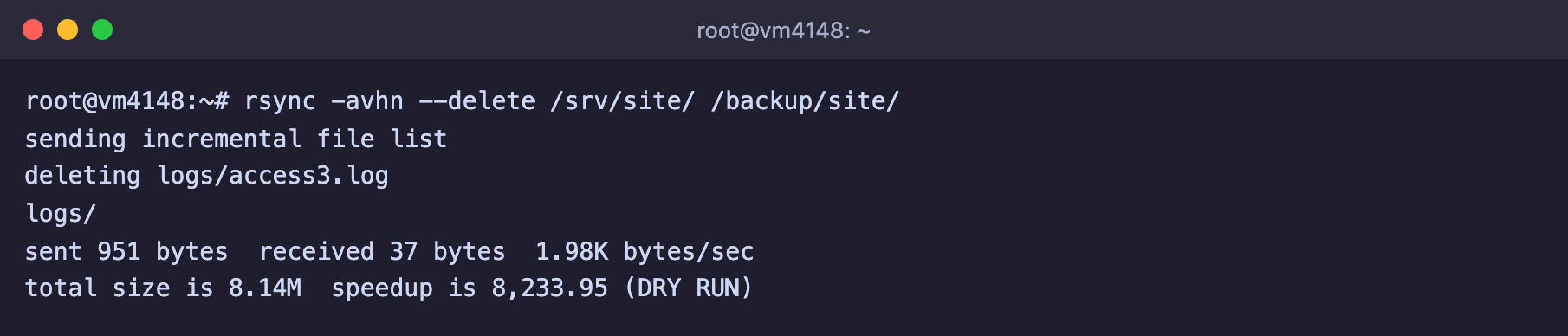
The deleting lines show what will be deleted, DRY RUN means nothing was touched
Do not mix up the source and the destination
If you swap the paths in a command with --delete, rsync turns the original rather than the copy into the "mirror" and deletes everything in it that the copy does not have. Always run such a command with -n first.
How to move a site to a new VPS
rsync is convenient for moving because the second run transfers only what changed while the first one was running.
Install rsync on both servers and check that you can connect from the old server to the new one over SSH.
Copy the site files to the new server while the old one is still running.
bashrsync -avzh --progress /var/www/site/ root@NEW_SERVER_IP:/var/www/site/Move the database separately, for example with a dump, and set up the web server on the new server.
Before switching over, repeat the command from step 2. This time it will transfer only the files that changed during the move.
Point the domain to the new server as described in the article about linking a domain.
For regular backups, the same rsync command can be run on a schedule with cron.
Frequently asked questions
bash: rsync: command not found
rsync is not installed on one of the sides. We got this error when copying to a server where rsync had not been installed yet. The remote side responds with bash: line 1: rsync: command not found, and the local side reports that the connection closed unexpectedly. Install rsync with apt install -y rsync on both servers.
The files ended up in an extra nested folder
There was no slash at the end of the source path, so rsync copied the folder itself into the destination. Move the contents one level up or repeat the copy with a path that ends in /.
How to copy without overwriting newer files on the other side
Add the -u option. rsync will then skip files that are newer in the destination than in the source.
Our resources
Telegram channel: https://t.me/f3cloud_news
F3 Cloud: https://f3cloud.com