
It is convenient to make a backup every night, clean up old logs once a week and run a website check every five minutes. Nobody is going to run such commands by hand, so Linux has cron, a scheduler that runs commands at the set time by itself. In this article we look at how cron works and how to read and write a schedule line, then add tasks, check that they run and go through the traps that make a task silently fail. We tested all examples on a test server with Debian 12.
How cron works
Cron is a service that runs on the server all the time and looks through the task lists once a minute. Each task consists of a schedule and a command. If the current time matches the schedule, cron runs the command and goes back to sleep until the next minute. That is why the most frequent interval you can set in cron is once a minute, and tasks start at the beginning of the minute, at second zero. On the test server a task scheduled for "every minute" ran exactly at 12:08:01, 12:09:01 and so on.
The task lists are called crontab, and each user has their own. Tasks from the root user's crontab run with root rights, and tasks of a regular user run with that user's rights. A crontab is not edited directly but with the crontab -e command. It opens a copy in a text editor, and after you save it, the command checks the syntax and tells cron about the new schedule.
The main thing to understand about cron is the environment in which it runs commands. When you work in a terminal, the shell loads your settings, the PATH variable with a long list of folders where programs are looked for, and the current folder from which you called the command. Cron does none of this. We wrote the environment of a task to a file on the test server, and it contained only a few variables. PATH held only /usr/bin:/bin, the shell was the plain /bin/sh, and the working folder was the user's home folder. This is where most complaints along the lines of "the script works by hand but not from cron" come from. A program from /usr/local/bin is not found, a relative path to a file points to the wrong place, and syntax that bash understands does not work in sh.
The last thing worth remembering is time. Cron runs tasks by the clock and time zone of the server itself. Our servers with Debian 12 use the Europe/Berlin time zone, so a task scheduled for 03:00 will run at 04:00 Moscow time. You can check the server's time zone with the timedatectl command.
How to read a schedule line
Each crontab line consists of five time fields and a command.
*  *  *  *  *  command
│  │  │  │  │
│  │  │  │  └── day of week, 0–7 (0 and 7 are Sunday)
│  │  │  └───── month, 1–12
│  │  └──────── day of month, 1–31
│  └─────────── hour, 0–23
└────────────── minute, 0–59
An asterisk means "any value". Besides numbers you can use a comma-separated list 1,15, a range with a hyphen 1-5 and a step with a slash */10. Here are ready-made examples.
* * * * *       every minute
*/5 * * * *     every 5 minutes
0 * * * *       at the start of every hour
0 3 * * *       every day at 03:00
30 2 * * 1      on Mondays at 02:30
0 9 * * 1-5     on weekdays at 09:00
0 0 1 * *       on the first day of every month at midnight
@reboot         once after the server boots
1. Open crontab
crontab -eThe first time you run it, Debian asks which editor to open the file in. Press 1 and Enter to choose the simplest one, nano. You can change the choice later with the select-editor command.

Choosing an editor on the first run
A file with hints opens. All lines that start with # are comments, and cron skips them.
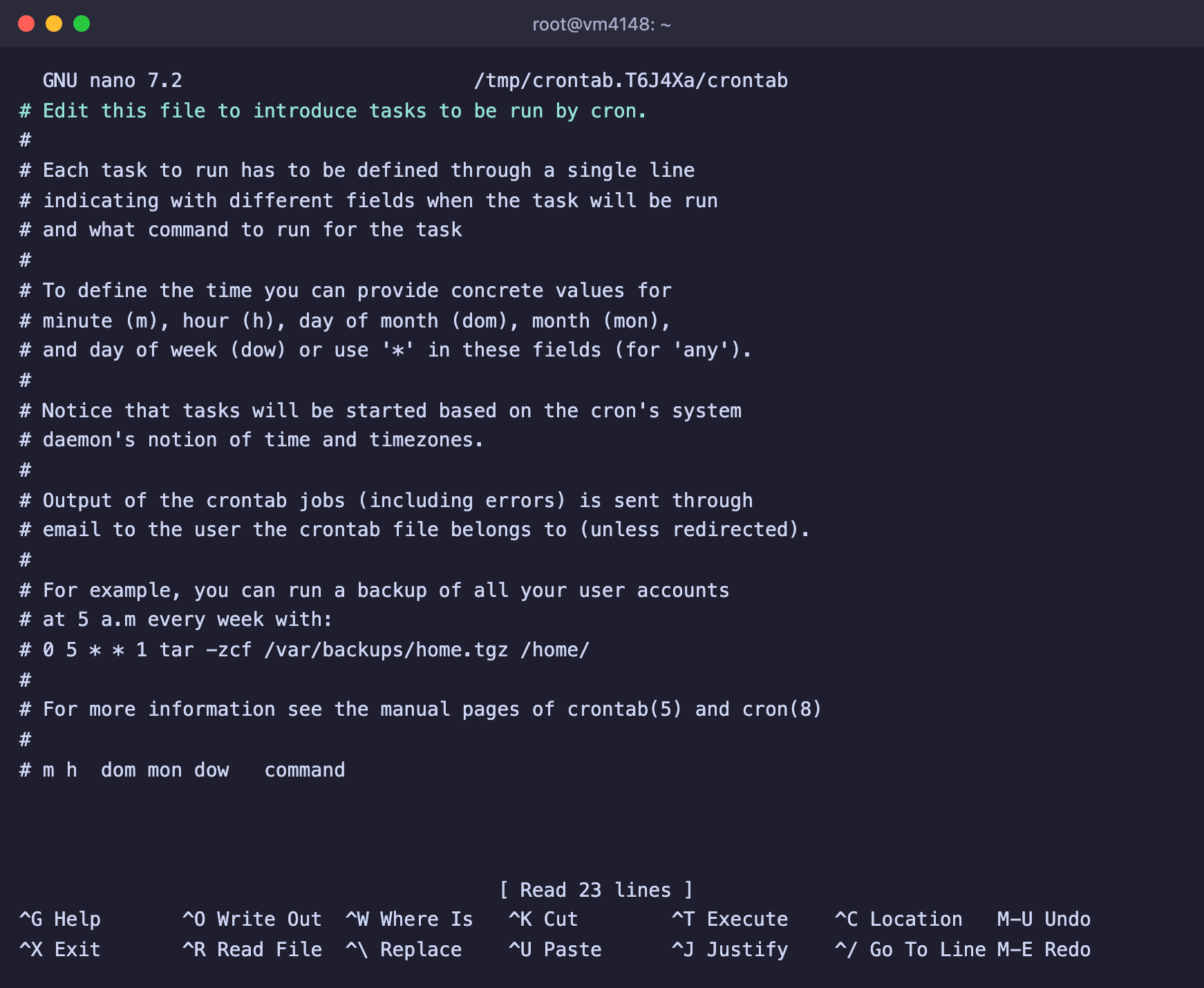
New tasks are added at the end of the file
2. Add a task
Go to the end of the file and add a task line. As an example, we will run a backup script every night at 03:00 and save everything it prints to a log.
0 3 * * * /opt/backup.sh >> /var/log/backup.log 2>&1Pay attention to three things.
- The full path to the script. Write
/opt/backup.sh, notbackup.sh, since cron runs the command from the home folder. - Output redirection.
>> /var/log/backup.log 2>&1appends both the regular output and the errors to the file. Without it you will not find out why the task failed. - An empty line at the end. The last line of the file must end with a line break, so press Enter after the task.
Save the file with Ctrl + O, then Enter, and exit with Ctrl + X. If there are no errors in the line, cron reports crontab: installing new crontab.
3. Check that the task runs
You can see your tasks with the crontab -l command, and cron writes every run to the system log.
# List of tasks
crontab -l

# Latest task runs
journalctl -u cron -n 20 | grep CMD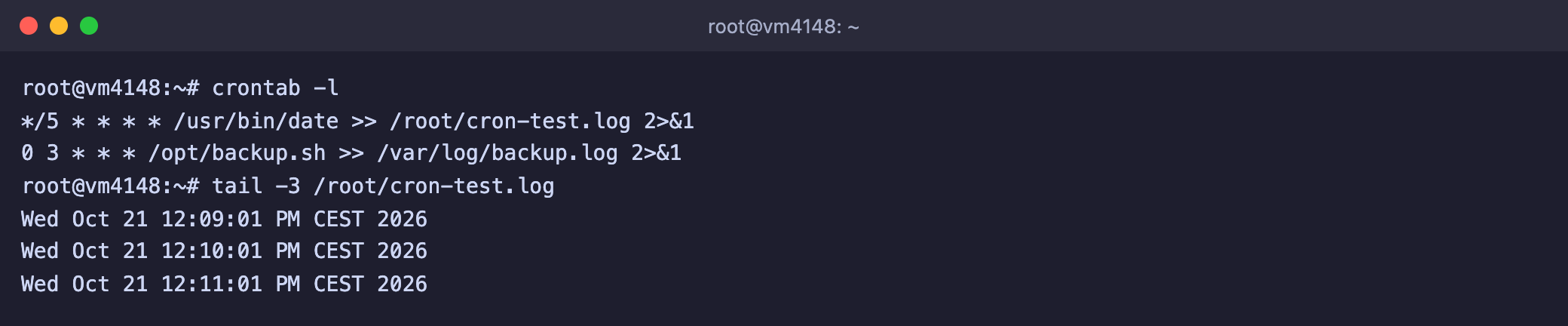
The tasks are in place, and the test task writes the date to the log every minute
If you need to check a task right away, temporarily give it the * * * * * schedule, wait for the start of the next minute, look at the result and then put back the schedule you need.
Useful commands
crontab -e            # edit your tasks
crontab -l            # show your tasks
crontab -r            # delete all your tasks without confirmation
crontab -u ivan -l    # another user's tasks, root only
timedatectl           # server time zone
crontab -r deletes everything
The r and e keys are right next to each other on the keyboard. crontab -r wipes the whole task list without asking, so before big changes save a copy of it with crontab -l > ~/crontab.bak.
Frequently asked questions
The script works by hand but not from cron
- Specify full paths to all programs and files. The
whichcommand shows the path to a program, for examplewhich docker. - If the script uses bash features, its first line must be
#!/bin/bash, and the file needs execute permission,chmod +x. - Redirect the output to a log, as in the example above, and see what error the script writes.
- If you need environment variables, set them at the beginning of the crontab, for example
PATH=/usr/local/bin:/usr/bin:/bin.
A command with the % sign does not work
For cron the % sign means a line break, and everything after it is passed to the command as input rather than as arguments. We checked this with the task date +%H:%M > file. Cron ran only date +, and the file never appeared. The sign needs to be escaped with a backslash, date +\%H:\%M.

In the last line the command is cut off at the first % sign
new crontab file is missing newline before EOF, can't install
The last line of the file does not end with a line break. Answer y to the question about editing again, go to the end of the last task, press Enter and save the file once more.
The task runs at the wrong time
Cron works by the server's time zone. Check it with the timedatectl command and either recalculate the task time or change the server's time zone, for example timedatectl set-timezone Europe/Moscow. After changing the time zone, restart cron with systemctl restart cron.
How cron differs from a systemd service
Cron runs short tasks on a schedule, while a systemd service keeps a program running all the time and restarts it after a crash. A bot or a web application is better set up as a systemd service, and backups and cleanup are best left to cron.
Our resources
Telegram channel: https://t.me/f3cloud_news
F3 Cloud: https://f3cloud.com