
Swap, or a swap file, is space on the disk where Linux temporarily moves data from RAM when memory runs short. On a server with a small amount of memory, swap protects programs from sudden crashes during peak load. In this article we look at how swapping works, create a swap file, make it come back after a reboot and set how willingly the system uses it. We tested all commands on a test server with Debian 12.
How Linux manages memory and why you need swap
To understand when swap really helps, you first need to look at what the server spends its RAM on. Part of it is taken by the programs themselves, for example a database, a web server or Docker containers. Programs get this memory at their disposal and fill it with their own data, so the system cannot simply take it back without losses. Linux does not leave the rest of the memory empty and fills it with file cache instead. When a program reads a file from the disk, its contents stay in memory, and the next read of the same file happens instantly. The cache is useful, but it can be dropped at any moment, since the original file is still on the disk. That is why the free command often shows almost no free memory, while the available column still has plenty of room. The memory taken by the cache is memory the system will give back to programs as soon as they ask for it.
Trouble starts when programs run out of room even after the cache has been dropped. Suppose a server with 1 GB of memory runs a website and a database, and you start a system update or a project build that needs another 300 MB for a few minutes. If there is no free memory and nowhere to take it from, the Linux kernel has to pick one of the processes and kill it. This is the job of the OOM killer mechanism (short for out of memory). Most often the blow falls on the largest process, which is that very database, and the site stops working in the middle of the night for no visible reason.
Swap gives the kernel another way out. Instead of killing a process, the system moves to the disk the memory pages that programs have not touched for a long time, for example the code of a rarely used function or the data of a background service that wakes up once an hour. The freed space goes to the program that needs memory right now. If the moved data is needed later, the kernel reads it back from the disk. However, a disk is many times slower than RAM even on fast NVMe drives, so swap does not replace memory and only serves as insurance. If the server is constantly reading and writing swap, programs start to slow down noticeably. On our test server with 1 GB of memory, a neural network that did not have enough memory did run with swap, but took several minutes to print a single word. Behaviour like this means the server needs more memory, and swap will no longer help here.
That leaves the question of how the system decides what is better, to drop the file cache or to send program data to swap. This balance is set by the swappiness parameter. It takes values from 0 to 200, and in Debian 12 it is 60 by default. The lower the value, the longer the kernel keeps program data in memory and the more willingly it sacrifices the cache. For a server it usually makes sense to lower swappiness to 10. Then swap comes into play mostly when memory is really running out and leaves running programs alone in quiet times.
What you will need
- A server with Ubuntu or Debian. On a test server with our Debian 12 image there was no swap by default, so it is worth creating it yourself.
- An SSH connection, for example via Termius. The commands are run as
root. - Free disk space for the swap file. You can check it with the
df -h /command.
1. Check whether you have swap
free -h
swapon --show
If the Swap line of free -h shows zeros and swapon --show prints nothing, the server has no swap.
2. Create a swap file
First decide how big the file will be. We recommend going by the following.
- Up to 2 GB of memory. Swap the same size as the memory, that is 1–2 GB.
- From 2 to 8 GB. 2 GB is enough.
- More than 8 GB. 2–4 GB will do, such a server usually does not need a large swap.
As an example, let's create a 2 GB file. Run the commands one by one.
# Allocate a file of the required size on the disk
fallocate -l 2G /swapfile

# Only root has access to the file
chmod 600 /swapfile

# Mark the file as a swap area
mkswap /swapfile

# Turn on swap
swapon /swapfile
Check the result again with swapon --show and free -h. The Swap line should now show 2.0Gi.
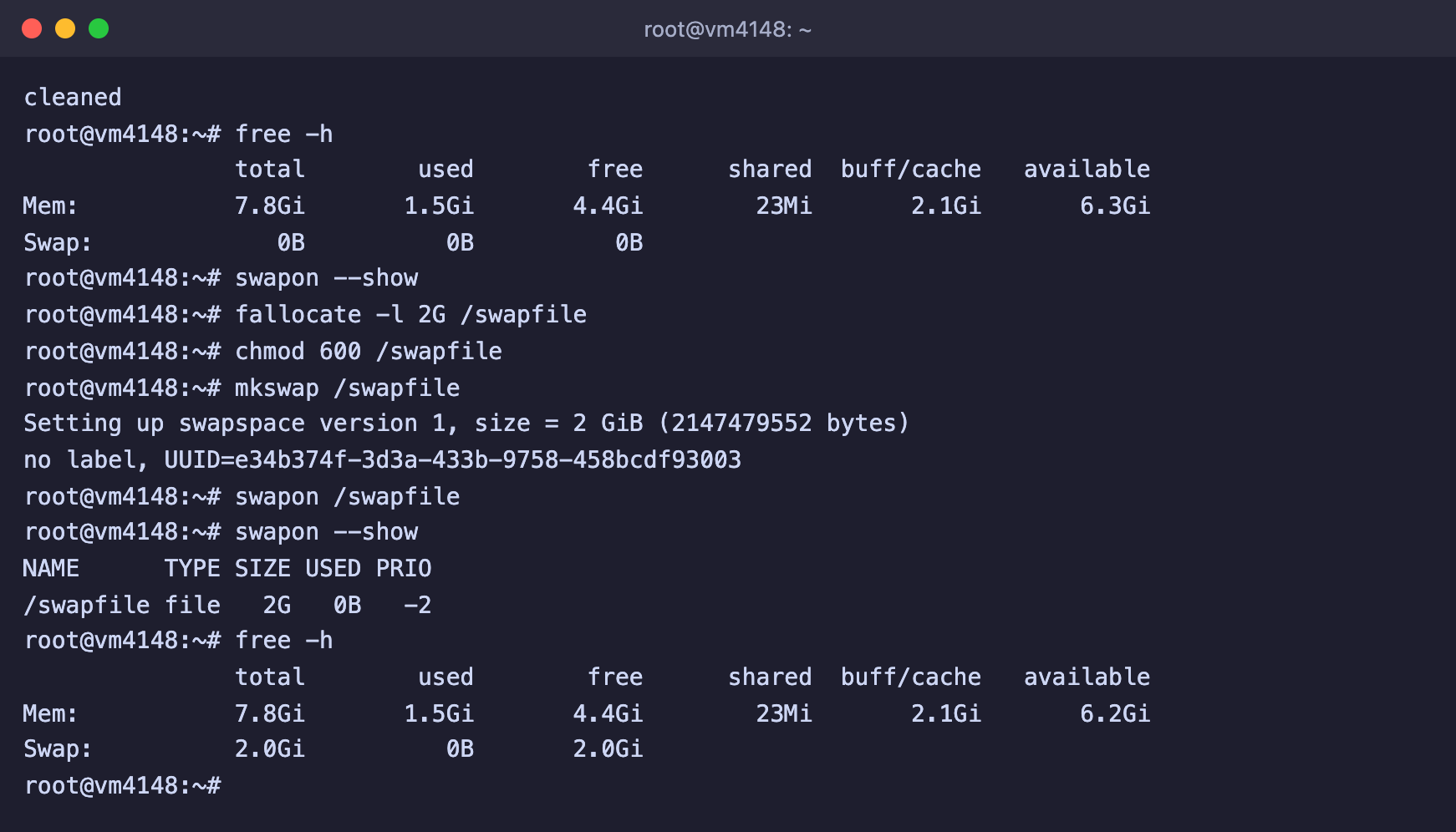
Swap was empty before, and now the system sees 2 GB of it
If fallocate did not work
On some file systems fallocate returns an error. In that case create the file with the dd command, which is slower but works everywhere. Instead of the first command, run dd if=/dev/zero of=/swapfile bs=1M count=2048 status=progress, where 2048 is the size in megabytes, and keep the remaining steps the same.
3. Enable swap after a reboot
The swapon command enables swap only until the next reboot. To have the file enabled automatically, add it to the /etc/fstab file.
echo "/swapfile none swap sw 0 0" >> /etc/fstabYou can check that the entry is correct without rebooting. The command below turns swap off and turns it on again, this time from the entries in /etc/fstab.
swapoff -a && swapon -a && swapon --showIf /swapfile appears in the output again, everything is set up correctly.
The >> sign matters
The echo command must have two signs, >>. They add the line to the end of the file. A single > will completely overwrite /etc/fstab, and the server may fail to boot. Before editing, you can make a copy of the file with cp /etc/fstab /root/fstab.bak.
4. Set up swappiness
Look at the current value and lower it to 10. A setting in a separate file in the /etc/sysctl.d/ directory is kept after a reboot.
# Current value, 60 by default
cat /proc/sys/vm/swappiness

# Save the new value and apply it right away
echo "vm.swappiness=10" > /etc/sysctl.d/99-swappiness.conf
sysctl -p /etc/sysctl.d/99-swappiness.conf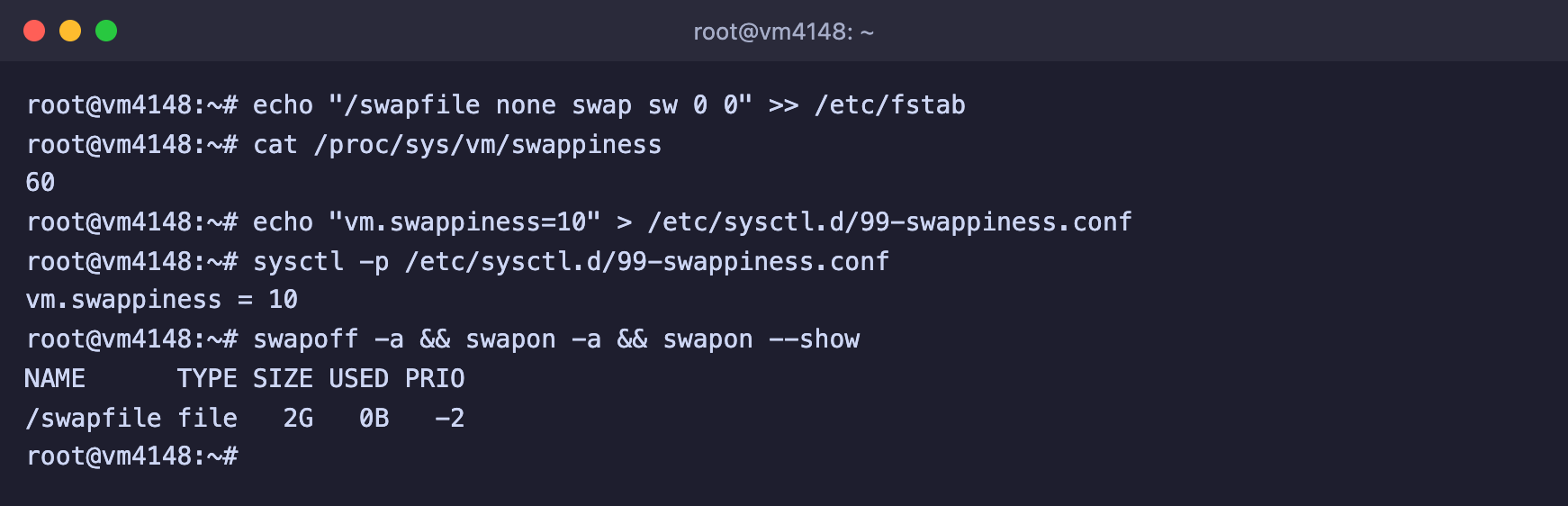
Swap is added to fstab, and swappiness is lowered to 10
How to resize swap
You can make the file bigger in place. Turn swap off, set the new size, mark the file again and turn it on.
swapoff /swapfile
fallocate -l 4G /swapfile
mkswap /swapfile
swapon /swapfile
You cannot shrink the file this way, because fallocate only adds space. To make swap smaller, delete the old file and create a new one of the size you need.
swapoff /swapfile
rm /swapfile
fallocate -l 1G /swapfile
chmod 600 /swapfile
mkswap /swapfile
swapon /swapfile
You do not need to change the entry in /etc/fstab, since the file name stays the same.
How to turn off and remove swap
# Turn off swap
swapoff /swapfile

# Delete the file
rm /swapfile

# Remove the line from fstab
sed -i '\|^/swapfile |d' /etc/fstab
Before removing it, check with free -h that there is enough room in memory for the data that is currently in swap. Otherwise swapoff will spend a long time moving it back and may fail because of a lack of memory.
Frequently asked questions
swapon: /swapfile: insecure permissions 0644, 0600 suggested
The swap file can be read by other users, and it may contain passwords and other data from program memory. Restrict access to it.
chmod 600 /swapfileswapon: /swapfile: swapon failed: Device or resource busy
This file is already enabled as swap. Check it with swapon --show. If you need to change something in it, run swapoff /swapfile first.
Swap is there, but the server is still slow
Check how much swap is in use with free -h. If hundreds of megabytes stay in swap all the time and the system keeps actively working with it, programs do not have enough RAM. Swap will no longer help here, so you need to reduce memory usage or move to a plan with more memory. How to move to a more powerful plan is described in the frequently asked questions, and your data and IP address are kept.
Do you need swap if you have plenty of memory
A small swap is useful on a server with a lot of memory too. It lets the system move data that has not been used for a long time out of memory and leave more room for the file cache. It also gives you a margin in case some program leaks memory, so you will have time to notice the problem before the OOM killer steps in.
Our resources
Telegram channel: https://t.me/f3cloud_news
F3 Cloud: https://f3cloud.com