
Keitaro is a tracker for affiliate marketers and webmasters. It is installed on your own server, so all your click and conversion statistics stay with you, and the redirect speed depends only on your VPS.
Below we'll show which server to choose, how to get a licence key and how to install Keitaro with one command.
Which server you need
Keitaro has strict server requirements:
- a clean server with no control panel or third-party software;
- the CentOS Stream 9 or CentOS Stream 10 operating system, because the tracker won't install on other systems;
- KVM virtualisation, at least 4 GB of RAM and 20 GB of disk space;
- its own IP address, because Keitaro doesn't work behind NAT.
All VPS at F3 Cloud run on KVM and get their own IPv4 address, so any plan with enough memory will do. Choose it by the number of clicks per day:
| Clicks per day | Keitaro requirements | F3 Cloud plan |
|---|---|---|
| up to 100,000 | 4 GB, 2 CPU | DE-RZ9-2 |
| 100,000 – 500,000 | 8 GB, 4 CPU | DE-RZ9-4 |
| 500,000 – 1,000,000 | 16 GB, 4 CPU | DE-RZ9-8 |
| 1,000,000 – 5,000,000 | 32 GB, 4 CPU | DE-RZ9-16 |
| 5,000,000 – 10,000,000 | 64 GB, 8 CPU | Dedicated server |
If you plan to use the API
When costs and other data are updated through the API, the load on the tracker grows. In that case, take a plan one step above what the table suggests.
Keitaro recommends placing the tracker closer to your audience and warns that its updates are unstable on servers in Russia. F3 Cloud servers are in Europe, so this restriction doesn't apply to us.
1. Sign up for Keitaro
Open the Keitaro website and click Sign up in the top right corner.
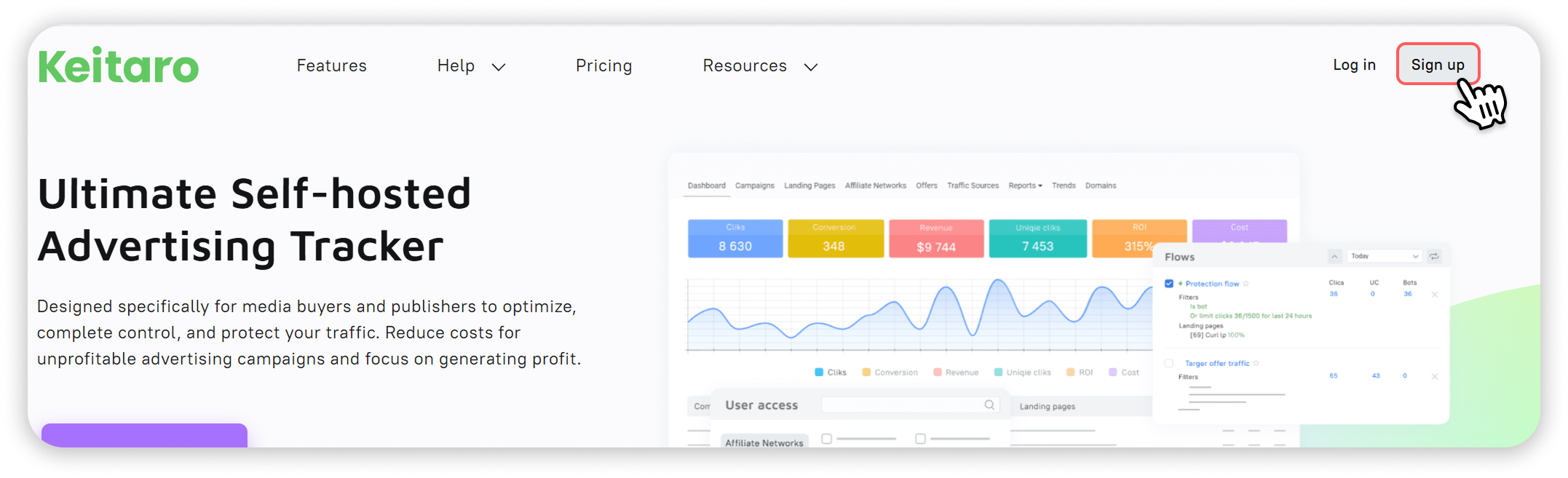
The sign-up button on the Keitaro website
Enter your name, email and password, then click Continue.
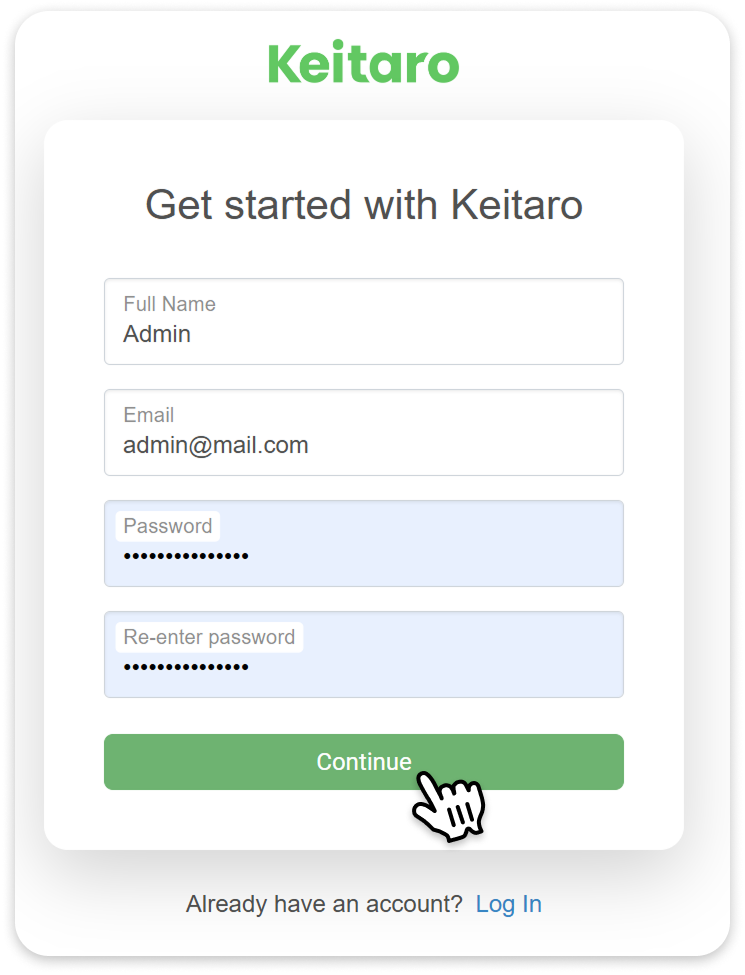
Sign-up form
You'll receive an email with a code. Enter it on the website to confirm your address.
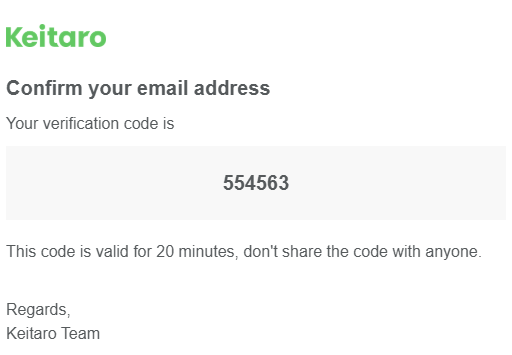
Email with the confirmation code
Next, Keitaro will ask you to confirm your phone number, and the code will be sent to that number.
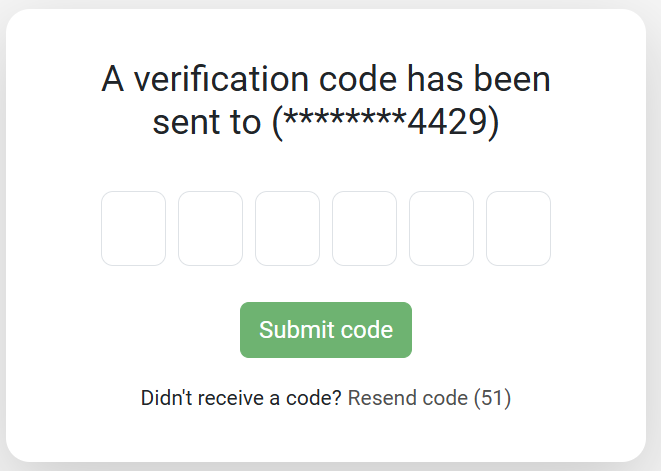
Confirming the phone number
After that, the Licenses page with your keys will open. New accounts already have a free trial key there in the form XXXX-XXXX-XXXX-XXXX. Copy it, because you'll need it after installation.
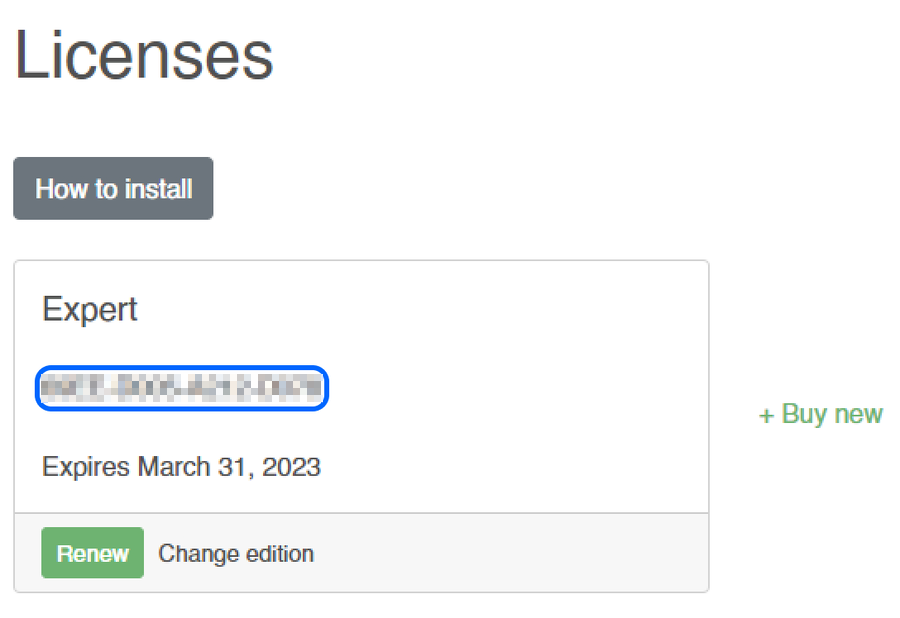
Licence key in the Keitaro account
2. Prepare the server
Order a VPS using our guide, and at the operating system step choose CentOS Stream version 9 or 10.
If you already have a server but it runs a different system, reinstall it with CentOS Stream using this guide. Keep in mind that reinstalling deletes all data on the server.
3. Install Keitaro
Connect to the server via SSH, for example with Termius, and run the official installation command.
# Download the Keitaro installer from the official website and run it
curl https://files.keitaro.io/scripts/releases/stable/kctl.sh | bash -s -- install
Installation takes 4 to 10 minutes, depending on how powerful the server is. Don't close the SSH window or reboot the server until it finishes. At the end, the installer will say that Keitaro is installed and show a link to the panel like http://IP-address/admin.
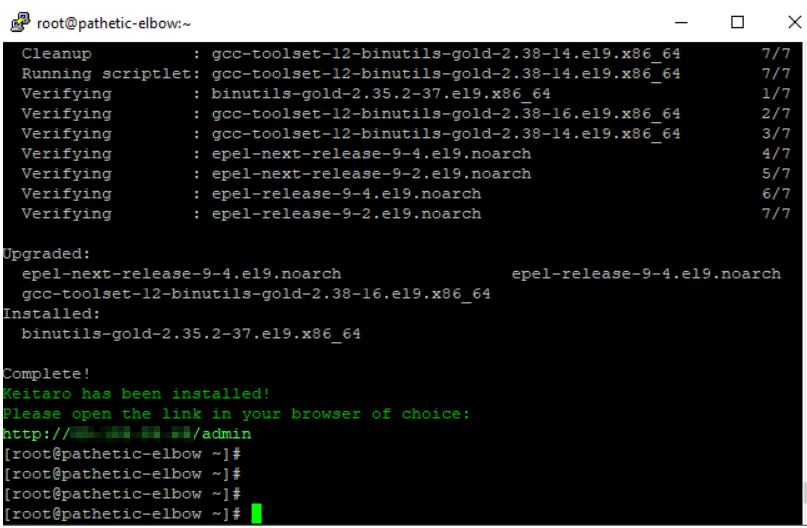
Installation complete
How to view the installation log
If the installation was interrupted or ended with an error, the command tail -n 100 /var/log/keitaro/install.log shows the last lines of the log. The cause is usually visible at the very end.
4. Activate the tracker and create an administrator
Open the link from the end of the installation in your browser, http://server-IP-address/admin.
First, paste the licence key, choose the currency and time zone and click Activate.
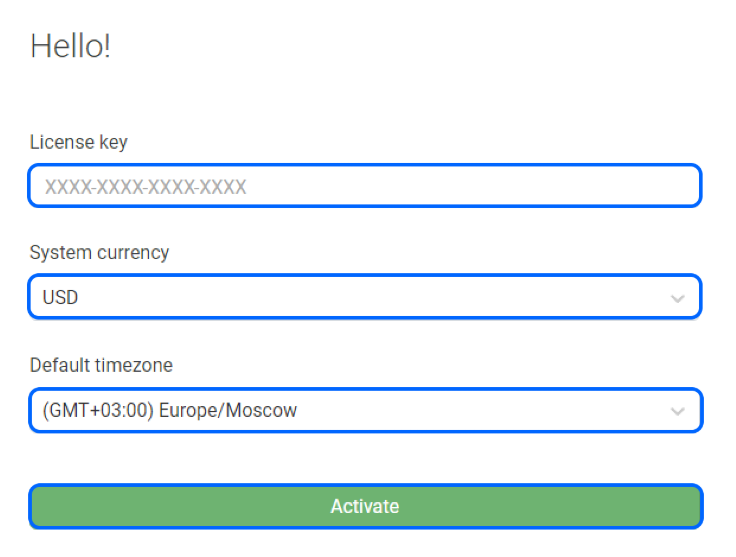
Activating the tracker
Choose the currency straight away
Keitaro stores statistics in the currency you choose here. You can change it later in the settings, but data that has already been recorded won't be recalculated.
Then come up with an administrator login and password and click Create. You'll use them to log in to the tracker.
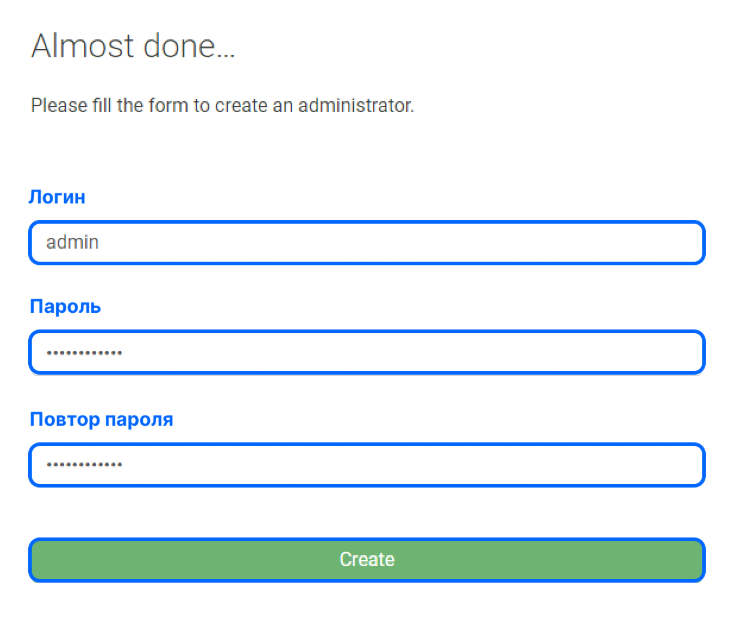
Creating an administrator
That's it, the Keitaro dashboard will open. In the top right corner, you can see how many days are left until the licence expires.
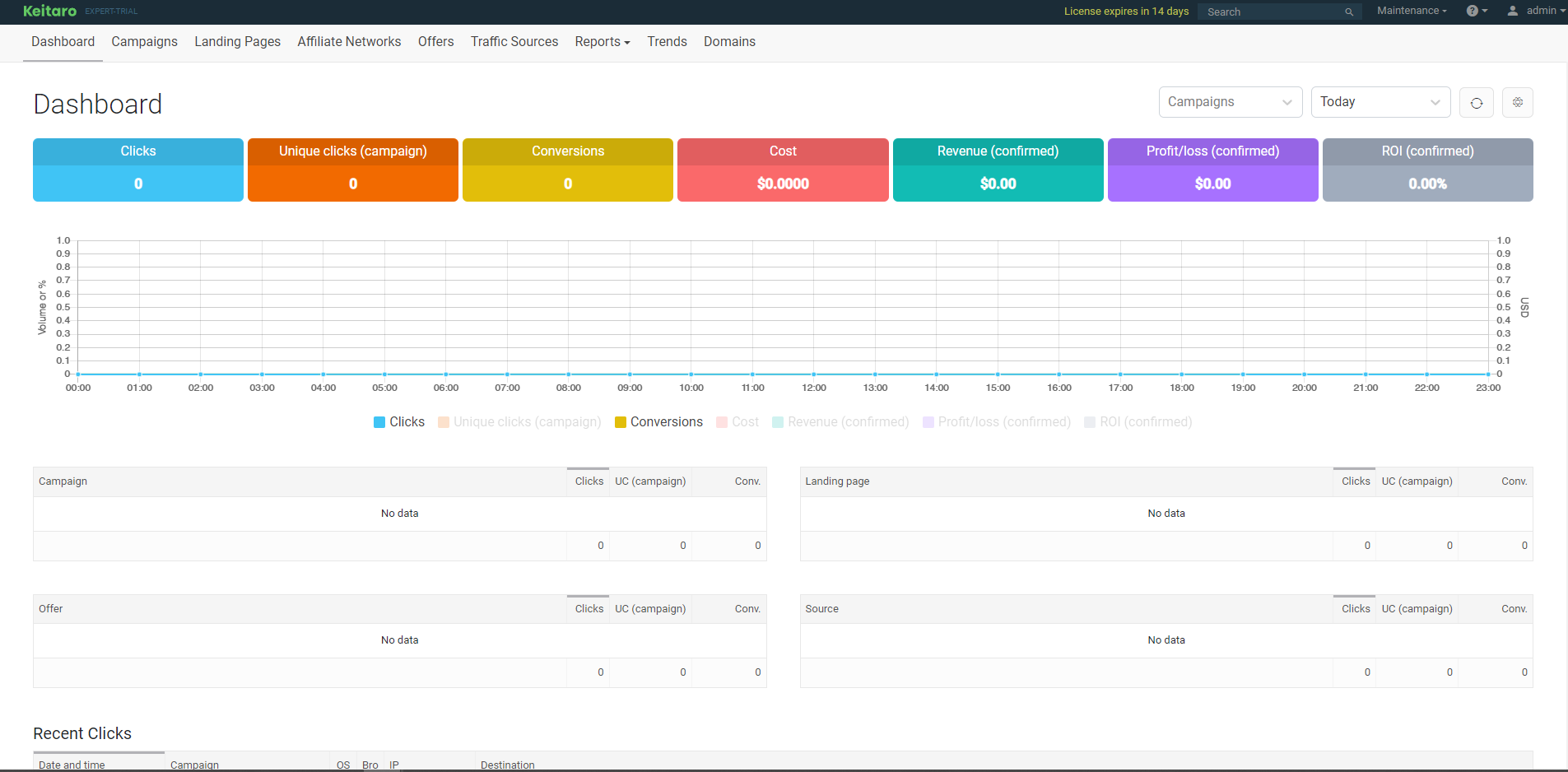
Keitaro dashboard after installation
5. Connect a domain
Campaign links and the tracker login are more convenient on your own domain than on an IP address. Keitaro will issue an SSL certificate for the domain by itself, for free.
- At your domain registrar, add an A record with the server's IP address. There should be only one such record, so delete any extra A, AAAA and CNAME records.
- In Keitaro, open the Domains section and click Add.
- Enter the domain in lowercase, because Keitaro doesn't process domains with capital letters.
- Once DNS has updated and the domain is connected, the tracker will open at
https://your-domain/admin.
Use a separate domain for Keitaro that isn't used by any other websites or services. You'll find more about the setup at different registrars in the Keitaro documentation.
If something went wrong
The installation ended with an error
First, check the system with cat /etc/os-release.
If it isn't CentOS Stream 9 or 10, reinstall the system and run the installation again.
If the system is correct, look at the end of the log with tail -n 100 /var/log/keitaro/install.log.
The tracker shows a 502 error or runs slowly
In Keitaro, open Maintenance → Status and check the load. If the server is running out of memory or CPU, switch to a higher plan, and your data and IP address will be kept. We explain how to tell which resources are lacking in the article about VPS hosting.
Keitaro doesn't see the new memory after a plan change
Update the server configuration in Maintenance → Update Keitaro. Don't reboot the server during the update, otherwise you may lose statistics.
The disk is full
The error Got error 28 from storage engine tells you about this. Set a statistics retention period in the Keitaro settings so that old clicks are deleted automatically, or switch to a plan with a bigger disk.
You need help from Keitaro support
The tracker's support team can log in to the server and sort things out themselves. Give them temporary access with kctl support-team-access allow, which lasts 5 days.
You can close access earlier with kctl support-team-access deny.
Our resources
Telegram channel: https://t.me/f3cloud_news
F3 Cloud: https://f3cloud.com