
n8n is an automation platform where workflows are built from blocks, like in Zapier or Make. On your own server n8n does not limit the number of runs, and your data and service keys stay with you. In this article we install n8n in Docker together with the Caddy web server, which gets a free HTTPS certificate by itself. We tested all commands on a test server with Debian 12, and the n8n version at the time of testing was 2.44.4.
How the installation works
The installation consists of two containers. The first runs n8n itself, which listens on port 5678 only inside Docker and is not exposed to the outside. The second runs Caddy, which accepts connections on ports 80 and 443, gets a Let's Encrypt certificate for your domain and passes requests to n8n. This setup matters for two reasons. Webhooks from many services, such as Telegram, do not work without HTTPS, and ports published by Docker directly bypass the UFW firewall, so n8n is safer behind Caddy.
One more detail that is rarely mentioned is the encryption key. n8n stores passwords and tokens of connected services encrypted with its own key. If the key is lost, for example when moving to another server, all saved connections have to be entered again. That is why we set the key ourselves and keep it next to the other settings.
What you will need
- A server with Debian 12 or Ubuntu 24.04 and at least 2 GB of memory. On the test server n8n took about 370 MB right after start, and a server with 1 GB had almost no free memory left, so for real workflows the DE-RZ9-1 plan or higher is a better fit. If you do not have a server yet, order one using this guide.
- A domain or subdomain pointing to the server IP address. If you have no domain, a free address like
203-0-113-10.sslip.iowill do for testing, with dashes instead of dots in the server IP. Such an address points to that IP by itself. - An SSH connection, for example via Termius. The commands below are run as
root.
1. Point the domain to the server
At your domain registrar, create an A record for the name you want, for example n8n.example.com, and set the server IP address in it. You can check that the record works on your computer.
# Should print your server IP address
nslookup n8n.example.com
Until the record points to the server, Caddy cannot get a certificate, so wait for the correct answer. This usually takes from a few minutes to an hour.
2. Install Docker
# Install Docker with the official script
curl -fsSL https://get.docker.com | sh

# Check the Docker and Compose versions
docker --version && docker compose version
3. Create a folder and the settings file
# Folder for n8n
mkdir -p /opt/n8n && cd /opt/n8n

# Settings file, the encryption key is generated right away
cat > .env <<EOF
DOMAIN=n8n.example.com
N8N_ENCRYPTION_KEY=$(openssl rand -hex 32)
GENERIC_TIMEZONE=Europe/Berlin
EOF

# Only root can read the file
chmod 600 .env
Put your own domain instead of n8n.example.com. The GENERIC_TIMEZONE variable sets the time zone n8n uses for scheduled workflows.
Save the .env file
It contains the encryption key. Copy the file contents with cat /opt/n8n/.env and keep them in a password manager. Without this key, the passwords and tokens saved in n8n cannot be recovered.
4. Create the Caddy file
cat > /opt/n8n/Caddyfile <<'EOF'
{$DOMAIN} {
    reverse_proxy n8n:5678
}
EOF
That is the whole Caddy configuration. It takes the domain from the .env file, gets a certificate for it and passes requests to the n8n container.
5. Create the docker-compose.yml file
cat > /opt/n8n/docker-compose.yml <<'EOF'
services:
  caddy:
    image: caddy:2
    restart: unless-stopped
    ports:
      - "80:80"
      - "443:443"
    environment:
      - DOMAIN=${DOMAIN}
    volumes:
      - ./Caddyfile:/etc/caddy/Caddyfile:ro
      - caddy_data:/data
      - caddy_config:/config

  n8n:
    image: docker.n8n.io/n8nio/n8n:stable
    restart: unless-stopped
    environment:
      - N8N_HOST=${DOMAIN}
      - N8N_PROTOCOL=https
      - N8N_PORT=5678
      - WEBHOOK_URL=https://${DOMAIN}/
      - N8N_ENCRYPTION_KEY=${N8N_ENCRYPTION_KEY}
      - GENERIC_TIMEZONE=${GENERIC_TIMEZONE}
      - TZ=${GENERIC_TIMEZONE}
      - NODE_ENV=production
    volumes:
      - n8n_data:/home/node/.n8n

volumes:
  caddy_data:
  caddy_config:
  n8n_data:
EOF
Note a few lines.
- The
n8n:stableimage points to the latest stable n8n version, at the time of testing it was 2.44.4. WEBHOOK_URLmakes n8n show your domain in webhooks instead oflocalhost.- n8n has no
portsline, so from outside it is reachable only through Caddy. - The
n8n_dataandcaddy_datavolumes keep the n8n data and the certificates, they are not lost when containers are updated.
6. Start n8n
cd /opt/n8n

# Download the images and start in the background
docker compose up -d

# Watch the n8n log, press Ctrl+C to stop watching
docker compose logs -f n8n
After 20–40 seconds the log shows the line Editor is now accessible via with your domain. This means n8n is ready. In the first seconds after start the site may answer with a 502 error while n8n is not yet accepting connections, that is normal.
7. Create the owner account straight away
Open https://your-domain in a browser. n8n shows the Set up owner account form, where you enter your email, first name, last name and password. The password must be at least 8 characters long, with a digit and a capital letter.
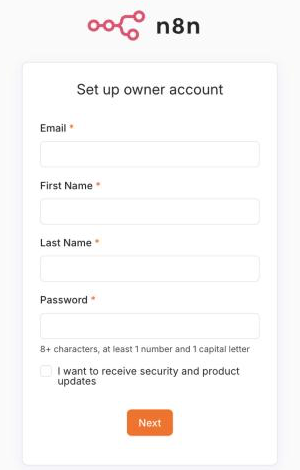
First login to n8n
Do not put off registration
Until the owner account is created, anyone can fill in this form. On our test server the first scanners from the internet came to the new address within seconds of the certificate being issued. Create the account right after the start, and then turn on two-factor authentication in your profile settings.
How to update n8n
cd /opt/n8n

# Download new images and restart the containers
docker compose pull && docker compose up -d
Data, workflows and the encryption key are kept, because they live in the n8n_data volume and the .env file. Before moving to a new major version, for example from 1.x to 2.x, read the list of changes on the n8n website and make a backup.
How to make a backup
All n8n data lives in a Docker volume. This command packs it into an archive in the /root folder.
# Archive of the volume with n8n data
docker run --rm -v n8n_n8n_data:/data -v /root:/backup alpine \
  tar czf /backup/n8n-backup.tar.gz -C /data .
Download the /root/n8n-backup.tar.gz archive together with the /opt/n8n/.env file. Without the .env file the archive can be restored, but the saved service passwords cannot be decrypted. If the installation folder is not called n8n, the volume name will differ, you can see it with docker volume ls.
If something does not work
The site answers with a 502 error
If n8n has just been started, wait a minute, it is still loading. If the error does not go away, look at the log with docker compose logs --tail 50 n8n. A common cause on servers with 1 GB of memory is that n8n runs out of memory and restarts.
The certificate is not issued, the browser complains about HTTPS
Look at the Caddy log with docker compose logs --tail 50 caddy. Most often the domain does not point to the server yet, or port 80, which Let's Encrypt uses to check the domain, is closed. Check the A record and, if UFW is on, open the ports with ufw allow 80/tcp && ufw allow 443/tcp.
Webhooks show localhost
This means n8n did not get the WEBHOOK_URL variable. Check that it is in the docker-compose.yml file and that the domain in the .env file has no typos, then restart the containers with docker compose up -d.
Service connections stopped working after moving to another server
The new server uses a different encryption key. Copy the old .env file with the original N8N_ENCRYPTION_KEY to the new server and restart n8n.
Our resources
Telegram channel: https://t.me/f3cloud_news
F3 Cloud: https://f3cloud.com