
The Permission denied error is familiar to everyone who works with a server. A website cannot save an uploaded image, a script will not run, and a program cannot read its own configuration file. The cause is almost always file permissions. In this article we look at how Linux decides who may read, change and run a file, learn to read permissions in the output of ls -l, change them with the chmod and chown commands and set the right permissions for a website. We ran all the examples on a test server with Debian 12.
How Linux checks permissions
Every file and every folder in Linux has an owner and a group. When a program tries to do something with a file, the system looks at which user the program is running as and puts that user into one of three categories. If it is the owner of the file, the owner's permissions apply. If it is not the owner but belongs to the file's group, the group's permissions apply. In all other cases the permissions for other users apply. The check goes strictly in this order and stops at the first matching category, so an owner with reduced permissions will not get more just because the group is allowed more.
Three permissions are set for each category. r allows reading, w allows changing, and x allows executing. For a regular file the meaning is obvious. Scripts and programs need the x permission, otherwise they cannot be run, while a text file or an image has no use for it. For a folder the same letters mean something different, and this is exactly where mistakes happen most often. The r permission on a folder lets you get the list of file names, w lets you create and delete files in it, and x lets you enter the folder and access the files inside. Without x, even the permission on the file itself will not help. Suppose the permissions of the file photo.jpg allow its owner to read it, but the uploads folder where it is stored has x removed. Then, when you try to open uploads/photo.jpg, the system stops at the folder, and the program gets Permission denied. We checked this on a test server, and as soon as x was given back to the folder, the file could be read right away.
It is convenient to write permissions as numbers. Each letter corresponds to a number, r is 4, w is 2 and x is 1, and the permissions of one category are the sum of these numbers. Read and write give 6, read and execute give 5, and all three together give 7. Three digits in a row set the permissions of the owner, the group and others. So 644 means that the owner can read and write while everyone else can only read, which are the usual permissions for website files. 755 gives the owner everything and everyone else reading and entry, which is how folders and scripts are usually set up. 600 leaves access to the owner only and suits files with passwords and keys.
There is one exception to all these rules. The root user skips the permission check and may read and change any file. That is why everything "works" as root, while the same program started as a regular user or as the web server runs into a denial. If something works in your terminal but not for the website, first check which user the website runs as and what permissions its files have.
1. Check the permissions
The ls -l command shows permissions. The -a option adds hidden files, whose names start with a dot.
ls -la
The first column shows the type and permissions, the third and fourth show the owner and group
Let's break down the line -rw-r--r-- 1 root root 12 Oct 21 11:55 index.html.
- The first character shows the type.
-is a file,dis a folder,lis a symbolic link. - The next three characters
rw-are the owner's permissions. The owner can read and change the file. - The three after them
r--are the group's permissions, and the group can only read. - The last three characters
r--are the permissions of other users. - root root is the owner and the group of the file.
If you prefer to see permissions as numbers, use the stat command.
stat -c "%a %U:%G %n" *2. Change permissions with chmod
Permissions can be set with numbers or with letters. Numbers are handy when you know exactly what the final permissions should be, and letters when you need to add or remove one permission without touching the others.
# Allow the script to run
chmod +x backup.sh

# The file with passwords is accessible to the owner only
chmod 600 .env

# A folder that only the owner and the group can enter
chmod 750 uploads
backup.sh became executable, and .env is closed to everyone except the owner
In the letter notation u stands for the owner, g for the group, o for others and a for everyone at once. The + sign adds a permission, - removes it, and = sets it exactly.
# Remove read permission from others
chmod o-r file

# Set permissions exactly, the same as the number 750
chmod u=rwx,g=rx,o= uploads
The -R option changes the permissions of a folder and everything inside it. Use it carefully, because it sets the same permissions on both folders and files.
3. Change the owner with chown
The chown command changes the owner and the group. You give the user first and then the group, separated by a colon, and -R applies the change to everything inside the folder.
chown -R www-data:www-data /var/www/site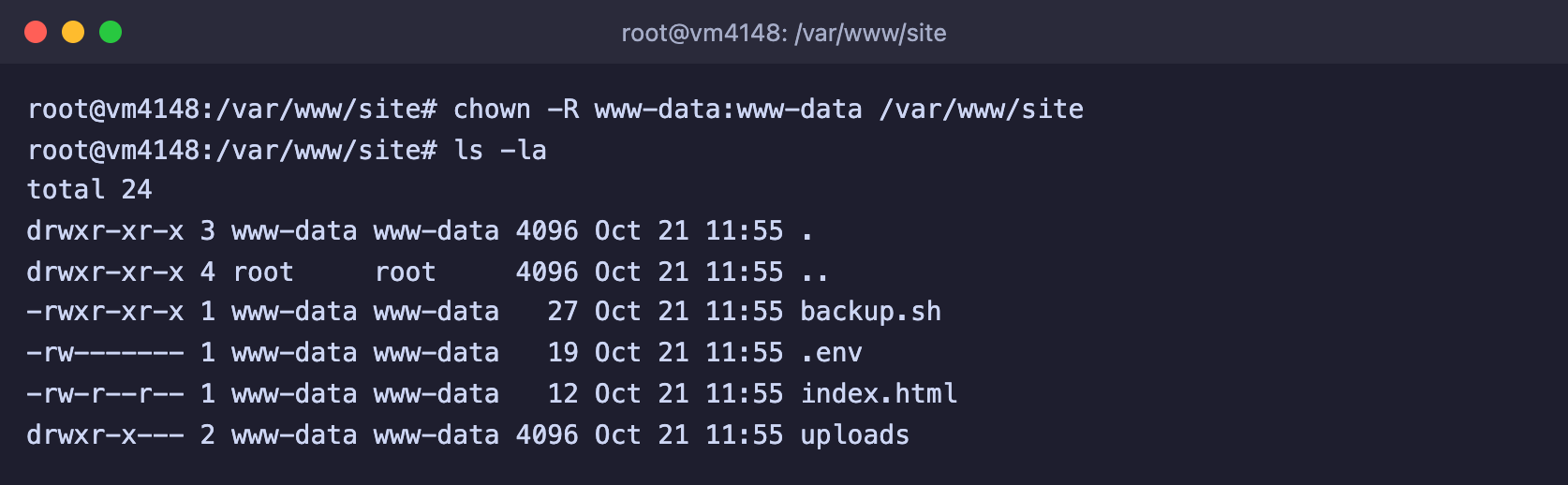
All website files now belong to the www-data user
www-data is the user that Nginx and Apache run as in Debian and Ubuntu. If the website has to save files by itself, for example upload images to the uploads folder, that folder must belong to this user. Only root can change the owner, and a regular user will get the Operation not permitted error.
4. Set the right permissions for a website
A simple rule is usually enough for a website. Folders get 755, files get 644, and the web server user is made the owner. You can do this for the whole website with two find commands that find folders and files separately.
find /var/www/site -type d -exec chmod 755 {} +
find /var/www/site -type f -exec chmod 644 {} +
Restore permissions for the exceptions
The commands above give all files the same 644. On the test server, after running them, the .env file with a password became readable by all users again, and the backup.sh script stopped running. So right after a bulk permission change, restore the exceptions, for example with chmod 600 .env and chmod +x backup.sh.
Why you should not use 777
The 777 permissions allow every user on the server to read, change and run a file. The Permission denied error really does go away after that, which is why this advice is so common on the internet. But the protection goes away together with the error. If any website or program on the server is hacked, the attacker will be able to change your files as well, for example by inserting malicious code into your website's pages. Instead of 777, find out which user the program runs as and make that user the owner of the folder in question with the chown command.
Frequently asked questions
Permission denied when running a script
The file does not have the execute permission. Add it with chmod +x script.sh and run the script as ./script.sh. Another option is to run the script through an interpreter, for example bash script.sh, in which case the x permission is not needed.
The file permissions are correct, but Permission denied remains
Check the permissions of all folders on the path to the file. Each of them needs the x permission for the user the program runs as. The easiest way to see this is the namei -l /full/path/to/file command, which shows the permissions of every folder along the path.
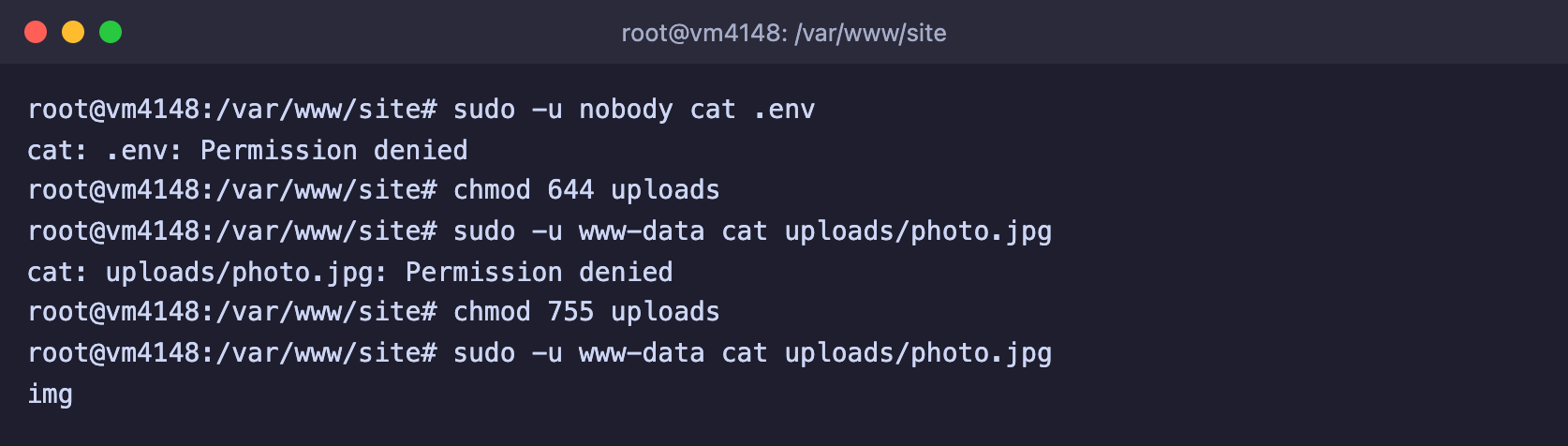
Without x on the folder, even the owner cannot open a file inside
chown: changing ownership: Operation not permitted
Only root can change the owner of a file. Run the command as root or with sudo.
What permissions new files get
The permissions of new files are determined by the umask mask. On the test server it is 0022, so new files get 644 permissions and new folders get 755. You can view the mask with the umask command.
Our resources
Telegram channel: https://t.me/f3cloud_news
F3 Cloud: https://f3cloud.com