
You have reinstalled the system on your server and try to connect via SSH, but instead of asking for a password the terminal prints a frame of @ symbols and the alarming message WARNING: REMOTE HOST IDENTIFICATION HAS CHANGED!, then drops the connection with the words Host key verification failed. It looks scary, but in most cases the cause is harmless. In this article we look at where the warning comes from, how to make sure everything is fine and how to get rid of it with a single command. We tested all commands on a test server.

This is what the error looks like, the server IP address is hidden in the screenshot
Why the warning appears
When you connect to a server via SSH, the connection is encrypted even before you enter your password. However, encryption by itself does not guarantee that it is really your server on the other end. Imagine that someone in the network between you and the server has intercepted the connection and is pretending to be the server. You will set up an encrypted channel, only not with the server but with the interceptor, and calmly send it your password. To keep such a substitution from going unnoticed, every server has its own pair of host keys. The private key is stored on the server in the /etc/ssh/ directory, while the public one is presented by the server to everyone who connects to it, and the server proves that it really holds the matching private key.
That leaves the question of how your computer knows which key is the right one. The answer is simple. It remembers the key on the first connection. When you log in to a server for the first time, SSH shows the fingerprint of its key, a short string like SHA256:ku3PZ…, and asks whether you trust it. After you answer yes, the key is written to the known_hosts file on your computer next to the server's IP address. On every following connection SSH compares the key the server presented with the one recorded in this file. As long as they match, no questions come up.
The warning appears exactly when the keys stop matching. SSH cannot work out the reason by itself, so it lists both possibilities. The first one is alarming. The connection has been intercepted, and someone else's server is answering you. The second one is mundane. The server's key really has changed. Most often this happens after reinstalling the operating system. On its first start the new system generates new host keys, while your computer still remembers the old ones. The same thing happens if the IP address you used to connect to now belongs to a different server. Since sending a password in such a situation is dangerous, SSH prefers to drop the connection and leave the decision to you.
1. Make sure the key changed for a clear reason
If you have just reinstalled the system on this server, the reason is clear and you can go straight to the next step. If you have not changed anything and the warning appeared anyway, check the key fingerprint on the server itself. You can reach the server without SSH through the VNC console in the client area. Log in there as root and run the command.
ssh-keygen -lf /etc/ssh/ssh_host_ed25519_key.pub
The fingerprint of the key stored on the server itself
Compare the fingerprint after SHA256: with the one shown in the warning on the line The fingerprint for the ED25519 key sent by the remote host is. On the test server they matched, which means it was our own server answering, just with a new key.
The fingerprints do not match
If the key on the server differs from the one that came during the connection, do not enter your password and do not remove the old key. Try connecting from another network, for example over mobile internet, and contact support.
2. Remove the old key
The old server record is removed with a single command. Replace SERVER_IP with the address you are connecting to.
ssh-keygen -R SERVER_IPThe command works the same way on Windows, macOS and Linux.
- Windows. Open PowerShell or Command Prompt. The keys are stored in the
C:\Users\Username\.ssh\known_hostsfile. - macOS and Linux. Open Terminal. The keys are stored in the
~/.ssh/known_hostsfile.
In response, the command tells you which line the server was found on and saves a copy of the previous file ending in .old.
If SSH on your server runs on a port other than 22, write the address together with the port in square brackets and wrap it in quotes, for example like this.
ssh-keygen -R "[SERVER_IP]:2222"3. Connect again
Connect to the server as usual. SSH will say that it does not know this server, show the fingerprint of the new key and ask whether to continue connecting.
ssh root@SERVER_IPType yes and press Enter. The new key will be written to known_hosts, and SSH will ask for the server password.
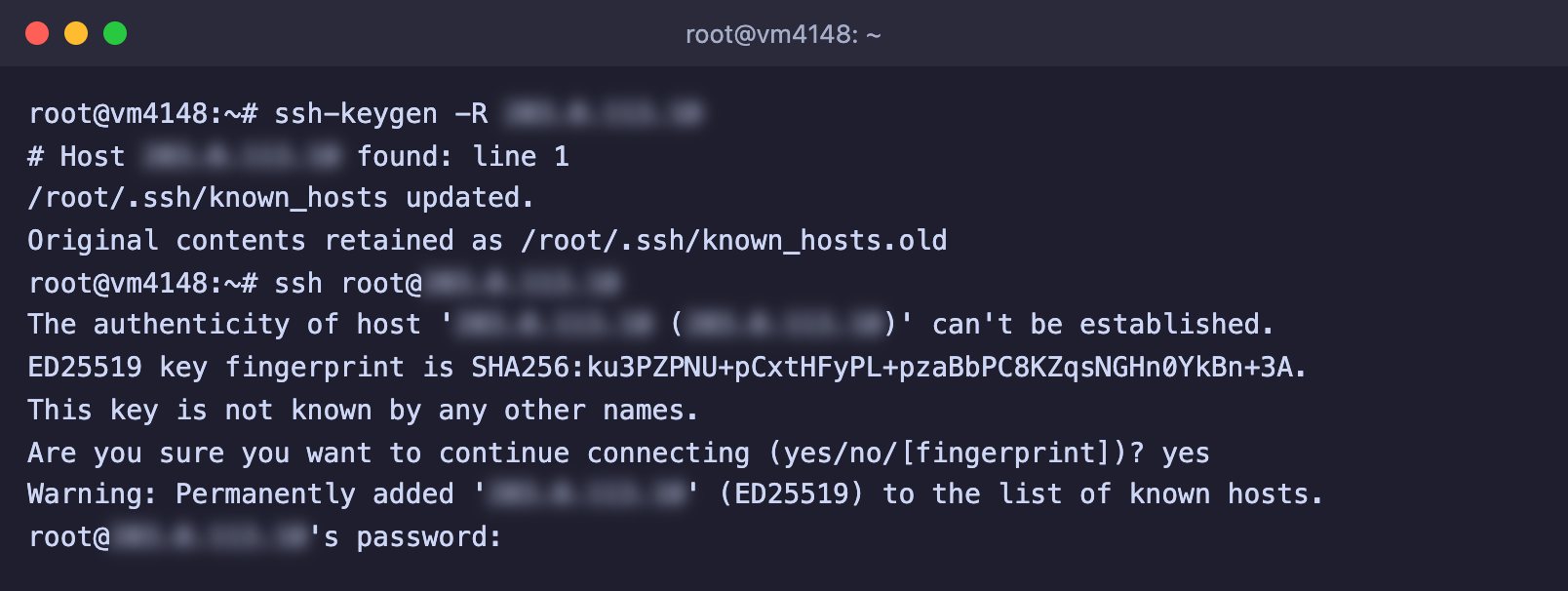
The old key is removed, and the new one is accepted after answering yes
If you connect via PuTTY or Termius
PuTTY stores server keys in the Windows registry rather than in the known_hosts file, so the ssh-keygen -R command does not affect it. When the key changes, PuTTY shows its own window titled WARNING - POTENTIAL SECURITY BREACH! with the text The server's host key does not match the one PuTTY has cached for this server. If you are sure the key changed because the system was reinstalled, accept the new key in this window, and PuTTY will remember it instead of the old one.
In Termius and other programs with their own list of servers, do the same. If the program warns that the key has changed and you know the reason, accept the new key in its window. How to connect via Termius is explained in a separate article.
Frequently asked questions
Offending ED25519 key in known_hosts, but ssh-keygen -R does not help
The server may be recorded in known_hosts several times, for example by IP address and by domain name. Remove both entries.
ssh-keygen -R SERVER_IP
ssh-keygen -R your-domain.com
The end of the Offending … key in line shows the line number in the file, for example known_hosts:3. If you prefer, open the file in a text editor and delete this line manually.
Host key verification failed without the warning frame
This happens when SSH runs without a way to ask a question, for example from a script or a deployment tool, and the server is not yet known to it. Connect to the server manually in the terminal once and confirm the key by answering yes, and after that the script will work.
Can I simply turn off this check
Technically you can, but you should not. The StrictHostKeyChecking no option makes SSH silently accept any key, and then you will not find out about an intercepted connection if it ever happens. Removing one outdated key is faster and safer.
How to stop getting this warning after every reinstall
After a reinstall the server keys are always new, so the warning will appear again, and this is normal and useful behavior. It is enough to run ssh-keygen -R with the server address each time. How to reinstall the system is explained in the article on reinstalling the OS.
Our resources
Telegram channel: https://t.me/f3cloud_news
F3 Cloud: https://f3cloud.com