
Screen is a program that keeps your commands running even after you disconnect from the server. Normally, if you close the SSH window or your internet connection drops, everything running in the terminal stops. Inside Screen the process keeps running, and you can come back to it later from any device.
Screen comes in handy when you need to run a long task, such as a system update, a backup or a Telegram bot, and also when you want to keep several terminals in one connection.
Installation
# Install Screen from the standard repository
apt-get install -y screenYou can check that everything is installed with screen --version.
How the controls work
Inside Screen, every action is a key combination, and each one starts with Ctrl + A. First press Ctrl + A, release both keys and only then press the letter you need. For example, “Ctrl + A, then d” detaches you from the session.
Letter case matters
Uppercase and lowercase letters give different commands. For example, Ctrl + A, then Shift + S splits the screen.
A lowercase s freezes the output in the window.
If the window stops responding, press Ctrl + A, then q. Keep an eye on your keyboard layout and Caps Lock.
1. Create a session
Start Screen and give the session a clear name straight away, so that it is easy to find later.
# Create a session named backup
screen -S backup
A clean terminal opens, and this is already a window inside Screen. Run the command you need in it. In our example it is ping, which keeps running until someone stops it.
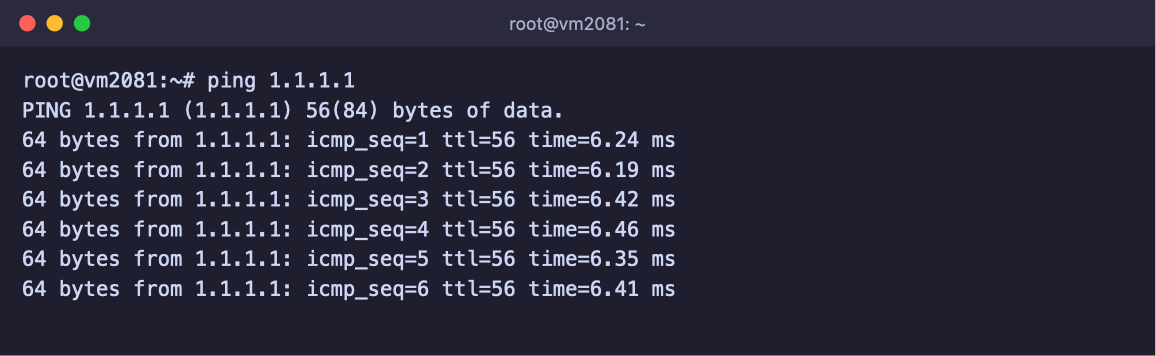
The command is running inside the backup session
2. Detach from the session
Press Ctrl + A, then d. You will return to the normal terminal and see a message like [detached from 5084.backup].
The command inside the session keeps running. You can now safely close SSH and turn off your computer.
3. View the list of sessions
# Show all Screen sessions on the server
screen -ls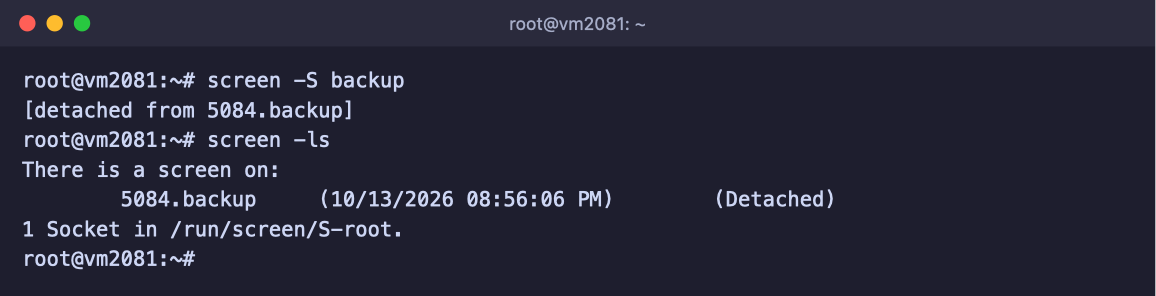
Detaching from a session and the list of sessions
The list shows the number and name of each session, for example 5084.backup, when it was created and its state:
- Detached – nobody is connected to the session right now, and it is running in the background;
- Attached – someone is connected to the session right now.
4. Return to the session
# Connect to the backup session
screen -r backup
The same window opens where you left off, and the command carries on as if nothing had happened. If there is only one session, you can leave out the name and simply type screen -r.
If you are already connected to the session from another window, for example because the connection dropped and the old one has “hung”, use the command below.
# Detach the session from the old connection and reconnect
screen -d -r backup
And to watch one session from two places at once, for example together with a colleague, connect with screen -x backup.
5. Work with several windows
One session can hold several windows, and you can switch between them like tabs.
- Ctrl + A, then c – create a new window.
- Ctrl + A, then Shift + A – rename the current window.
- Ctrl + A, then " – open the list of windows. Choose a window with the arrow keys and press Enter.
- Ctrl + A, then n or p – go to the next or previous window.
- Ctrl + A, then a digit from 0 to 9 – go to the window with that number.
- Ctrl + A, then k – close the current window.
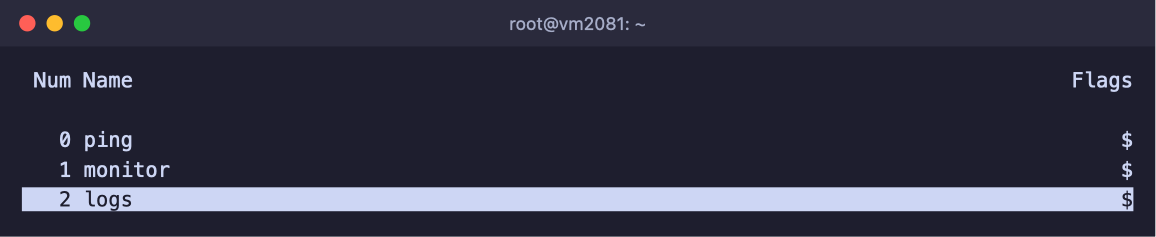
The list of windows in one session
6. Split the screen
Screen can show several windows at the same time. For example, a long command runs on the left while the right side shows the server load.
- Press Ctrl + A, then | to split the screen vertically, or Ctrl + A, then Shift + S to split it horizontally.
- Move to the new half with Ctrl + A, then Tab.
- The new half is empty. Open a window in it by pressing Ctrl + A and the window number, or create a new one with Ctrl + A, then c.
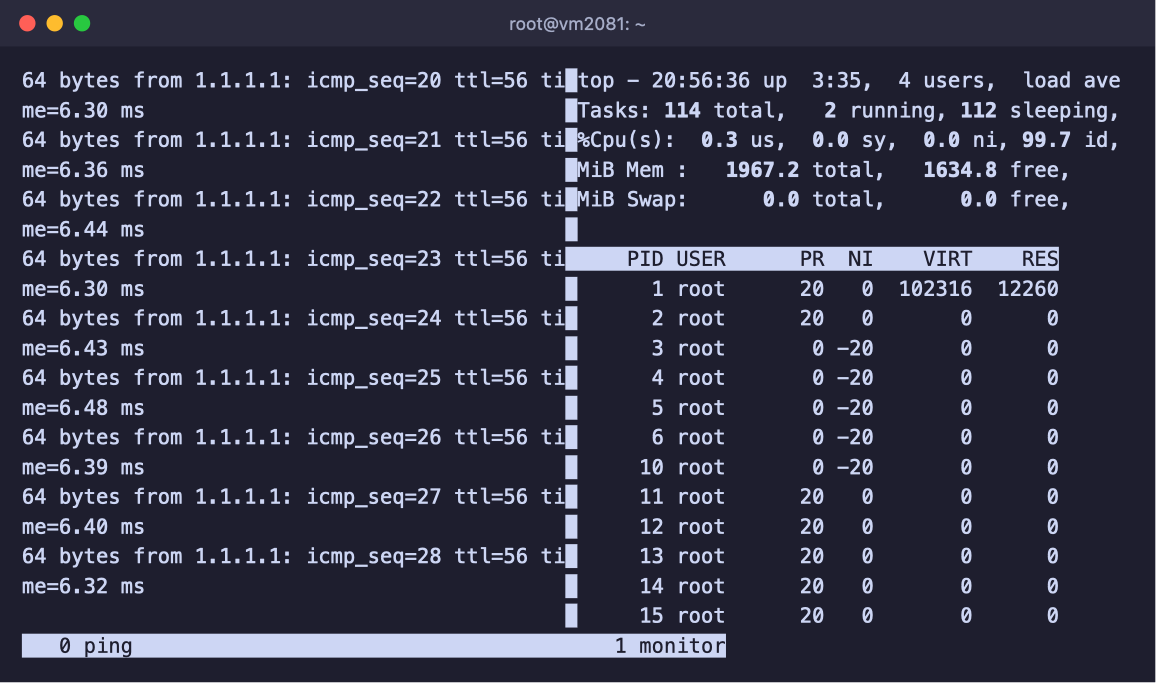
ping runs on the left, top on the right
To close the current half, press Ctrl + A, then Shift + X.
To keep only the current half, press Ctrl + A, then Shift + Q.
The windows themselves stay open.
7. End the session
When the task is done, close all the windows with exit, and the session will end on its own. You can also end the whole session from outside, without connecting to it.
# Close the backup session together with all its windows
screen -S backup -X quit
Useful tricks
Starting straight in the background
To run a command in Screen without entering the session, use the -dm flags. This is handy for starting bots and scripts.
# Create the bot session and run a script in it without connecting to it
screen -dmS bot python3 bot.py
Scrolling up
The mouse wheel usually does not scroll through the history inside Screen. Press Ctrl + A, then [, and scroll with PgUp and PgDn or the arrow keys. To leave scroll mode, press Esc.
Saving the output to a file
If you start Screen with the -L flag, everything that appears in the window will be saved to the screenlog.0 file in the current folder.
Cheat sheet
| Command | What it does |
|---|---|
screen -S name | Create a session with a name |
screen -ls | Show all sessions |
screen -r name | Return to a session |
screen -d -r name | Take a session over from an old connection |
screen -x name | Join a session together with someone else |
screen -dmS name command | Run a command in a background session |
screen -S name -X quit | End a session |
| Ctrl + A, d | Detach without stopping the commands |
| Ctrl + A, c | New window |
| Ctrl + A, " | List of windows |
| Ctrl + A, n / p | Next and previous window |
| Ctrl + A, | / Shift + S | Split the screen |
| Ctrl + A, Tab | Move to another part of the screen |
| Ctrl + A, [ | Scroll through the history |
| Ctrl + A, ? | Help on all key combinations |
Frequently asked questions
It says “There is no screen to be resumed matching”
There is no session with that name. Check the exact name with screen -ls. If the list is empty, the session has already ended, for example because the command in it finished or the server was rebooted.
The session is in the list, but screen -r does not connect
If the session is marked Attached, another window is already connected to it, and often it is an old connection that dropped. Connect with screen -d -r name, which detaches the old window and opens the session for you.
Will the sessions survive a server reboot?
No. A reboot stops all Screen sessions and the commands running in them. For programs that must run all the time and start on their own after a reboot, it is better to set up a systemd service.
Ctrl + A no longer moves the cursor to the start of the command line
Screen intercepts this key combination. To send Ctrl + A itself to the program in the window, press Ctrl + A, then a.
How is Screen different from tmux?
Both programs do the same job. Screen is simpler and familiar to many administrators.
tmux is newer and more flexible to configure.
Either of them is enough to keep a command running after you disconnect from SSH.
Our resources
Telegram channel: https://t.me/f3cloud_news
F3 Cloud: https://f3cloud.com