
A web server, a database, Docker and SSH run on a server all the time, start by themselves after a reboot and come back up if they crash. This is the job of systemd, and you control it with the systemctl command. In this article we look at how services work, learn to start, stop and restart them, check their status and logs, and then create our own service for a script or bot so that it runs around the clock without an open terminal. We tested all commands on a test server with Debian 12.
How systemd manages services
When a server is switched on, the Linux kernel starts the very first process, the one with number 1. In Debian, Ubuntu and most modern distributions, this process is systemd. Its job is to start everything else in the right order and then keep watch over what is running until the server shuts down. Everything systemd manages is described in small text files called units. A service unit has the .service extension and tells systemd which program to run, under which user, after which other services and what to do if the program exits.
When systemd starts a service, it places the service process and every process it spawns into a separate group. Thanks to this, the system knows exactly which processes belong to the service. The stop command terminates all of them, not just the main one, and the service status shows how much memory and CPU time the whole group uses. Nothing the program prints to the console gets lost, since systemd passes it to the system journal, where you can later read it with the journalctl command. That is why a program running as a service does not need an open terminal. It does not depend on whether you are connected over SSH or not.
It is important to tell apart two independent actions here. To start a service means to run it right now. To enable a service means to make systemd start it at every boot of the server. You can start a service without enabling it, and then it will not come back up after a reboot. You can enable it without starting it, and then it will begin to work only after the next boot. In practice you most often need both actions at once, and that is what the --now option is for.
The last thing worth understanding is restarting after a failure. If the unit contains Restart=always, systemd notices that the process has exited, waits for the specified pause and starts it again. We checked this on a test server. The process of our service was forcibly killed, and five seconds later, just as the settings specified, systemd brought it back up.
1. Check the service status
The status shows whether the service is running, whether it is enabled at boot, the main process, memory usage and the last lines of the log.
systemctl status nginx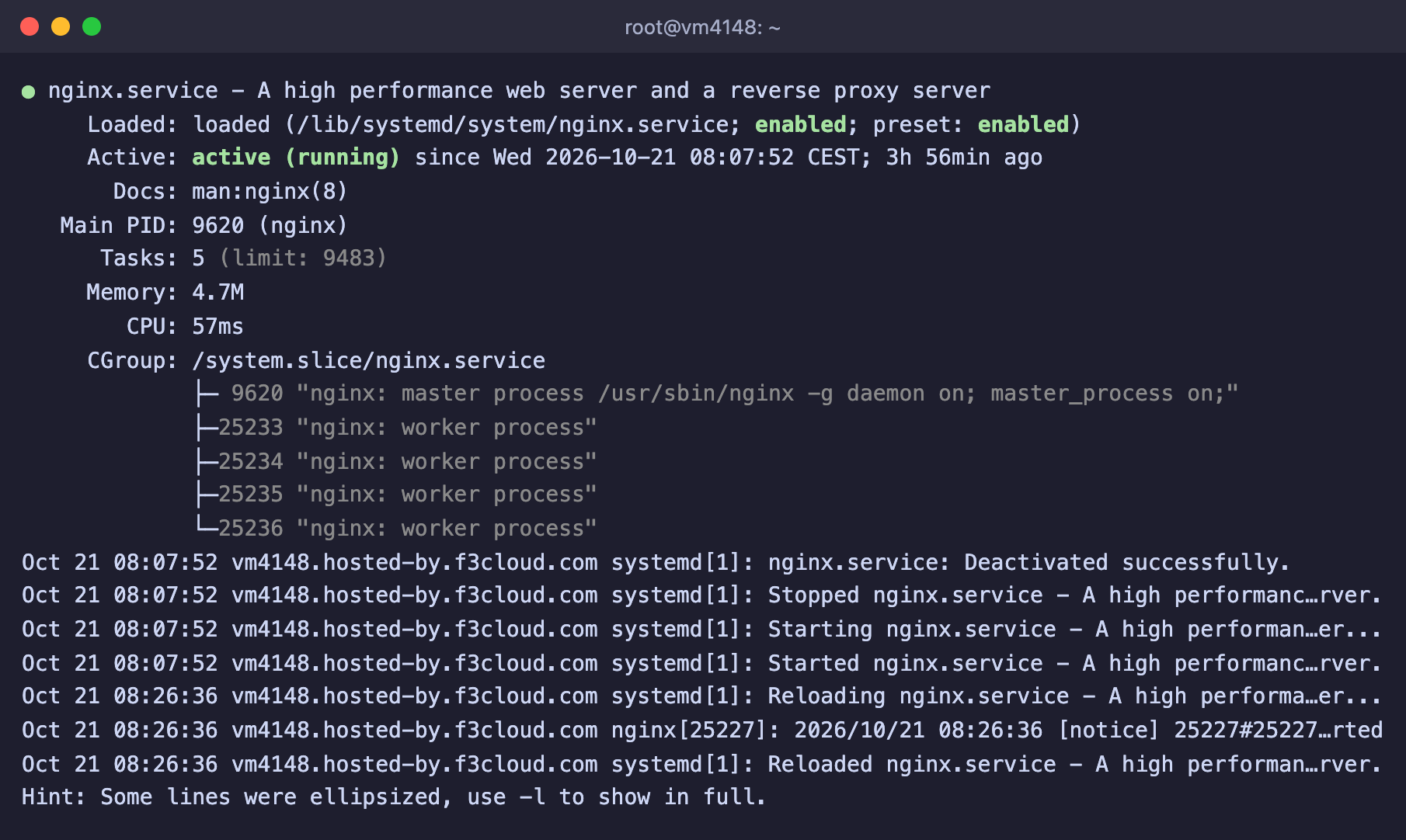
The nginx service is running and enabled at boot
The most important part here is in the first lines.
- Loaded shows where the unit file is located and, after
;, the autostart state,enabledordisabled. - Active shows the current state.
active (running)means the service is running,inactive (dead)means it is stopped, andfailedmeans it has crashed. - Main PID is the number of the main process.
If the output does not fit on the screen, systemctl opens it in a pager, and you exit it with the q key.
2. Manage the service
systemctl start nginx      # start
systemctl stop nginx       # stop
systemctl restart nginx    # restart
systemctl reload nginx     # reload the settings without stopping, if the service supports it

systemctl enable nginx     # enable autostart
systemctl disable nginx    # disable autostart
systemctl enable --now nginx   # enable autostart and start right away
Short commands are handy for checking separately whether the service is running and whether it is enabled. They also come in useful in scripts.
systemctl is-active nginx
systemctl is-enabled nginx
Two commands show the list of all running services and of those that have failed.
systemctl list-units --type=service --state=running
systemctl --failed
3. View the service logs
Everything a service prints to the console is kept in the systemd journal.
# Last 50 lines of the service log
journalctl -u nginx -n 50

# Follow the log in real time, exit with Ctrl+C
journalctl -u nginx -f

# Entries from the last hour
journalctl -u nginx --since "1 hour ago"
4. Create your own service
Say you have a Python script, for example a Telegram bot, that has to run around the clock. If you start it in a terminal, it stops as soon as you disconnect from the server. Let's create a service for it.
Create a separate user for the bot that is not allowed to log in to the server. This way the bot will not get extra rights even if a vulnerability is found in it.
bashuseradd -r -s /usr/sbin/nologin appuserPut the script in a folder, for example
/opt/mybot/bot.py, and make this user the owner of the folder.bashchown -R appuser:appuser /opt/mybotCreate the unit file.
bashnano /etc/systemd/system/mybot.servicePaste the following content into it and save the file with Ctrl + O, then Enter and Ctrl + X.
ini[Unit] Description=My Telegram bot After=network-online.target Wants=network-online.target [Service] User=appuser WorkingDirectory=/opt/mybot ExecStart=/usr/bin/python3 /opt/mybot/bot.py Restart=always RestartSec=5 [Install] WantedBy=multi-user.targetTell systemd about the new file, enable and start the service, then check its status.
bashsystemctl daemon-reload systemctl enable --now mybot systemctl status mybot
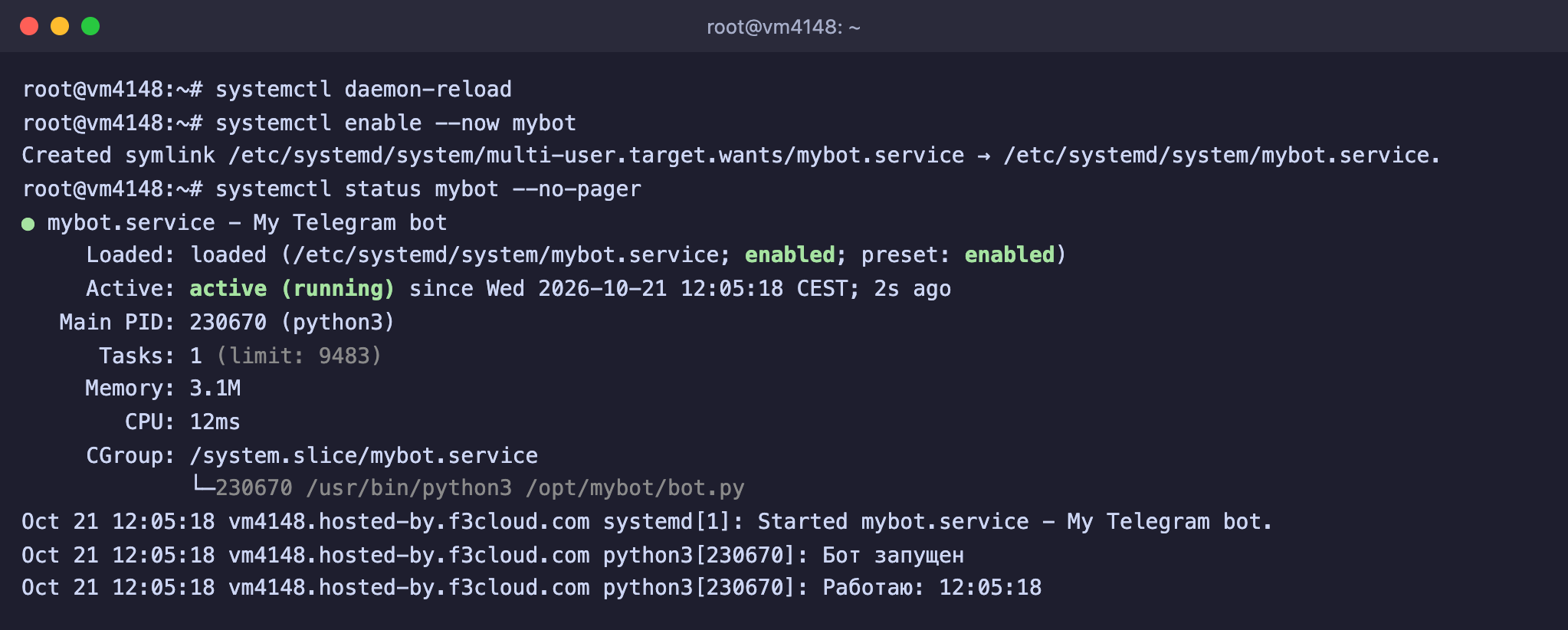
Your own service is running, and the script output already shows up in the log
Let's go through what the lines of the unit mean.
- After and Wants with the value
network-online.targethold back the start until the network is up on the server. A bot has nothing to do without a network. - User sets the user under which the script runs.
- WorkingDirectory is the folder where the script will look for its files.
- ExecStart is the start command. The path to the program is given in full, for example
/usr/bin/python3. You can find it with thewhich python3command. - Restart=always and RestartSec=5 restart the script 5 seconds after any exit.
- WantedBy=multi-user.target is needed for autostart when the server boots.
To make sure the automatic restart works, we forcibly killed the bot process. The log shows how systemd registered the crash and started the bot again five seconds later.
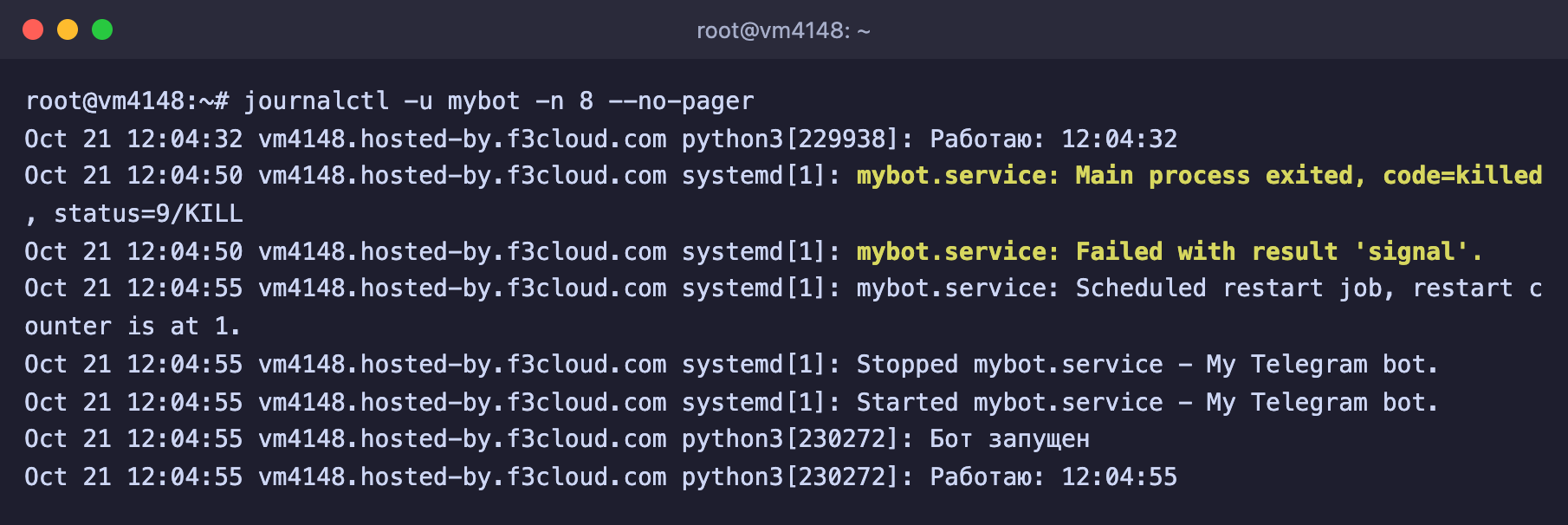
The process was killed at 12:04:50 and is running again at 12:04:55
After every change to the unit
If you have edited the .service file, run systemctl daemon-reload and then systemctl restart mybot. Without the first command, systemd will keep using the old version of the file. You can check the unit for errors with the systemd-analyze verify /etc/systemd/system/mybot.service command.
Frequently asked questions
status=203/EXEC
systemd could not start the program from the ExecStart line. We got this error by specifying the non-existent path /usr/bin/python instead of /usr/bin/python3. Check the path with the which command, and if you run your own script directly, make sure it has the execute permission and a first line like #!/usr/bin/env python3.

Wrong path to the program in ExecStart
Unit mybot.service could not be found
systemd does not know about the file. Check that it is located in /etc/systemd/system/ and has the same name you use in the command, and after creating the file run systemctl daemon-reload.
The service keeps restarting
The program starts and crashes right away, and Restart=always brings it back up. Look for the reason in the log with journalctl -u mybot -n 50. Most often it is an error in the script itself, a missing library or a lack of permissions on files. Permissions are covered in detail in the article about chmod and chown.
How to remove your own service completely
systemctl disable --now mybot
rm /etc/systemd/system/mybot.service
systemctl daemon-reload
Our resources
Telegram channel: https://t.me/f3cloud_news
F3 Cloud: https://f3cloud.com