
Speedtest shows how fast a server downloads data from the nearest network node, but you often need something else. For example, you may want to find out how fast backups will travel between two of your servers, or check whether a website migration is held back by the connection. For measurements like these, people use iperf3. It sends data between two points that you choose yourself and shows how much actually gets through the link. In this article we look at how the measurement works, install iperf3, test the bandwidth to a public server and between your own servers, and learn to read the result. We made all measurements on a test server with Debian 12.
What iperf3 measures and how
iperf3 consists of two parts, a server and a client, and both are the same program started in different modes. The server is started on one machine, opens port 5201 and waits for a connection. The client is started on the other machine, connects to the server and, for a set period of time, 10 seconds by default, sends data as fast as the network allows. Both sides count how many bytes got through each second, and at the end they print the average speed. What matters is that the data is generated in memory and is not written anywhere, so the disk speed does not affect the result. It is the network itself that gets measured.
The speed of a TCP connection depends on more than just the bandwidth of the link. The sender cannot keep sending data endlessly without acknowledgements. It sends a portion, waits for a reply and only then widens its sending "window". The farther apart the servers are and the higher the latency, the longer each acknowledgement takes and the more slowly a single connection picks up speed. Besides, if packets are lost along the way, TCP treats this as a sign of congestion and slows down. iperf3 shows the number of retransmissions in the Retr column. That is why on long routes a single connection often cannot fill the whole link, and in that case a measurement with several parallel streams helps.
One more detail concerns the direction. By default the data goes from the client to the server, which means you are measuring the upload speed of your own machine. To measure the speed in the opposite direction, use the -R mode, in which the server does the sending. On our test server these two directions gave different numbers, and that is normal, because the paths and the load on the links in each direction are not the same.
1. Install iperf3
apt update && apt install -y iperf3During installation Debian asks Start Iperf3 as a daemon automatically?, that is, whether to run iperf3 as a permanent service. Answer No. The iperf3 server is needed only for the duration of a measurement, and there is no reason to keep it open all the time.
If you are going to measure between two of your servers, install iperf3 on both.
2. Test the bandwidth to a public server
The quickest way to test a server is to measure the speed to a public iperf3 server. We used the ping.online.net server in Paris, which accepts connections on ports 5200 to 5209.
# Upload, the data goes from your server
iperf3 -c ping.online.net -p 5200 -t 10

# Download, the data goes to your server
iperf3 -c ping.online.net -p 5200 -t 10 -R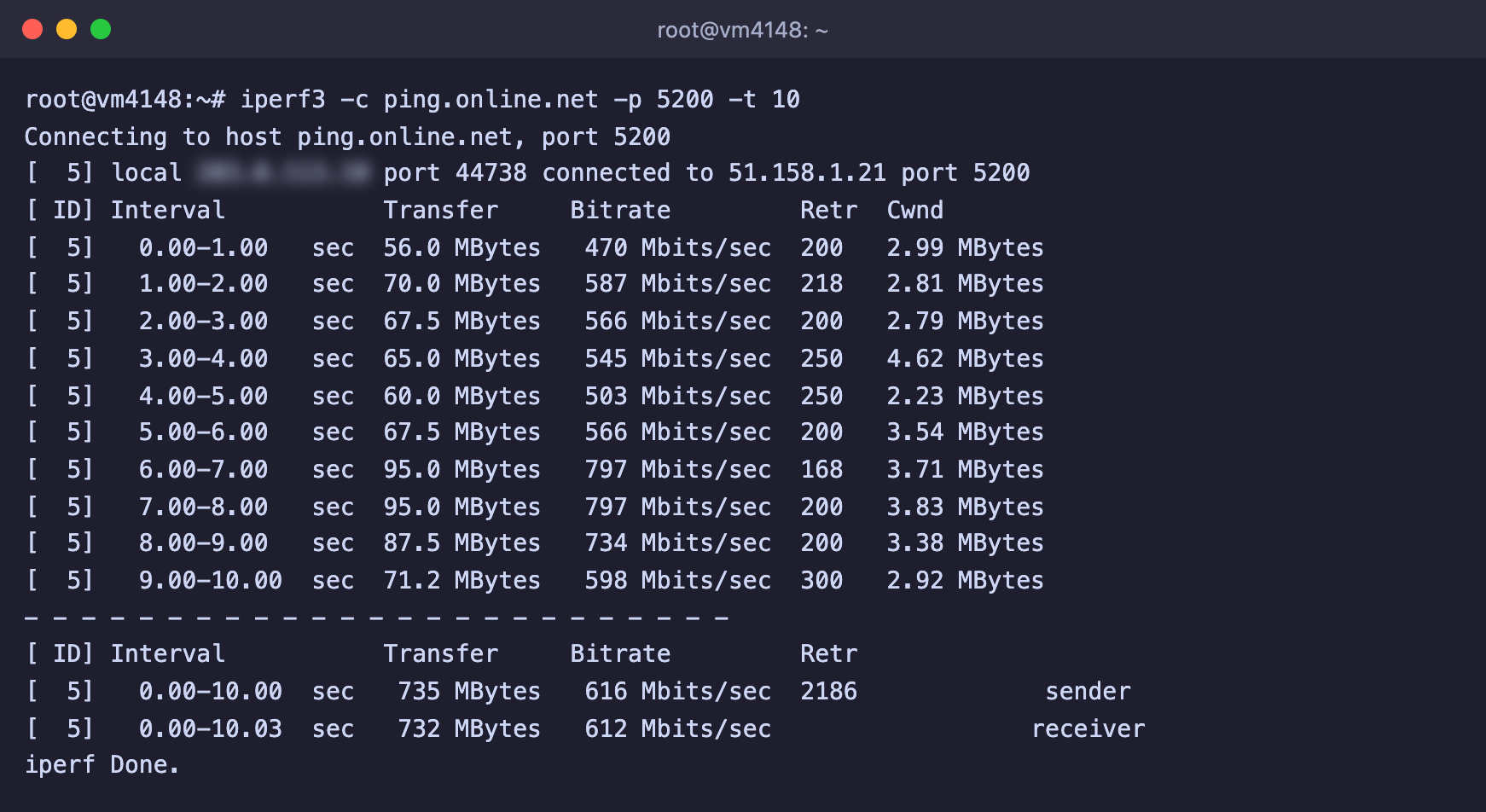
Upload from the test server, 612 Mbit/s on average

Download to the test server, 761 Mbit/s on average
The most important part of the output is the two summary lines below the dashed line.
- sender shows how much the sending side sent.
- receiver shows how much reached the receiving side. This is the one to go by.
- Bitrate is the average speed over the whole measurement.
- Retr shows how many packets had to be sent again.
The lines above the summary show the speed for each second. If it jumps around a lot, the link is unevenly loaded or packets are being lost along the way.
The public server may be busy
A public server handles one measurement at a time. If you get the error the server is busy running a test, try another port from the 5200–5209 range or repeat the measurement in a minute.
3. Test the bandwidth between your own servers
If you need to find out the speed between two of your servers, for example before moving data, start iperf3 in server mode on one of them.
iperf3 -sThe server starts listening on port 5201 and waits for connections until you stop it with Ctrl + C. If the UFW firewall is enabled on this server, open the port temporarily.
ufw allow 5201/tcpOn the second server, start the client and specify the IP address of the first one.
# Speed from the second server to the first
iperf3 -c FIRST_SERVER_IP -t 10

# And in the opposite direction
iperf3 -c FIRST_SERVER_IP -t 10 -R

# With four parallel streams
iperf3 -c FIRST_SERVER_IP -t 10 -P 4
After the measurement, stop the iperf3 server and close the port with ufw delete allow 5201/tcp.
Do not measure on a single server
A measurement where the client and the server run on the same machine, for example iperf3 -c 127.0.0.1, shows the speed of data transfer within memory, not over the network. On the test server such a measurement gave 30.1 Gbit/s, and this number has nothing to do with the real link.
Useful options
-t 30     # measurement duration in seconds
-P 4      # several parallel streams
-R        # reverse direction, the server sends to the client
-p 5202   # a different port
-u -b 100M  # UDP measurement at a set rate of 100 Mbit/s
-4 or -6    # force IPv4 or IPv6
Frequently asked questions
iperf3: error - the server is busy running a test. try again later
The iperf3 server is already running someone else's measurement, and it handles only one at a time. This is common on public servers. Try another port that the server supports, or repeat in a minute.
iperf3: error - unable to connect to server: Connection refused
Nothing is listening on that address and port. Check that the iperf3 -s command is running on the first server and that the port is specified correctly.
The connection hangs and ends with a timeout
Most likely the port is closed by a firewall. Open port 5201 on the server where iperf3 -s is running, as shown above.
The speed is lower than expected
- Run a measurement with several streams using the
-P 4option. If the total speed is noticeably higher, a single connection is limited by the latency on the route, while the link itself is free. - Compare both directions, with
-Rand without it. - Check the route and packet loss as described in the article about traceroute.
Our resources
Telegram channel: https://t.me/f3cloud_news
F3 Cloud: https://f3cloud.com