
Reinstalling returns the server to a clean system, as if you had just ordered it. It helps when the server has been broken by unlucky settings, infected, or when you simply want to start a project from scratch. You can reinstall the OS yourself in the client area, there is no need to contact support.
All data on the server will be deleted
Reinstalling wipes the server disk completely. Files, databases, VPN and panel settings cannot be recovered afterwards. Save everything important in advance, we explain how in the article on backups.
1. Select the server in the list
Log in to the client area and open the server list in the Products/Services (Товары/Услуги) section. Tick the server you need to the left of its number, and the buttons on the toolbar above the list become active.
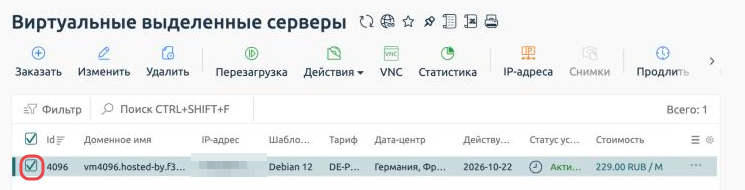
The server is selected and the control buttons are active
2. Open «Reinstall OS»
Click Actions (Действия) on the toolbar above the list and choose Reinstall OS (Переустановить ОС).
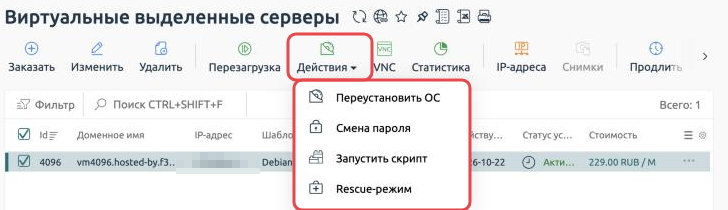
Reinstalling is in the Actions menu
Where is the «Go to» button
The server used to be reinstalled in a separate control panel opened with the «Go to» button. Now every server action is right in the client area. We describe all the buttons in the article on server management.
3. Choose a system and set a password
The reinstall form opens. Fill it in from top to bottom.
- Current OS (Текущая ОС) shows the system recorded in billing. It is for reference only and cannot be changed.
- In New operating system (Новая операционная система), pick a system. AlmaLinux, CentOS Stream, Debian, Oracle Linux and Ubuntu are available in several versions. To avoid scrolling through a long list, start typing the name in the search field.
- In New root password (Новый root-пароль), come up with a password of at least 6 characters. The eye button shows what you have typed, and the button next to it generates a strong password for you.
- The Email the password after installation (Отправить пароль на почту после установки) checkbox turns on an email with the new password. Either way, save the password straight away, for example in a password manager.
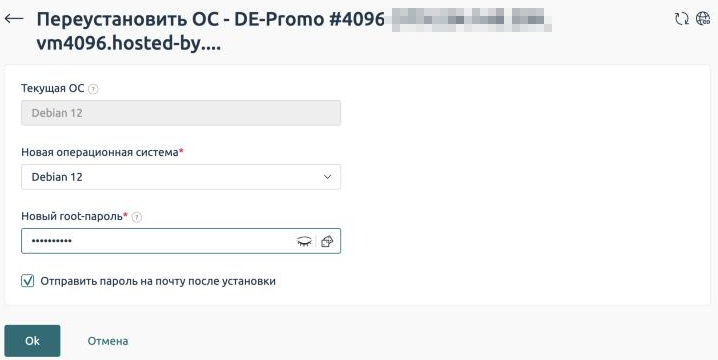
The OS reinstall form
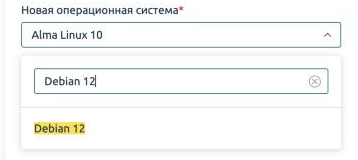
Quick search in the list of systems
Check that the right system is selected and click Ok. The reinstall starts immediately.
Not sure which system to choose
Go with Debian 12 or Ubuntu 24.04. They are popular and stable, and most guides are written for them, including the ones in our knowledge base.
4. Wait until it finishes
The server shuts down, the system is written to the disk again, and the server boots into it. Reinstalling Debian 12 on the DE-Promo plan took us just over a minute, other systems may take a little longer.
The server status in the list stays Active (Активен) the whole time, and billing does not show a separate message when it finishes. Wait 2–3 minutes and connect to the server over SSH with the new password, for example via Termius. If you want to watch the server boot, open the console with the VNC button.
The password from «Instructions» no longer works
The Instructions (Инструкция) button shows the password issued when the server was ordered, and it does not change after a reinstall. Log in with the new password from the form. Billing may also keep showing the old system in the server list, this does not affect how the server works.
If something went wrong
SSH says REMOTE HOST IDENTIFICATION HAS CHANGED
After a reinstall the server gets a new SSH key, while your computer remembers the old one and warns you about a possible substitution. In this case the warning is expected. Run the command below on your computer with the server IP address and connect again.
# Remove the old server key from the list of known hosts
ssh-keygen -R server-IP-address
Termius and other apps will offer to accept the new server key in this situation, agree to it.
The message «The request has already been sent. Try again in a minute»
A reinstall can be started no more than once a minute. Most likely the previous request is already running or has just finished. Wait a couple of minutes and try connecting to the server before starting another reinstall.
The new password does not work
Check the keyboard layout and Caps Lock. If the password still does not work, set a new one via Actions → Change password (Смена пароля) using this guide. There is no need to reinstall the server again.
The message «The action failed»
This means the server management system could not complete the reinstall. Billing creates a support task automatically, and we will get in touch with you. There is no need to repeat the reinstall in the meantime.
The system you need is not in the list
Write to our support with the Question (Вопрос) button on the toolbar above the server list, and we will tell you how to install the system you need.
Our resources
Telegram channel: https://t.me/f3cloud_news
F3 Cloud: https://f3cloud.com