> The full list of articles is in [llms.txt](https://docs.f3cloud.com/llms.txt). Every page has a Markdown version: add .md to its address. This page as Markdown: [https://docs.f3cloud.com/en/windows/internet-explorer-file-downloads.md](https://docs.f3cloud.com/en/windows/internet-explorer-file-downloads.md).

# How to allow file downloads in Internet Explorer on Windows Server

How to allow file downloads in Internet Explorer on Windows Server. Turn off IE Enhanced Security in Server Manager, enable downloads in the browser settings, or download files through PowerShell with no browser at all.

On a fresh Windows Server the built-in Internet Explorer blocks almost everything, file downloads included. This is **Internet Explorer Enhanced Security Configuration (ESC)**. It is on by default and protects the server from accidental visits to risky sites.

Usually you only need IE once, to download a proper browser. Below are three ways to do that: turn Enhanced Security off completely, allow downloads in IE's own settings, or download the file with no browser at all, through PowerShell.

> **Which Windows Server version this applies to.**
>
> Internet Explorer 11 is built into Windows Server 2019 and 2022.\
> Windows Server 2025 no longer has a separate Internet Explorer and uses Microsoft Edge instead, so there you can simply open Edge. The screenshots below are from Windows Server 2019.

***

## Why IE will not download files

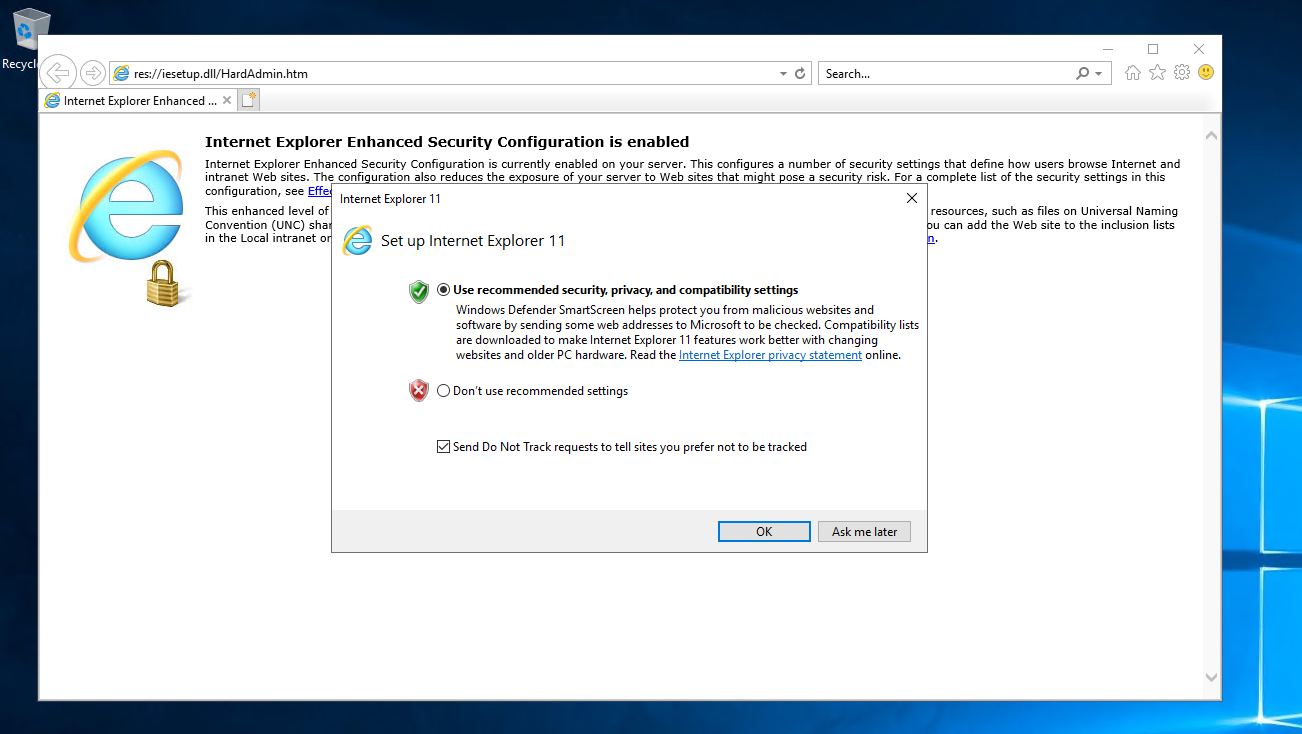
When you first open Internet Explorer, it offers to pick settings. Leave **Use recommended security, privacy, and compatibility settings** and click <kbd>OK</kbd>.

<figure><img src="https://docs.f3cloud.com/img/ie-esc-setup.png" alt="The Internet Explorer 11 first-run window with the recommended security settings"><figcaption><p>The Internet Explorer first run with recommended settings</p></figcaption></figure>

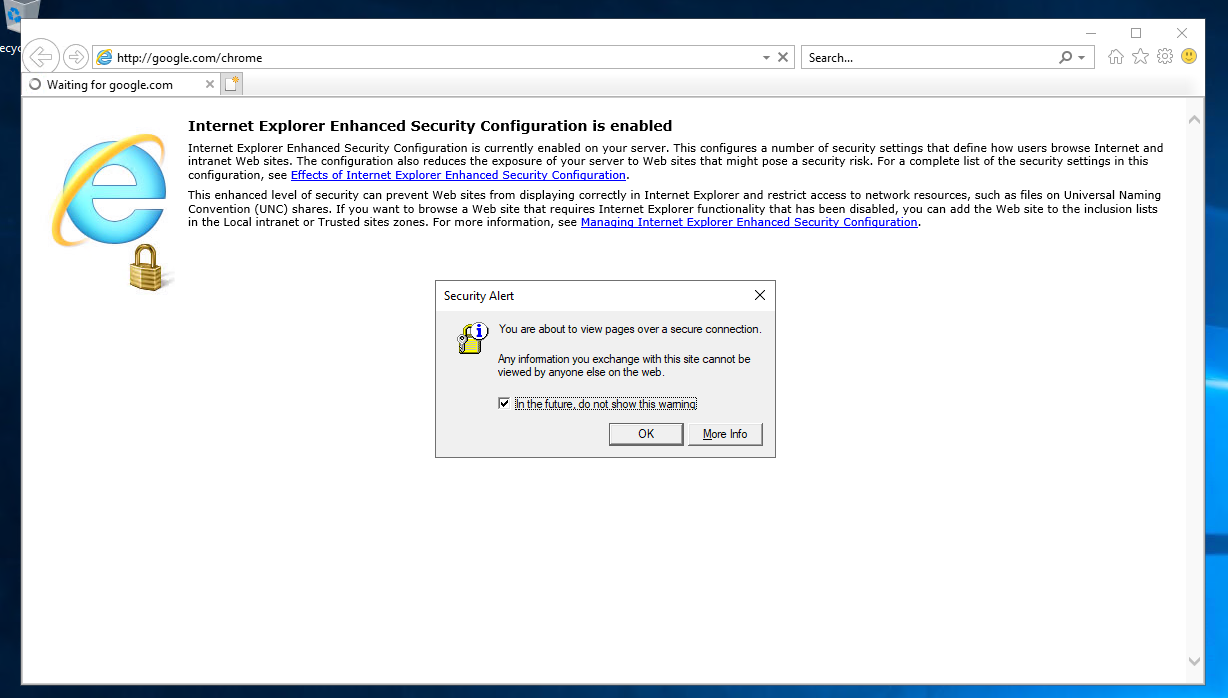
Then, when you open a site, IE shows a warning about an insecure connection. Leave the checkbox and click <kbd>OK</kbd>.

<figure><img src="https://docs.f3cloud.com/img/ie-security-alert.png" alt="The Security Alert about an insecure connection in Internet Explorer"><figcaption><p>The insecure connection warning</p></figcaption></figure>

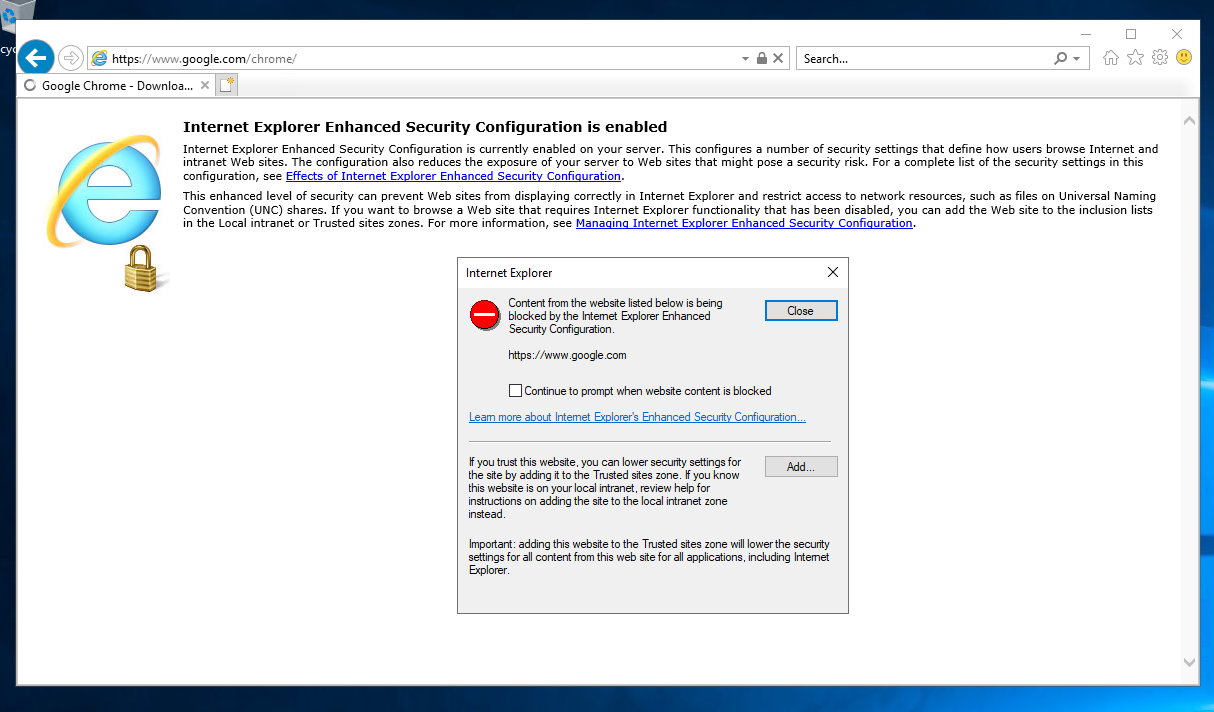
Next comes a content-blocking dialog. Clear the checkbox so these dialogs stop appearing and click <kbd>Close</kbd>.

<figure><img src="https://docs.f3cloud.com/img/ie-security-warning.png" alt="The Internet Explorer dialog about blocked content with the Close button"><figcaption><p>IE blocks the site content</p></figcaption></figure>

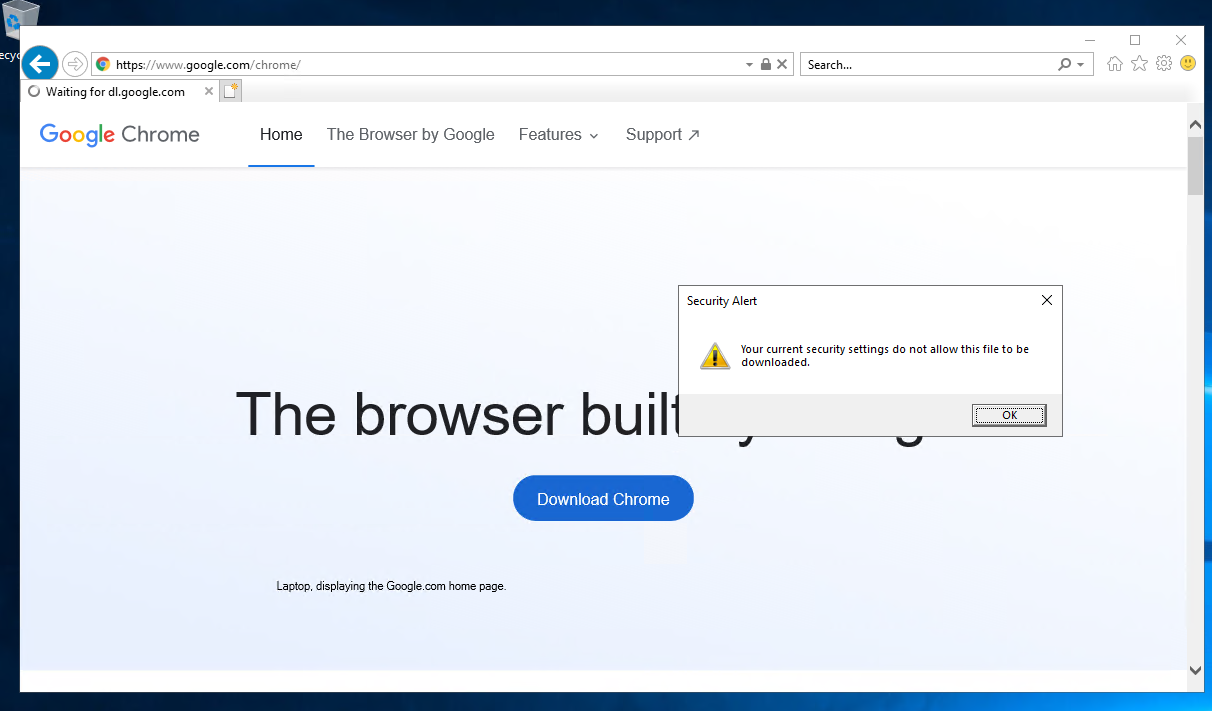
And when you try to download anything, IE states plainly that the security settings do not allow the download. Click <kbd>OK</kbd> and move on to one of the methods below.

<figure><img src="https://docs.f3cloud.com/img/ie-download-blocked.png" alt="The Internet Explorer message that the security settings block the file download"><figcaption><p>The download is blocked by the security settings</p></figcaption></figure>

***

## Option 1. Turn off Enhanced Security in Server Manager

The fastest and most predictable path. Enhanced Security turns off with a single switch, and IE starts downloading files right away.

1. Open **Server Manager**.
2. On the left, select **Local Server**.
3. Find the **IE Enhanced Security Configuration** row and click its **On** value.
4. In the window that opens, choose **Off** for administrators and click <kbd>OK</kbd>.

Close and reopen Internet Explorer, and downloads will work. This is the best option when you just need to grab a browser installer and be done with it.

***

## Option 2. Allow downloads in the IE settings

Use this when you cannot touch Enhanced Security but still need to download a file.

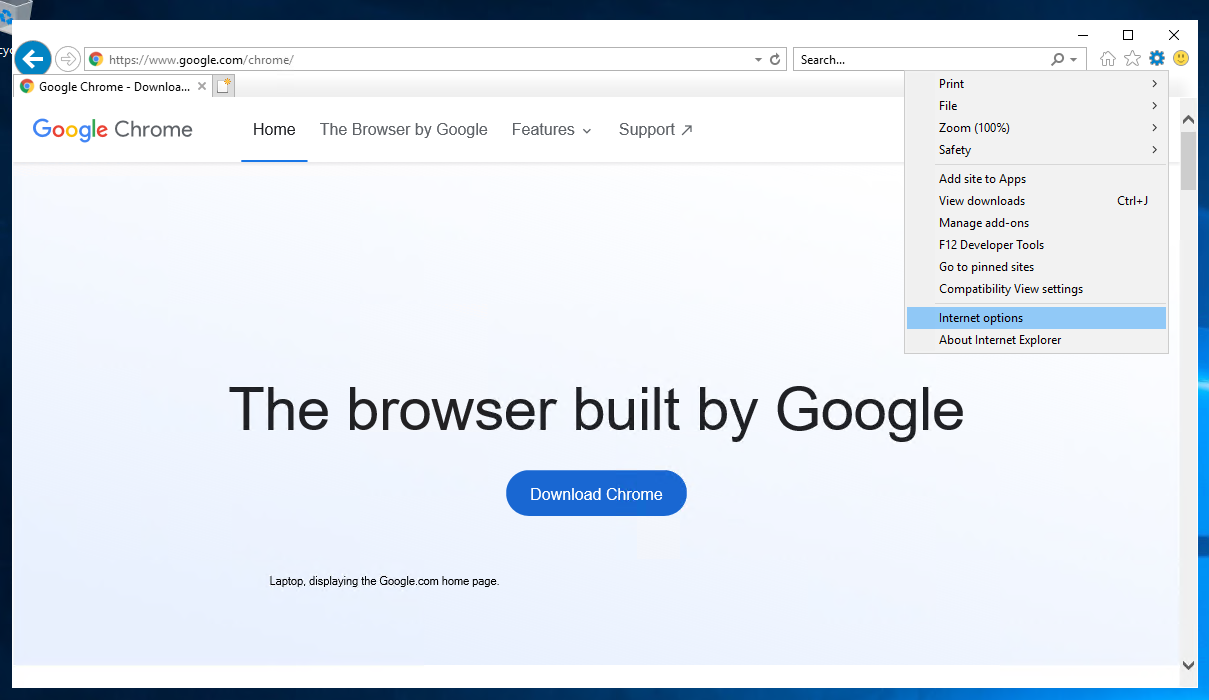
Click the gear in the top-right corner of the browser and choose **Internet options**.

<figure><img src="https://docs.f3cloud.com/img/ie-internet-options-menu.png" alt="The Internet Explorer gear menu with the Internet options item highlighted"><figcaption><p>The Internet options item in the browser menu</p></figcaption></figure>

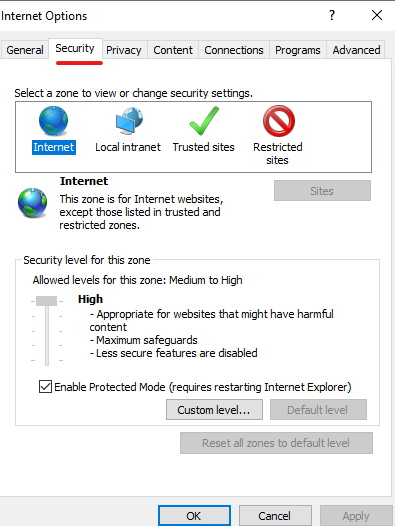
Go to the **Security** tab and prepare the Internet zone.

<figure><img src="https://docs.f3cloud.com/img/ie-security-tab.png" alt="The Security tab of the Internet Options window with the Internet zone selected"><figcaption><p>The Security tab with the Internet zone selected</p></figcaption></figure>

1. Select the **Internet** zone with the globe icon.
2. Clear the **Enable Protected Mode** checkbox.
3. Click **Custom level...**.

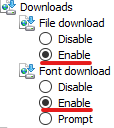
Scroll to the **Downloads** section and switch both items to **Enable**.

<figure><img src="https://docs.f3cloud.com/img/ie-custom-level-downloads.png" alt="The Downloads section of the Custom level window with File download and Font download set to Enable"><figcaption><p>File download and Font download set to Enable</p></figcaption></figure>

The first item, **File download**, allows downloading any files.\
The second, **Font download**, is for fonts.

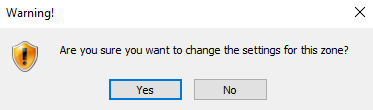
Click <kbd>OK</kbd>, and IE will ask whether you really want to change the zone settings. Click **Yes**.

<figure><img src="https://docs.f3cloud.com/img/ie-change-zone-warning.png" alt="Internet Explorer asking whether to change the settings for this zone, with Yes and No buttons"><figcaption><p>Confirming the zone settings change</p></figcaption></figure>

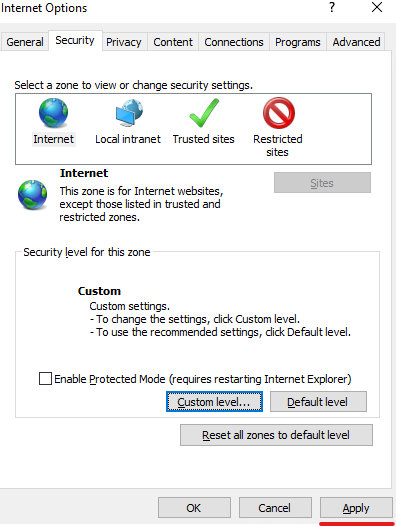
Back in the Internet Options window, click **Apply** to save the changes.

<figure><img src="https://docs.f3cloud.com/img/ie-apply-button.png" alt="The Apply button in the Internet Options window"><figcaption><p>The Apply button saves the changes</p></figcaption></figure>

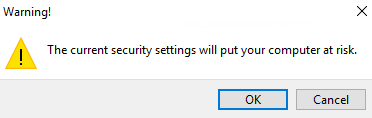
IE will warn once more that the lowered settings increase the risk. Agree and close the window.

<figure><img src="https://docs.f3cloud.com/img/ie-security-risk-warning.png" alt="The Internet Explorer warning about the risk of the current security settings with the OK button"><figcaption><p>The warning about the lowered settings</p></figcaption></figure>

***

## Option 3. Download the file through PowerShell, no browser

The most reliable way when you need to grab an installer from a direct link once. The browser and its settings are not involved at all. Open **PowerShell** as administrator and run the command.

```powershell
# Download the installer into the current folder
Invoke-WebRequest -Uri "https://link/to/file.exe" -OutFile "installer.exe" -UseBasicParsing
```

The `-UseBasicParsing` switch is needed when Internet Explorer is disabled in the system, otherwise the command may fail.\
If you prefer curl syntax, Windows Server 2019 and later ship a real `curl.exe`.

```powershell
# The -O flag saves the file under its original name
curl.exe -O https://link/to/file.exe
```

***

## The result

After option 1 or 2, Internet Explorer downloads files without complaint. The first thing to grab is a proper browser, such as Google Chrome, Mozilla Firefox or Microsoft Edge.

<figure><img src="https://docs.f3cloud.com/img/ie-download-chrome.png" alt="The Internet Explorer download dialog asking to save ChromeSetup.exe with the Save and Cancel buttons"><figcaption><p>IE offers to save the browser installer</p></figcaption></figure>

Once a modern browser is installed, you can turn IE's Enhanced Security back on and never deal with its settings again.

***

## Frequently asked questions

<details>

<summary>Is it safe to turn off IE Enhanced Security</summary>

On a server where you only visit sites you know, it is acceptable. The risk is that you lose the extra protection against accidental visits to dangerous pages. The best approach is to turn Enhanced Security off only to download a proper browser, then turn it back on.

</details>

<details>

<summary>There is no Internet Explorer on the server</summary>

Windows Server 2025 removed Internet Explorer, so just open **Microsoft Edge**, which is already installed. You can also download a file from a direct link through PowerShell with `Invoke-WebRequest`, as shown in option 3.

</details>

<details>

<summary>The download still does not work</summary>

Make sure you saved the changes with **Apply** and restart Internet Explorer. If the site has a self-signed certificate, IE may block that too. In that case it is easier to use option 1 or download the file through PowerShell.

</details>

***

## Our resources

**Telegram channel:** [https://t.me/f3cloud_news](https://t.me/f3cloud_news)\
**Our website:** [https://f3cloud.com](https://f3cloud.com/en)