> The full list of articles is in [llms.txt](https://docs.f3cloud.com/llms.txt). Every page has a Markdown version: add .md to its address. This page as Markdown: [https://docs.f3cloud.com/en/vps/domain-to-vps.md](https://docs.f3cloud.com/en/vps/domain-to-vps.md).
# How to point a domain to a VPS – DNS records A, AAAA, CNAME, MX and TXT
How to point a domain to a VPS. How DNS works, what the A, AAAA, CNAME, MX, TXT and NS records are, where to create them, what TTL is and why a domain does not start working right away, how to check a record with dig and nslookup. Step by step for any registrar.
A server can be reached on the internet by its IP address, but numbers are hard to remember, and many programs need a domain rather than an address. A website needs a domain for an HTTPS certificate, mail services need one to verify the sender, and many applications need one for a nice-looking link. To make a domain lead to your server, it is enough to create one or two **DNS records** for it. In this article we look at how the DNS system works, which records exist and what they are for, and then point a domain to a VPS step by step and check that everything works.
***
## How DNS works
When you type the address `example.com` in a browser, the computer first has to find out which IP address stands behind this name, because packets on the network are delivered only by address. This is the job of the domain name system, DNS. The computer itself knows almost nothing about it and asks a **DNS resolver**. Usually this is a server of your internet provider or a public service like `1.1.1.1` or `8.8.8.8`. If the resolver recently answered the same question, it takes the answer from its memory. If not, it has to go through a chain of servers.
The chain starts with the root DNS servers. They do not know the address of `example.com`, but they know which servers are responsible for the `.com` zone. Those servers, in turn, do not store the record you need either, but they know which **NS servers** serve the `example.com` domain itself. These are the servers that store the domain's records and give the final answer. Which NS servers are responsible for your domain is set at the **registrar**, that is, the company where you bought the domain. Most often these are the registrar's own DNS servers, and then the records are edited in its panel. But you can also specify other NS servers, for example Cloudflare's, and then the records have to be created there instead. This is a common cause of confusion, when a person adds a record at the registrar while the domain keeps being served by a completely different service.
Once it gets an answer, the resolver remembers it for the time set in the record itself. This time is called **TTL** and is given in seconds. If a record has a TTL of 3600, the resolver will return the saved answer for a whole hour and will not ask the NS server again. This is where the famous "DNS update" that supposedly takes up to 24 hours comes from. In reality the record changes on the NS server immediately, but resolvers all over the world keep returning the old answer until their TTL runs out. A new record that did not exist before usually starts working within a few minutes. The longest wait comes when you change the domain's NS servers. Resolvers keep information about them for a long time, for example 2 days in the `.com` zone and 4 days in the `.ru` zone, so some visitors will keep reaching the old servers for a while.
***
## Types of DNS records
* **A** links a name to an IPv4 address, for example `example.com` and `203.0.113.10`. This is the main record for pointing a domain to a server.
* **AAAA** does the same for an IPv6 address. Each of our servers gets an IPv6 subnet, so it is worth adding this record too.
* **CNAME** makes one name an alias of another. For example, `www.example.com` can be pointed to `example.com`, and then if the IP address changes you will only have to update one record. A CNAME cannot be created for the bare domain without a subdomain.
* **MX** specifies which servers accept mail for the domain. It is set up following the instructions of your mail service, for example Yandex 360 or Gmail.
* **TXT** stores arbitrary text. It holds SPF rules for mail and the verification codes requested by Google, Yandex and other services.
* **NS** shows which servers serve the domain. They are changed at the registrar, not in the list of records.
There is also the reverse **PTR** record, which tells which domain an IP address has. It is set not at the registrar but by the owner of the IP address, that is, by us. How to do this is described in the article on [server management](https://docs.f3cloud.com/en/client-area/server-management.md#ip-addresses-and-the-ptr-record).
***
## What you will need
* **A domain** and access to the panel where its DNS records are edited.
* **The server's IP address**. You can see it in the client area under the IP addresses button, more on this in the article on [server management](https://docs.f3cloud.com/en/client-area/server-management.md#ip-addresses-and-the-ptr-record).
* **The server's IPv6 address**, if you want to add an AAAA record. The command `ip -6 addr show scope global` on the server shows it, the address comes after the word `inet6` and before the `/` sign.
***
## 1. Find out where to edit the records
Before creating anything, check which NS servers serve the domain. Run this command on the server or on your own computer, substituting your domain.
```bash
dig +short NS example.com
```
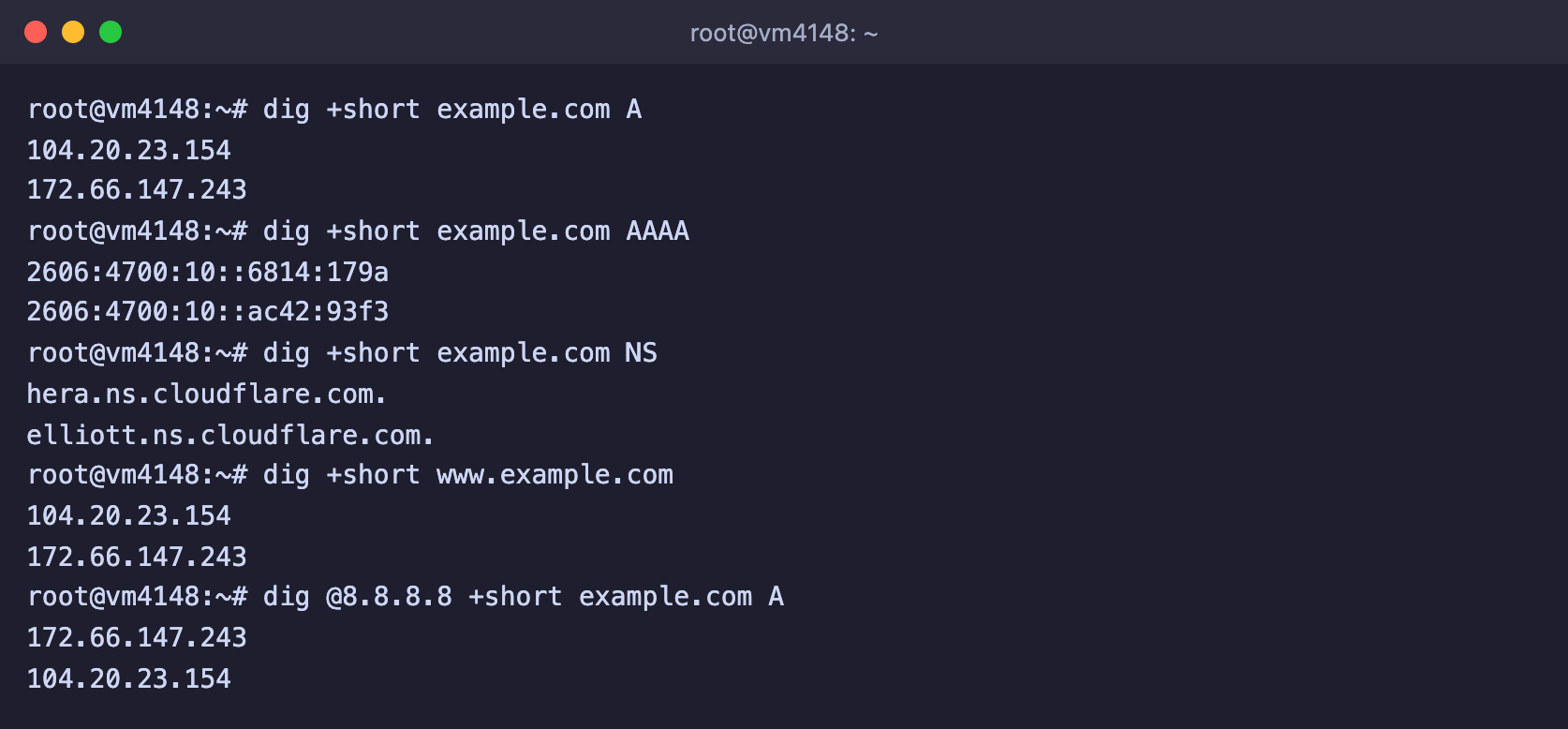
If the answer lists your registrar's servers, the records are created in its panel. If it shows, for example, `ns.cloudflare.com`, as for the `example.com` domain in the screenshot below, the records have to be created in Cloudflare, and changes in the registrar's panel will have no effect.
dig +short shows only the record values themselves
***
## 2. Create the records
Open the DNS management section at your registrar or in the service the NS records point to, and add the records. Instead of `203.0.113.10` enter your server's IPv4 address, and instead of `2001:db8::10` its IPv6 address.
| Type | Name | Value | Purpose |
| --- | --- | --- | --- |
| A | `@` | `203.0.113.10` | the domain leads to the server |
| A | `www` | `203.0.113.10` | the address with www also leads to the server |
| AAAA | `@` | `2001:db8::10` | the same for IPv6, optional |
The `@` symbol means the domain itself without a subdomain. In some panels the name field is left empty instead. For a subdomain, for example `app.example.com`, you enter only `app` in the name field.
The **TTL** field can be left at its default. If you plan to move the site to another server soon, set a small value in advance, for example 300 seconds, and then the switch will take five minutes.
> **Delete old records.**
>
> If the domain already has A or AAAA records for the same name, for example a registrar placeholder, delete them. When a name has several addresses, visitors will land sometimes on your server and sometimes on the old page.
***
## 3. Check that the record works
A few minutes after saving, check the record with the `dig` command. On Windows you have `nslookup` instead, which works the same way, just type `nslookup example.com`.
```bash
# Answer from your usual resolver
dig +short example.com A
# Answer from Google's public resolver, which has its own cache
dig @8.8.8.8 +short example.com A
```
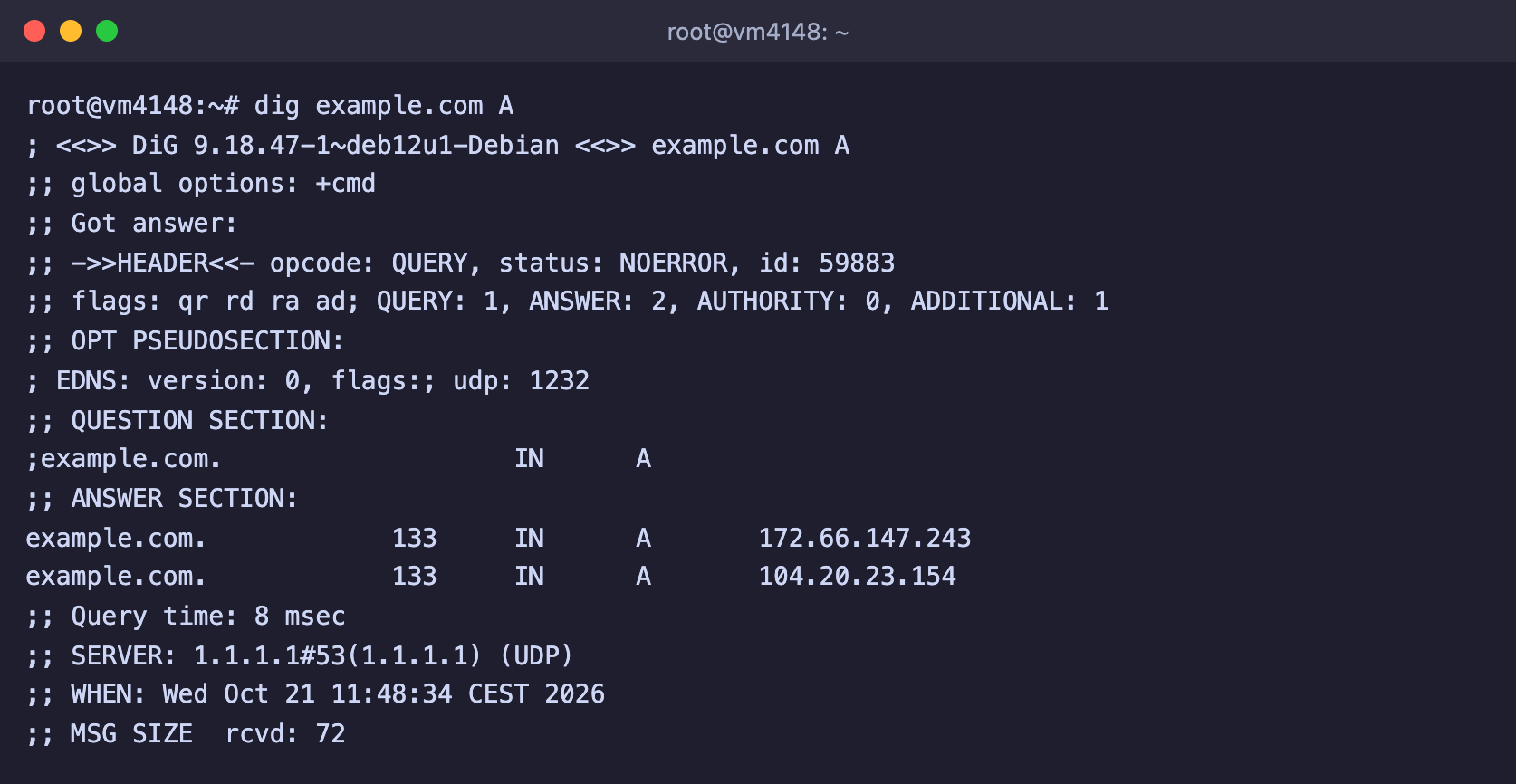
If the command returns your server's IP address, the domain now points to your server. The full `dig` output without the `+short` option also shows the TTL. In the answer line it is the number before `IN`, and it tells how many more seconds the resolver will keep this answer.
The ANSWER SECTION shows the addresses and the remaining TTL
Right after that you can set up a website or an application on the server. The web server has to know that it is responsible for this domain, and an HTTPS certificate is issued only for a domain that already points to the server. How to do this is described in the articles on [Nginx](https://docs.f3cloud.com/en/web/nginx-installation.md) and [the Let's Encrypt certificate](https://docs.f3cloud.com/en/web/lets-encrypt-ssl-nginx-apache.md).
> **If the domain is on Cloudflare.**
>
> Records in Cloudflare have a proxy toggle. If it is on, `dig` will show Cloudflare's addresses instead of your server's, and only websites will work through the domain. You will have to connect over SSH and to other services by IP address. If you need the domain for something other than a website, turn off proxying so that the record works in **DNS only** mode.
***
## Frequently asked questions
The record is created, but the domain still does not open
1. Check that the record was created where the domain's NS records point, with the command `dig +short NS your-domain`.
2. Ask different resolvers, for example `dig @8.8.8.8 +short your-domain` and `dig @1.1.1.1 +short your-domain`. If they already answer correctly but your computer does not, the cache is to blame.
3. Clear the DNS cache on your computer. On Windows this is the `ipconfig /flushdns` command in the Command Prompt, and on macOS the `sudo dscacheutil -flushcache; sudo killall -HUP mDNSResponder` command in Terminal.
DNS_PROBE_FINISHED_NXDOMAIN in the browser
The browser did not find a single record for the domain. Check that the record was created for exactly this name, for example for `www` if you open the address with www, and that the domain registration has not expired.
The domain opens without www but not with www
`www` needs a separate record. Add an A record named `www` with the server's IP address, or a CNAME record `www` that points to the main domain.
Can I set up mail for the domain on my own server?
SMTP ports are closed on our servers, so you will not be able to send mail directly from a VPS. For mail on your own domain, connect a mail service, for example Yandex 360 or Gmail, and create the MX and TXT records following its instructions.
***
## Our resources
**Telegram channel:** [https://t.me/f3cloud_news](https://t.me/f3cloud_news)\
**F3 Cloud:** [https://f3cloud.com](https://f3cloud.com/en)