> The full list of articles is in [llms.txt](https://docs.f3cloud.com/llms.txt). Every page has a Markdown version: add .md to its address. This page as Markdown: [https://docs.f3cloud.com/en/vpn-guide/marzban-to-remnawave.md](https://docs.f3cloud.com/en/vpn-guide/marzban-to-remnawave.md).
# Moving from Marzban to Remnawave – migrating users and subscriptions
How to move users from Marzban to Remnawave with the official remnawave-migrate tool. What is transferred and what is not, a trial and a full migration, squads, keeping the old Marzban subscription links and shutting down the old panel.
When you have several VPN servers and dozens or hundreds of users, Marzban starts to feel cramped, and many people switch to **Remnawave**, a panel designed for many servers at once. The move does not require creating users again or sending them new keys. Remnawave has an official tool called **remnawave-migrate**, which fetches users from Marzban through its API and creates them in Remnawave. In this article we look at what it transfers, how to migrate without downtime and how to keep the old subscription links working.
We went through the whole move on our own server. Marzban there was installed with [our script](https://docs.f3cloud.com/en/vpn-guide/marzban-installation.md), the migration tool was version **2.1.0**, Remnawave **3.4.5** and the subscription page **8.0.0**.
***
## How the move works
A VPN panel stores two different groups of data. The first concerns the users. These are names, protocol identifiers, traffic limits and expiry dates. The second concerns the servers themselves. These are Xray settings, ports, Reality keys and camouflage sites. The tool transfers only the first group, and you set up the server part in Remnawave from scratch. This makes sense, because Remnawave is built differently. Connection settings are kept in config profiles, and the connections themselves run on separate nodes.
For each user, the tool transfers the name, the status, the UUID for VLESS, the passwords for Trojan and Shadowsocks, the traffic limit and its reset strategy, the expiry date, the creation date and the description. From the Marzban subscription address it derives the short subscription identifier in Remnawave. Used traffic is not on this list, so the counters in Remnawave will start from zero. If a user had a yearly traffic reset in Marzban, it becomes “no reset” in Remnawave, because Remnawave has no such period. Users with no expiry date get the date 31 December 2099, which the panel shows as infinity.
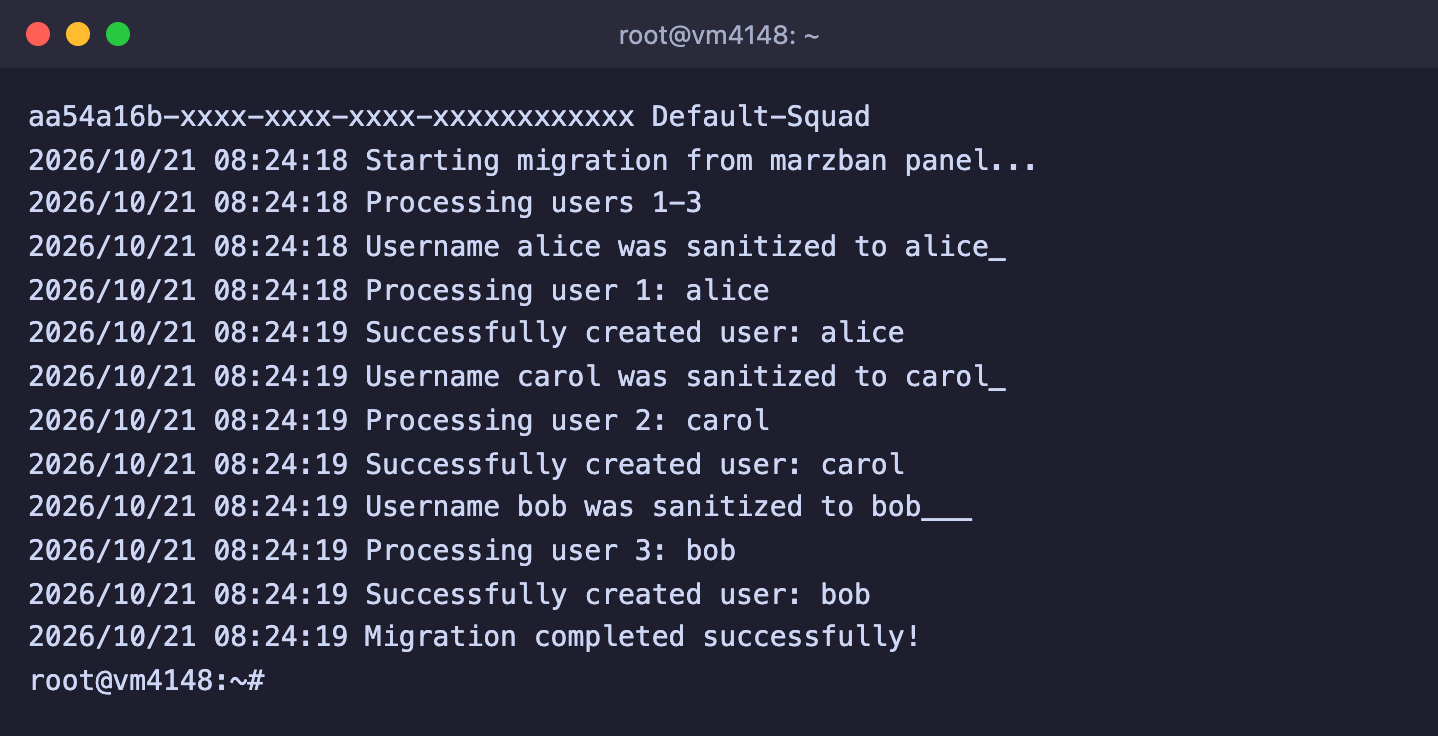
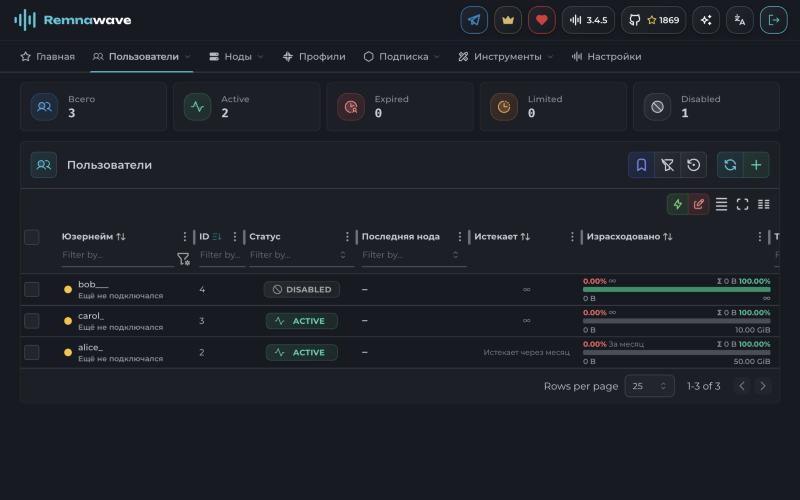
There is also one detail that is easy to miss. Remnawave does not accept names shorter than six characters, so the tool pads short names with underscores. In our test `alice` became `alice_`, and `bob` turned into `bob___`. This does not affect subscriptions, and old links still find these users after the renaming.
Since the user UUIDs are kept but the server part is created anew, devices need to receive a new configuration after the move. The easiest way to deliver it is through the subscription. If the subscription is kept, the app will fetch the new settings by itself on its next update, and the user will not have to do anything.
***
## What you need
* **A working Marzban** that you will migrate the users from.
* **A ready Remnawave panel** with at least one node, a VLESS Reality profile and a host. If you do not have one yet, install it with our [guide](https://docs.f3cloud.com/en/vpn-guide/remnawave-installation.md). Check that the connection works with a test user, and only then migrate the rest.
* **SSH access** to the Marzban server. The easiest way is to run the tool right on it.
***
## Step 1. Create an API token in Remnawave
The tool creates users through the Remnawave API, so it needs a token.
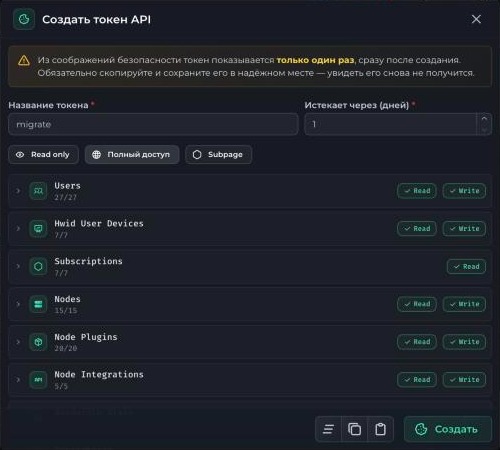
1. In the Remnawave panel, open **Remnawave Settings** and scroll down to the **API tokens** block.
2. Click the + button in the bottom right corner of the block.
3. Enter a name, for example `migrate`, and the validity period in days. One day is enough for the move.
4. Choose the **Full access** (Полный доступ) permission set and click Create (Создать).
5. Copy the token. The panel shows it only once.
Creating an API token
> **The token gives full access to the panel.**
>
> Keep it like a password and delete it after the move if you no longer need it.
***
## Step 2. Find the squad UUID
In Remnawave, a user only gets connections through a squad that includes a config profile. If you migrate users without a squad, their subscriptions will be empty. That is why we add them to `Default-Squad`, where your VLESS Reality profile is enabled, right during the migration. You can get the squad UUID through the API.
```bash
# Replace TOKEN and panel.your-domain.com with your own values
curl -s -H "Authorization: Bearer TOKEN" https://panel.your-domain.com/api/internal-squads \
| python3 -c "import json,sys; [print(s['uuid'], s['name']) for s in json.load(sys.stdin)['response']['internalSquads']]"
```
The command lists the squads. Copy the UUID from the line with `Default-Squad`.
***
## Step 3. Download the tool to the Marzban server
```bash
# Folder for the tool
mkdir -p /opt/remnawave-migrate && cd /opt/remnawave-migrate
# Download and unpack version 2.1.0
wget https://github.com/remnawave/migrate/releases/download/v2.1.0/remnawave-migrate-v2.1.0-linux-amd64.tar.gz
tar -xf remnawave-migrate-v2.1.0-linux-amd64.tar.gz
# List of options
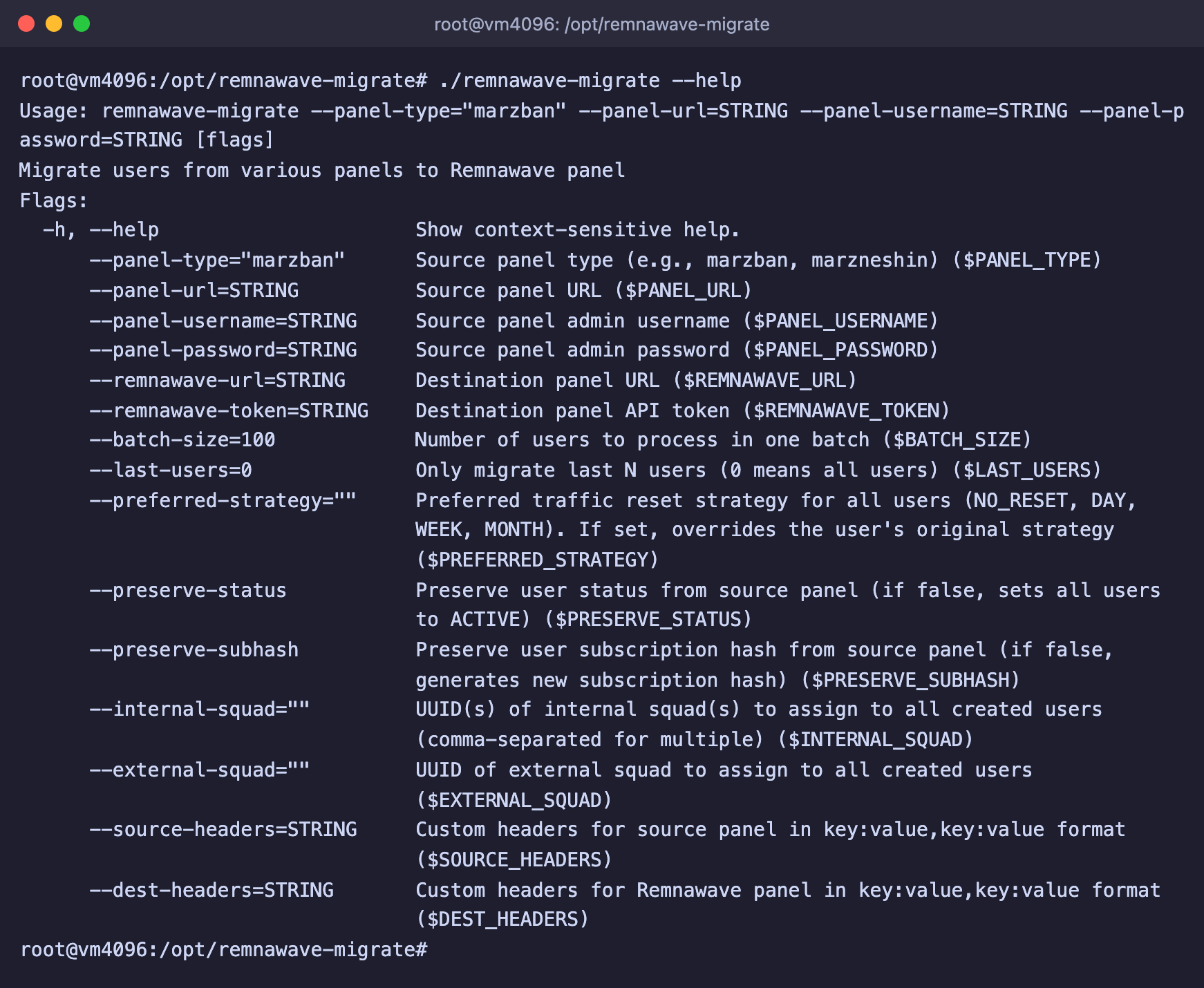
./remnawave-migrate --help
```
Options of the migration tool
Before running it, check the [releases](https://github.com/remnawave/migrate/releases) page for a newer version and change the number in the command if needed.
***
## Step 4. Do a trial migration
First migrate a few of the most recent users to make sure everything is set up correctly. If Marzban was installed with our script, the administrator login and password are stored in the `/root/marzban-credentials.txt` file, and the command below reads them from there by itself.
```bash
cd /opt/remnawave-migrate
# Marzban details from the file created by our script
export PANEL_TYPE=marzban
export PANEL_URL=http://127.0.0.1:PANEL_PORT
export PANEL_USERNAME=$(awk '/^Логин:/ {print $2}' /root/marzban-credentials.txt)
export PANEL_PASSWORD=$(awk '/^Пароль:/ {print $2}' /root/marzban-credentials.txt)
# Remnawave details
export REMNAWAVE_URL=https://panel.your-domain.com
export REMNAWAVE_TOKEN=TOKEN
export INTERNAL_SQUAD=SQUAD_UUID
# Migrate only the 5 most recent users
./remnawave-migrate --last-users=5 --preserve-status --preserve-subhash
```
Our script writes this file in Russian, so the words `Логин` (login) and `Пароль` (password) in the command must stay exactly as they are and must not be translated.
Replace `PANEL_PORT` with the port from the Marzban panel address, which the script showed at the end of the installation. If Marzban was installed another way, set `PANEL_URL` to the address you use to open the panel, and enter the login and password manually.
Two options at the end of the command are important.
* `--preserve-status` keeps the user statuses. Without it, all migrated users become active, even if they were disabled in Marzban or their period had expired.
* `--preserve-subhash` keeps the Marzban subscription identifiers. You need it to keep serving the old subscription links, more on this below.
The tool logs every user it processes and reports `Migration completed successfully!` at the end. Lines with `was sanitized to` mean that a name was padded to six characters.
Trial migration of three users
Open the **Users** section in Remnawave and check the migrated users. Their traffic limits, expiry dates and statuses should match, and the **Internal squads** block should show `Default-Squad`.
Users after the migration
***
## Step 5. Migrate all users
If the trial migration went well, run the tool without limiting the number of users. The variables from the previous step are kept as long as the same terminal window is open.
```bash
./remnawave-migrate --preserve-status --preserve-subhash
```
The tool processes users in batches of 100 and takes into account by itself the users already created during the trial migration.
***
## Step 6. Keep the old subscription links
After the move, users need to get their subscription from Remnawave. There are two ways to do this.
**Send out new links.** This is the simplest and most reliable option if you have only a few users. Each user's new link is in their card in Remnawave.
**Keep serving the old links.** The Remnawave subscription page can understand Marzban links. For this it needs the secret key that Marzban used to sign its links. If Marzban runs on SQLite, as it does after our script, you can get the key with a single command.
```bash
# If the command is not found, install it with apt install -y sqlite3
sqlite3 /var/lib/marzban/db.sqlite3 "SELECT secret_key FROM jwt LIMIT 1;"
```
The Marzban secret key, hidden in the screenshot
If Marzban runs on MySQL, run the same query `SELECT secret_key FROM jwt LIMIT 1;` in its database.
Then install the subscription page as described in the [“Subscription page”](https://docs.f3cloud.com/en/vpn-guide/remnawave-installation.md#subscription-page-optional) section of our Remnawave article and add the lines for the old links to its `.env` file.
```ini
MARZBAN_LEGACY_LINK_ENABLED=true
MARZBAN_LEGACY_SECRET_KEY=marzban_secret_key
CUSTOM_SUB_PREFIX=sub
```
`CUSTOM_SUB_PREFIX` must match the subscription path in Marzban, which is `sub` by default. After the change, recreate the container with `docker compose up -d --force-recreate`. The subscription page only answers through a reverse proxy with HTTPS, so you need to publish it through Caddy as described in the same article. Over plain HTTP it refuses to work and writes the error `Reverse proxy and HTTPS are required` to its log.
> **Old links point to the old address.**
>
> Marzban links point to the address of its server. After our script they look like `http://SERVER_IP:PORT/sub/...`. If you are deleting the old server, it is easier to send users new links.
If the old server keeps running, redirect its `/sub/` requests to the new subscription page. On the Marzban server, open the `/etc/nginx/sites-available/marzban-panel` file and add this block before the `location / {` line, replacing the domain with the address of your subscription page.
```nginx
location /sub/ {
proxy_pass https://sub.your-domain.com;
proxy_set_header Host sub.your-domain.com;
proxy_ssl_server_name on;
proxy_ssl_name sub.your-domain.com;
}
```
Check the configuration and apply it.
```bash
nginx -t && systemctl reload nginx
```
We tested this setup. After that, an old Marzban link like `http://SERVER_IP:PORT/sub/...` returned the Remnawave subscription of the migrated user, and the link of a disabled user answered with the message `Subscription disabled`.
***
## Step 7. Turn off Marzban
When users have received the new configuration and connect through Remnawave, stop Marzban.
```bash
marzban down
```
Do not delete it right away. Leave the server with the stopped Marzban for a few days so that you can go back if needed. Before deleting it for good, save a copy of the `/var/lib/marzban` folder.
***
## Frequently asked questions
The tool reports an authorisation error in Remnawave
Check the token and the panel address in `REMNAWAVE_URL`. If the Remnawave panel is protected by the additional Caddy security layer, create an API key in its authorisation portal and pass it with the `--dest-headers="X-Api-Key:key"` option.
Migrated users have an empty subscription
The users did not get into a squad with a profile. Add them to `Default-Squad` in the Remnawave panel or migrate them again with the `--internal-squad` option. Also check that **Host visibility** is turned on for the host.
Can I change the traffic reset strategy for everyone at once
Yes, the `--preferred-strategy` option sets one strategy for all migrated users. The possible values are `NO_RESET`, `DAY`, `WEEK` and `MONTH`.
Will the used traffic be transferred
No. The tool transfers the traffic limit and its reset strategy, and the used traffic counter in Remnawave starts from zero.
***
## Our resources
**Telegram channel:** [https://t.me/f3cloud_news](https://t.me/f3cloud_news)\
**F3 Cloud:** [https://f3cloud.com](https://f3cloud.com/en)