> The full list of articles is in [llms.txt](https://docs.f3cloud.com/llms.txt). Every page has a Markdown version: add .md to its address. This page as Markdown: [https://docs.f3cloud.com/en/vpn-guide/marzban-installation.md](https://docs.f3cloud.com/en/vpn-guide/marzban-installation.md).
# Installing Marzban on a VPS and setting up VLESS with Xray
How to install Marzban on a VPS with one command, using the F3 Cloud script that sets up VLESS Reality, picks a masking site, sets the firefox fingerprint and closes unused ports. Logging in to the panel, creating a user, connecting in an app and common questions.
**Marzban** is a web panel for running your own VPN on the Xray core. It makes it easy to create users, give them connection links and keep track of how much traffic they use.
So that you do not have to set everything up by hand, we have prepared a script. One command installs Marzban and configures the **VLESS Reality** protocol straight away, so all that is left for you is to log in to the panel and create a user. We tested every step on an F3 Cloud server with Debian 12 and Marzban 0.8.4.
***
## What you need
A server with **1 core** and **1 GB** of memory is enough for a personal VPN, for example on the **DE-PROMO** plan. When ordering, pay attention to two settings.
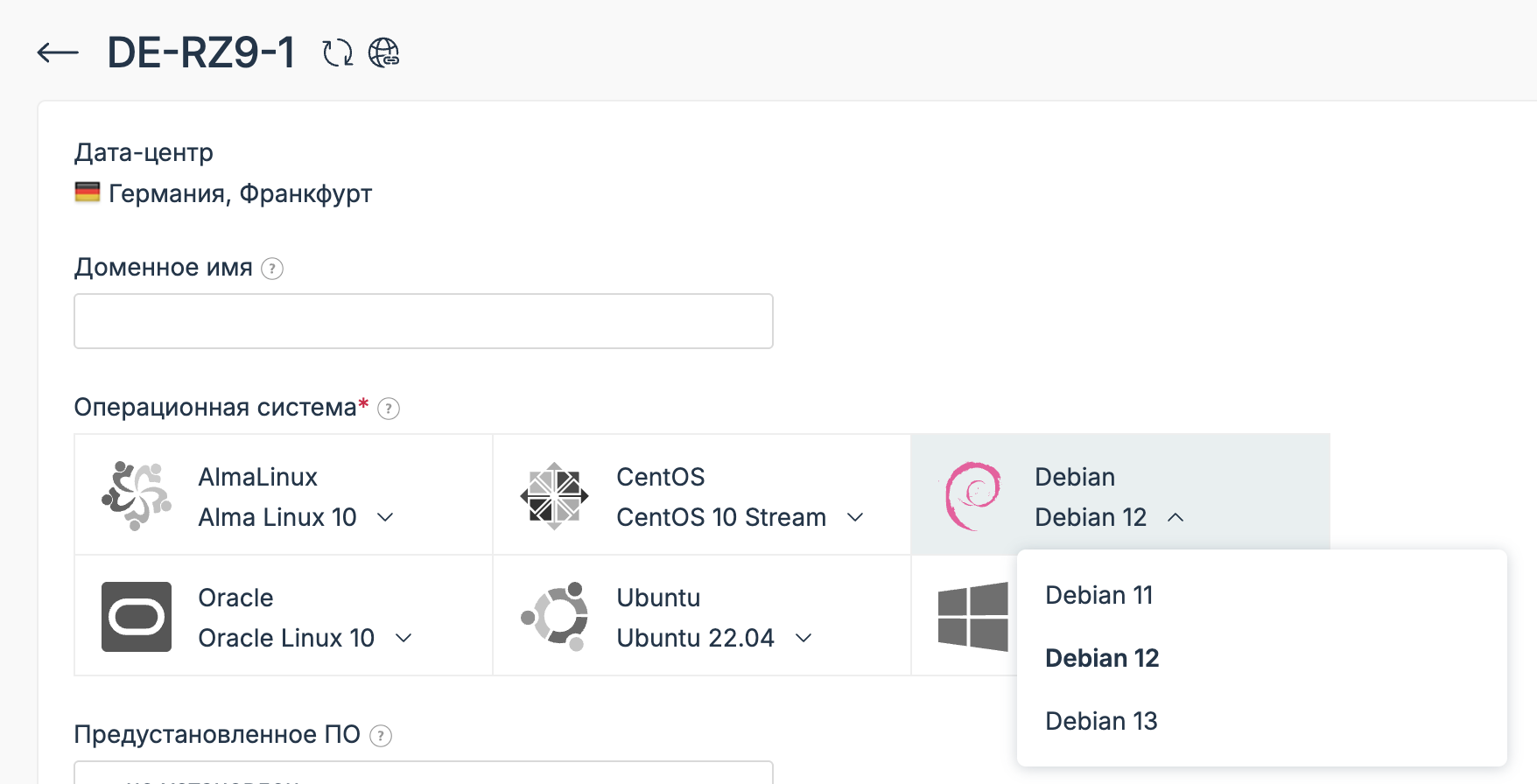
1. In the **Operating system** field, choose **Debian** and the **Debian 12** version. The versions open with the arrow next to the system name.
Choosing Debian 12
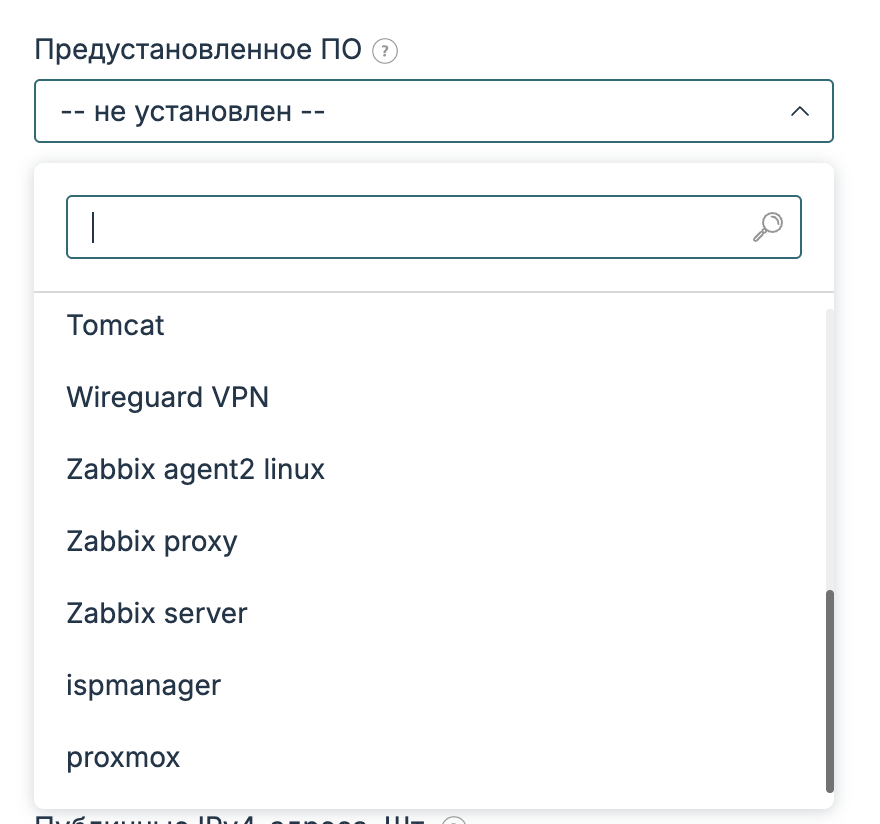
2. Leave the **Preinstalled software** field set to **-- none --** (не установлен). Our script installs Marzban, so you do not need to pick anything from this list.
No preinstalled software needed
The other ordering steps are the usual ones, and we showed them in detail in the article [“Ordering a virtual server”](https://docs.f3cloud.com/en/client-area/order-vps.md). After payment, the server's IP address and password arrive by email, and you can also find them in the client area with the [Instructions](https://docs.f3cloud.com/en/client-area/order-vps.md#access) button.
> **Already have a server.**
>
> The script is designed for a new server. If something is already set up on your server, [reinstall the system](https://docs.f3cloud.com/en/client-area/reinstall-os.md) with Debian 12 first.
***
## Step 1. Run the script
Connect to the server [via SSH](https://docs.f3cloud.com/en/vps/termius-connection.md) as the root user. Copy the command, paste it into the terminal and press Enter.
```bash
bash <(curl -fsSL https://raw.githubusercontent.com/f3cloud-host/Marzban/main/marzban-setup.sh)
```
The script works on its own and does not ask any questions. Installation takes a couple of minutes, and on our test server it finished in under a minute.
Here is what the script does, in order:
1. Installs the programs it needs.
2. Picks a masking site. We explain why it is needed [below](#masking-site).
3. Installs Marzban with the official installer.
4. Creates a **VLESS Reality** connection on port 443 with new keys.
5. Opens the panel on a random port, creates the `admin` administrator with a random password and sets the `firefox` fingerprint in the links.
6. Turns on the firewall and leaves only ports **22** (SSH), **443** (VPN) and the panel port open.
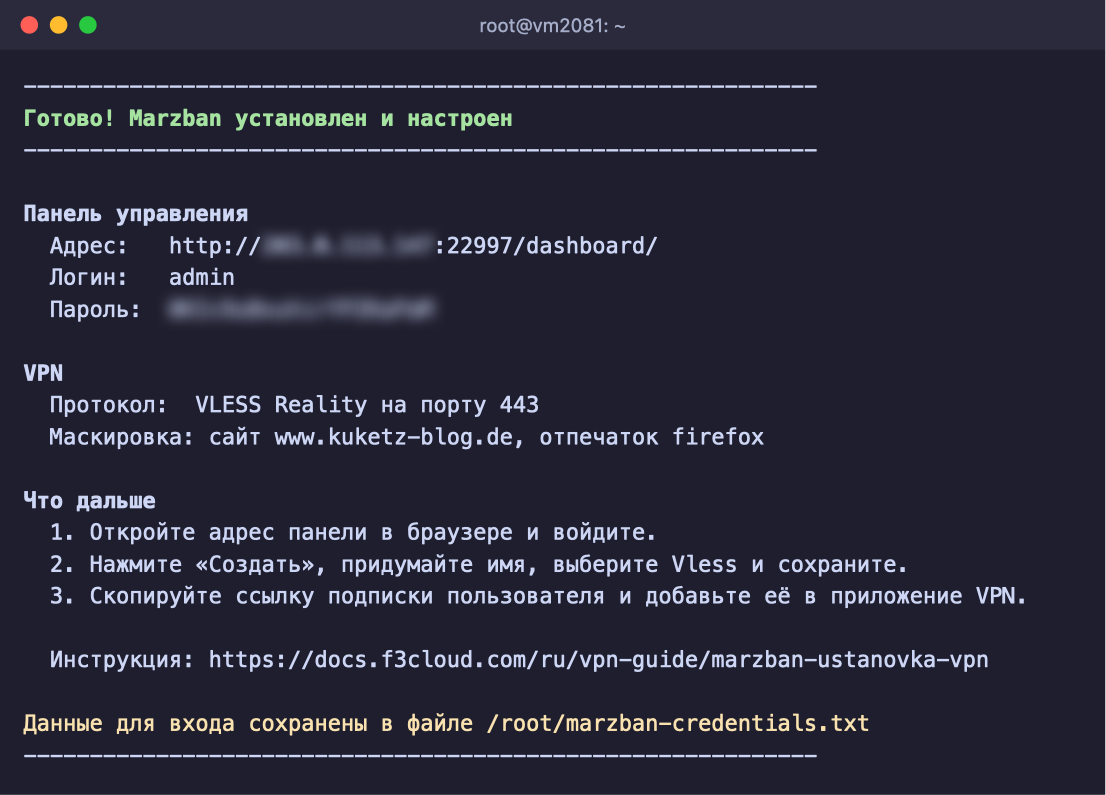
When everything is ready, the script shows the panel address, the login and the password.
Marzban is installed and configured
> **Where to find the password.**
>
> The script saves the login details on the server, so you can view them at any time with this command.
>
> ```bash
> cat /root/marzban-credentials.txt
> ```
The script's code is open, and you can read it on [GitHub](https://github.com/f3cloud-host/Marzban).
***
## Step 2. Log in to the panel
Open the address from the script output in your browser. It looks like `http://SERVER-IP:port/dashboard/`. Log in with the username `admin` and the password from the same output.
If the panel opens in another language, you can switch it with the translate icon button in the top right corner.
> **The panel opens over HTTP.**
>
> The panel password is sent without encryption when you log in. Do not open the panel over public Wi-Fi, and do not send the address together with the password in public chats.
***
## Step 3. Create a user
In Marzban, a user is a separate access to the VPN. It is better to create separate users for yourself and for the people close to you, because then you can switch off any access without touching the others.
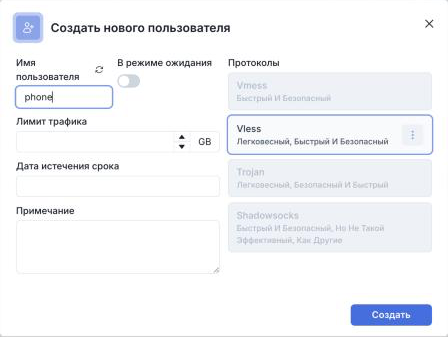
1. Click Create User.
2. Enter a **Username**, for example `phone`.
3. In the **Protocols** block, check that the **Vless** card is outlined. If it is not, click it.
4. You can leave the **Data Limit** and **Expiry Date** fields empty, and then the access will have no limits.
5. Click Create User.
Creating a user
The user appears in the list. To the right of it there are three buttons, and their names appear when you hover over them.
The user has been created
| Button | What it does |
| --- | --- |
| Copy Subscription Link | Copies the subscription link. We recommend adding this link to the app, because then the app picks up new settings by itself if you change them in the panel |
| Copy Configs | Copies the link to the connection itself, which starts with `vless://` |
| QR Code | Shows the QR codes for the subscription and the connection, which are handy to scan with a phone |
***
## Step 4. Connect to the VPN
You can connect from any app built on the Xray core. We recommend **Incy** or **Happ**, and you will find links to them and to other apps [below](#client-apps).
1. Install the app on your phone or computer.
2. In the app, tap the button for adding a connection.
3. Choose import from the clipboard and paste the subscription link. On a phone it is easier to scan the **Subscribe Link** QR code.
4. Turn on the connection.
The user's QR codes, hidden in the screenshot
To check that your traffic goes through the VPN, open [api.ipify.org](https://api.ipify.org) in your browser. It should show your server's IP address.
> **The subscription link and QR code are the key to your VPN.**
>
> Anyone who gets hold of them can connect, so do not publish them or send them through public chats.
***
## TLS fingerprint {#tls-fingerprint}
The fingerprint determines which browser the app presents itself as when it connects. By default Marzban puts `chrome` in the links, but the script changes it to `firefox` straight away, so you do not need to do anything by hand.
You can check or change the fingerprint in the panel.
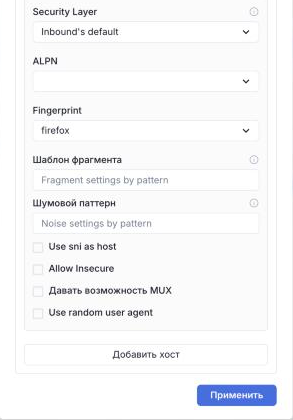
1. Open the ☰ menu in the top right corner and choose **Host Settings**.
2. Click **VLESS TCP REALITY**, and then **Advanced options**.
3. The **Fingerprint** field should be set to `firefox`. If you have changed it, click Apply.
4. Refresh the subscription in the app so that it receives the new settings.
The firefox fingerprint in the host settings
> **Why firefox and not chrome.**
>
> Since late 2025, the traffic filtering systems of Russian providers (TSPU) judge a TLS connection by several signs at once – the hosting subnet, the site name (SNI) and the client fingerprint. The `chrome` fingerprint is the default in almost every VPN app and panel, so the combination of a Chrome fingerprint and a data-centre IP address has become a reliable proxy marker for the filters. Users report that with several simultaneous connections using this fingerprint the connection “freezes” for a few minutes, and switching to `firefox` helps.
>
> The `edge` fingerprint used to help as well, but since September 2026 it is incompatible with new Xray versions. Starting with Xray 26.9.8 (included, for example, in 3X-UI 3.8.0 and later) a Reality server only accepts clients with post-quantum ML-KEM key exchange. The `edge` profile in Xray corresponds to the old Edge 85 without ML-KEM, so the connection will not be established. The `firefox` profile supports ML-KEM if the app's Xray core is 26.3.23 or newer, so keep your clients up to date. Do not use `random` or `randomized` either – they may pick a profile without ML-KEM.
***
## Masking site {#masking-site}
VLESS Reality disguises a VPN connection as an ordinary visit to some website. From the outside it looks as if you are simply opening that site.
The script picks such a site by itself. It has a list of small European sites, and before choosing one it checks that the site works over TLS 1.3 and HTTP/2 and is not hidden behind Cloudflare or another CDN. Reality works most reliably with sites like these. You can see which site was chosen in the script output and in the `/root/marzban-credentials.txt` file.
> **Masking as your own domain.**
>
> For better resistance to blocking, you can mask the connection as your own domain using the self-steal scheme. How to do this in Marzban is described in the article [“Self-steal for VLESS Reality”](https://docs.f3cloud.com/en/vpn-guide/reality-self-steal.md#self-steal-in-panels).
***
## Client apps {#client-apps}
You can connect to the server from any app built on the Xray core. Below are the options in the order we recommend them. App store availability is current as of October 2026.
### 1. Incy
A free app built on Xray-core for all major platforms. It supports VLESS (including Reality and XTLS Vision), VMess, Trojan, Shadowsocks, Hysteria2 and WireGuard, as well as the XHTTP transport. It imports links, QR codes and subscriptions. Incy is currently available in the Russian App Store.
> **Note.**
>
> Download links:
>
> * [App Store](https://apps.apple.com/ru/app/incy/id6756943388) – iPhone, iPad, Apple TV and Macs with an Apple M1 chip or newer;
> * [Google Play](https://play.google.com/store/apps/details?id=llc.itdev.incy) – Android and Android TV;
> * [APK file](https://github.com/INCY-DEV/incy-platforms/releases/latest/download/Incy.apk) – if Google Play is unavailable;
> * [Windows](https://github.com/INCY-DEV/incy-platforms/releases/latest/download/incy-windows-setup.exe), [macOS Apple Silicon](https://github.com/INCY-DEV/incy-platforms/releases/latest/download/incy-macos-arm64.dmg), [macOS Intel](https://github.com/INCY-DEV/incy-platforms/releases/latest/download/incy-macos-intel.dmg) and [Linux](https://github.com/INCY-DEV/incy-platforms/releases/latest) – the desktop versions are still at an early stage of development.
### 2. Happ
A popular client built on Xray-core for all platforms. It supports VLESS, VMess, Trojan, Shadowsocks, Hysteria2 and subscriptions.
> **Warning.**
>
> Since March 2026, Happ has been removed from the Russian App Store several times at the request of Roskomnadzor. The iPhone, iPad and Mac version is currently available only in foreign stores and requires an Apple ID from another country. Only the Apple TV version remains in the Russian App Store. Beware of clones with similar names – the real Happ is published by Flyfrog LLC.
> **Note.**
>
> Download links:
>
> * [App Store (foreign)](https://apps.apple.com/us/app/happ-proxy-utility/id6504287215) – iPhone, iPad and Mac;
> * [App Store, Apple TV version](https://apps.apple.com/ru/app/happ-proxy-utility-for-tv/id6748297274);
> * [Google Play](https://play.google.com/store/apps/details?id=com.happproxy) – Android and Android TV;
> * [APK file](https://github.com/Happ-proxy/happ-android/releases/latest/download/Happ.apk) – if Google Play is unavailable;
> * [Windows](https://github.com/Happ-proxy/happ-desktop/releases/latest/download/setup-Happ.x64.exe), [macOS](https://github.com/Happ-proxy/happ-desktop/releases/latest/download/Happ.macOS.universal.dmg) and [Linux](https://github.com/Happ-proxy/happ-desktop/releases/latest).
### 3. v2RayTun
A simple client built on Xray-core. By October 2026 the iPhone and Mac version had disappeared from the App Store in every country, so v2RayTun is an option for Android and Windows.
> **Note.**
>
> Download links:
>
> * [Google Play](https://play.google.com/store/apps/details?id=com.v2raytun.android) – Android and Android TV;
> * [Windows](https://storage.v2raytun.com/v2RayTun_Setup.exe).
### 4. v2rayN and v2rayNG
Open-source clients built on Xray-core – v2rayN for computers and v2rayNG for Android. They suit experienced users who want full control over the settings.
> **Note.**
>
> Download links:
>
> * [v2rayN](https://github.com/2dust/v2rayN/releases/latest) – Windows, macOS and Linux;
> * [v2rayNG](https://github.com/2dust/v2rayNG/releases/latest) – Android.
### Other clients
* **Streisand** – a client for iPhone, iPad and Mac. It was removed from the Russian App Store in March 2026 and remains in [foreign stores](https://apps.apple.com/us/app/streisand/id6450534064).
* **V2Box** – removed from the Russian App Store in March 2026.
* **Hiddify**, **NekoBox**, **Throne** and **NekoRay** run on the sing-box core.
> **Warning.**
>
> Clients based on the sing-box core (Hiddify, NekoBox, Throne, NekoRay, Karing) cannot connect to Reality on servers running Xray 26.9.8 or newer – for example, 3X-UI starting from version 3.8.0. In addition, sing-box does not support the XHTTP transport. For such servers, use clients based on the Xray core.
***
## Frequently asked questions
The script says the server is not new
The script stops if Marzban is already installed on the server, port 443 is taken by another program, or other sites are configured in Nginx. This way it will not break anything that already works. [Reinstall the system](https://docs.f3cloud.com/en/client-area/reinstall-os.md) in the client area and run the script again.
The script stopped with an error
The script writes the error details to the `/root/marzban-setup.log` file. If the error happened while picking the masking site, wait a few minutes and run the script again. In other cases, reinstall the system and run the script from scratch. If the error comes back, create a ticket in the client area and attach this file.
The panel does not open
Check that you open the address with `http://`, not `https://`, and that you use the port from the script output. The `marzban status` command shows whether Marzban is running. Its output should contain the line `marzban: running`.
I forgot the panel password
The login and password created by the script are stored on the server. You can view them with this command.
```bash
cat /root/marzban-credentials.txt
```
How to update Marzban
Run one command. Your users and settings are kept during the update.
```bash
marzban update
```
The VPN does not connect
Update the app to the latest version and refresh the subscription in it. Check that the user has the **Active** status in the panel and that the `firefox` fingerprint is set in the [host settings](#tls-fingerprint).
***
## Our resources
**Telegram channel:** [https://t.me/f3cloud_news](https://t.me/f3cloud_news)\
**F3 Cloud:** [https://f3cloud.com](https://f3cloud.com/en)