> The full list of articles is in [llms.txt](https://docs.f3cloud.com/llms.txt). Every page has a Markdown version: add .md to its address. This page as Markdown: [https://docs.f3cloud.com/en/client-area/trial-server.md](https://docs.f3cloud.com/en/client-area/trial-server.md).
# Free F3 Cloud trial server
How to test an F3 Cloud server free of charge for 24 hours. The trial terms, requesting it through support and what happens to the server after the trial.
## What a trial server is for
A trial server lets you take a calm look at F3 Cloud before you buy. You can use it to check speed and ping, run your own script, set up a VPN or simply see how everything works.
The trial is free and lasts **24 hours**. For that time you get a regular server with full root access, no different from a paid one.
***
## Trial terms
* The trial lasts exactly **24 hours** from activation.
* You can test the **DE-Promo**, **DE-RZ9-1** and **DE-RZ9-2** plans.
* The trial is given **once** per person and per account.
* The email in your account must be confirmed, otherwise you won't be able to place an order. We explained how to do this in the article [on registration](https://docs.f3cloud.com/en/client-area/registration.md).
* If free resources are short at the moment, we may decline a trial.
***
## 1. Add the server to your cart
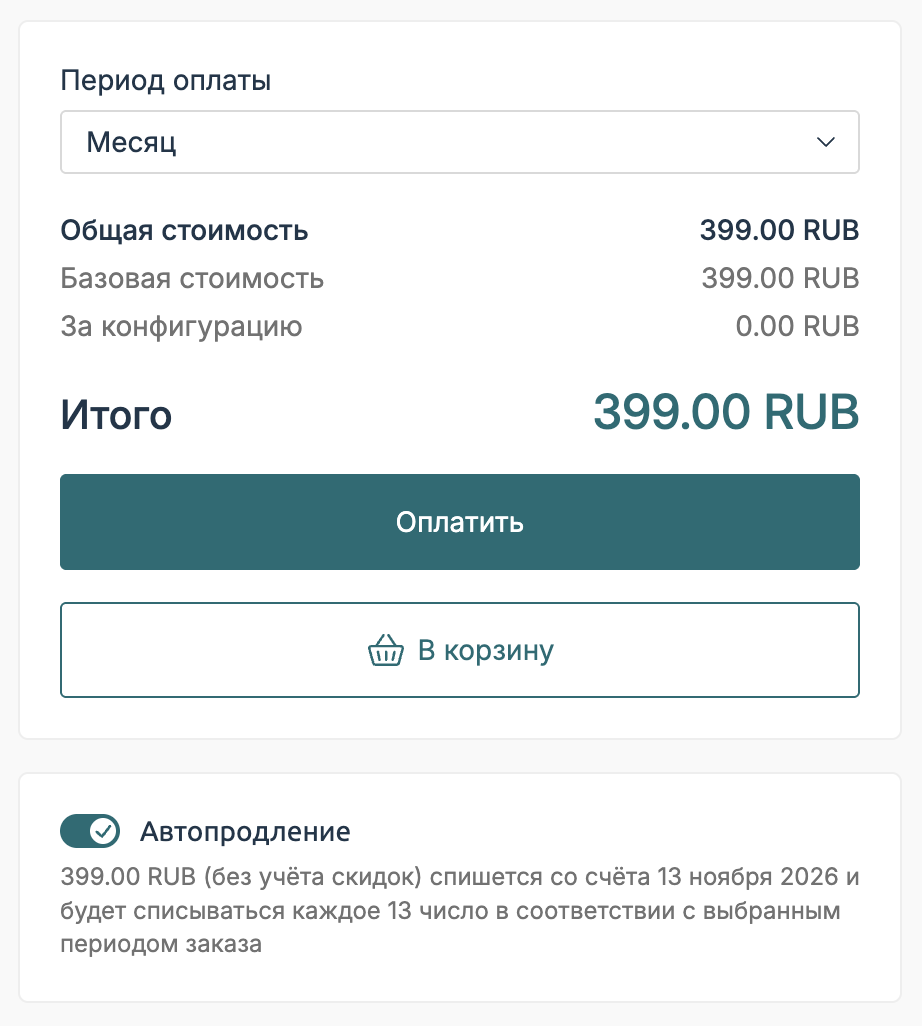
Log in to the client area, choose a plan and configure the server just as you would for a regular [VPS order](https://docs.f3cloud.com/en/client-area/order-vps.md). At the end, click To cart (В корзину) instead of **Pay** (Оплатить). You don't need to pay anything.
The “To cart” (В корзину) button on the order page
***
## 2. Write to support
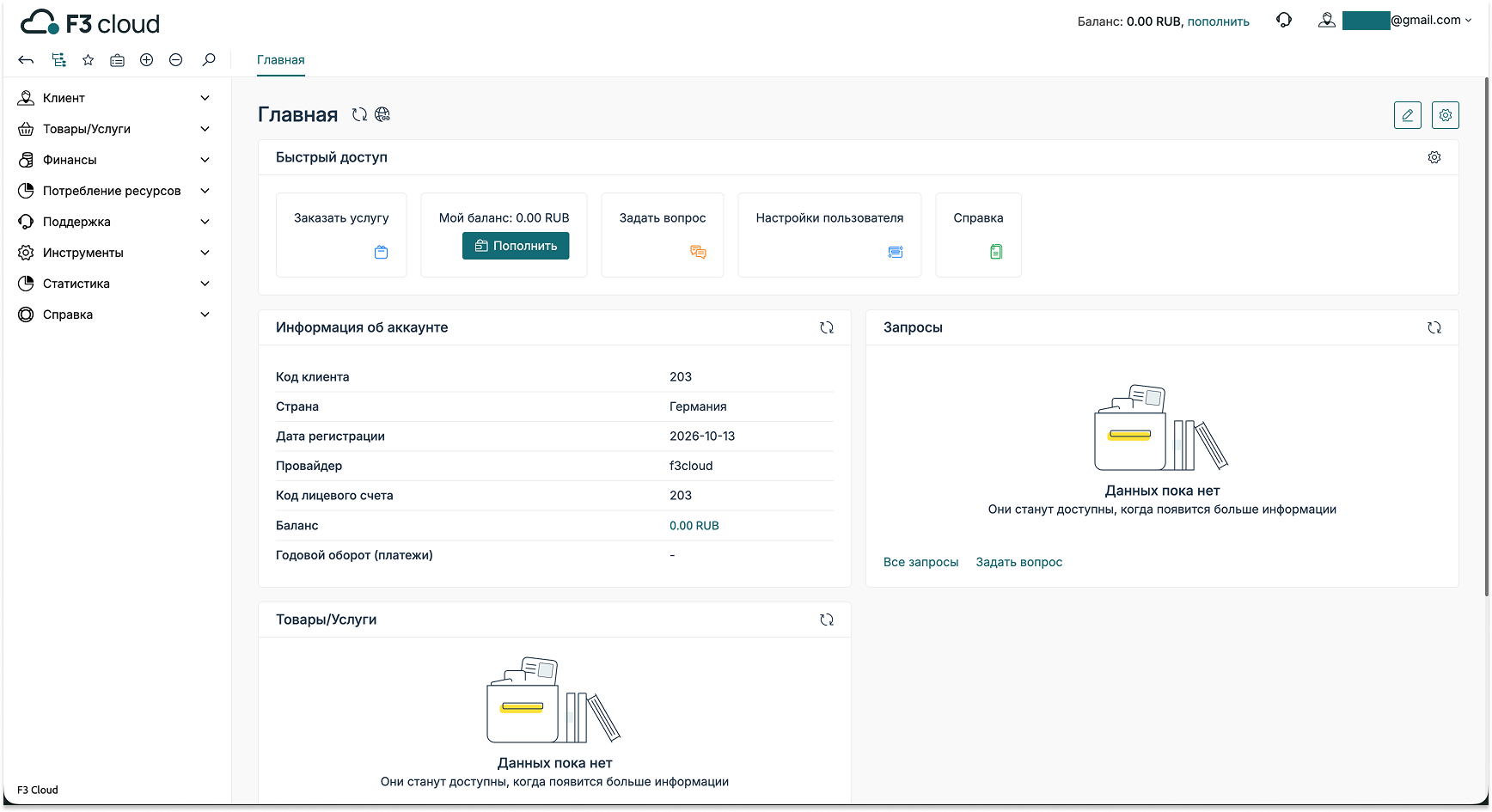
On the client area home page, click **Submit a ticket** (Задать вопрос) in the **Quick access** (Быстрый доступ) block and create a request. Write that you would like to test the server in your cart. We will see your account, plan and location ourselves.
If you tell us in a few words what you need the trial for, it will be easier and quicker for us to review your request.
The “Submit a ticket” (Задать вопрос) button on the client area home page
> **Example request.**
>
> Your request can be very short, for example “Hello! I'd like to test the server in my cart. I need it to check a VPN before buying.”
***
## 3. Wait for a reply
We review trial requests within **3 days**. If we have free resources, a support team member will activate the server, and it will appear in your server list like any other.
The connection details will be sent to your email. You can also find them in the client area with the Instructions button. We showed where it is in the article [on ordering a VPS](https://docs.f3cloud.com/en/client-area/order-vps.md#access).
***
## What happens after the trial
Exactly 24 hours later, the server is suspended. If you liked it, simply pay for it in the client area, and it will keep running with the same details and the same IP address. You won't need to reinstall anything.
> **Don't put off payment.**
>
> Under the [Terms of Service](https://f3cloud.com/en/legal/terms), the data of a suspended server is kept for 48 hours, after which it may be deleted.
***
## How to connect to the server
You connect to a Linux server over SSH. Open a terminal and run the command:
```bash
ssh root@server-ip-address
```
Replace `server-ip-address` with the IP address from the email or the **Instructions**. If you use Windows, macOS or a phone, the easiest way to connect is with the **Termius** app, and we showed every step in the article [on connecting via Termius](https://docs.f3cloud.com/en/vps/termius-connection.md).
***
## Our resources
**Telegram channel:** [https://t.me/f3cloud_news](https://t.me/f3cloud_news)\
**F3 Cloud:** [https://f3cloud.com](https://f3cloud.com/en)