> The full list of articles is in [llms.txt](https://docs.f3cloud.com/llms.txt). Every page has a Markdown version: add .md to its address. This page as Markdown: [https://docs.f3cloud.com/en/client-area/registration.md](https://docs.f3cloud.com/en/client-area/registration.md).
# Registering in the F3 Cloud client area
A short guide to creating an account in the F3 Cloud client area and confirming your email.
You need an account to order servers, top up your balance and talk to our support team. Signing up takes **a couple of minutes**.
***
## 1. Open the registration page
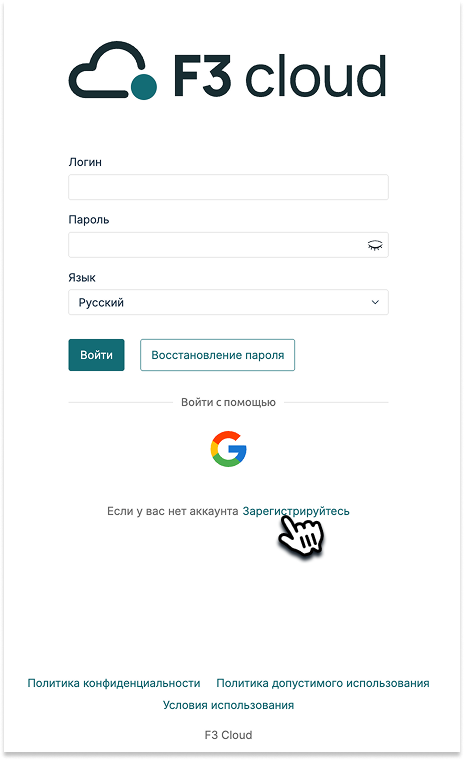
Go to the [F3 Cloud website](https://f3cloud.com/en) and click the Client area button in the top right corner. The login page will open. If you don't have an account yet, click the **Register** link below the form.
The registration link on the login page
> **Already chosen a plan?.**
>
> If you have already chosen a plan, click Order right on the server card on the website. As soon as you have signed up, you will go straight to placing your order.
***
## 2. Fill in the form
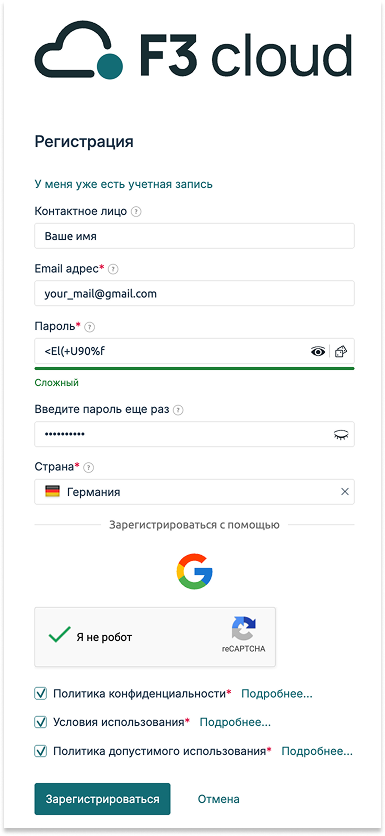
In the registration form, enter:
* **Email address** – a real email, because we will send a confirmation email there, and later the details for connecting to your servers;
* **Password** – come up with one yourself or generate it with the icon right in the field, then repeat it in the second field;
* **Country** – choose it from the list.
You don't have to fill in the **Name** field, but it makes it easier for our support team to address you.
The registration form
> **No password needed.**
>
> If you'd rather not come up with a password, sign up with **Google**. To do this, click the Google icon below the form.
***
## 3. Accept the terms
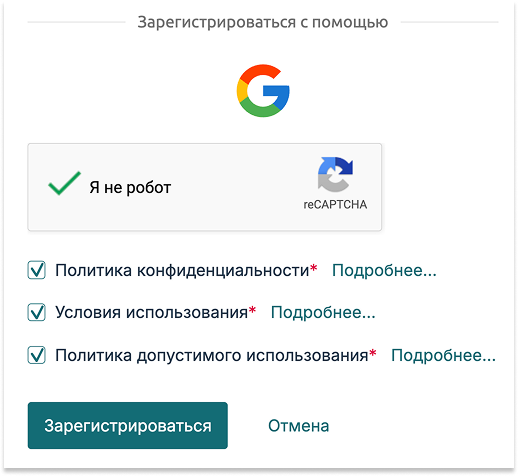
Tick the **I'm not a robot** box and read the documents linked in the form:
* [Privacy Policy](https://f3cloud.com/en/legal/privacy);
* [Terms of Use](https://f3cloud.com/en/legal/terms);
* [Acceptable Use Policy](https://f3cloud.com/en/legal/acceptable-use).
If you agree with them, tick each document and click Register.
Agreeing to the documents
***
## 4. Confirm your email
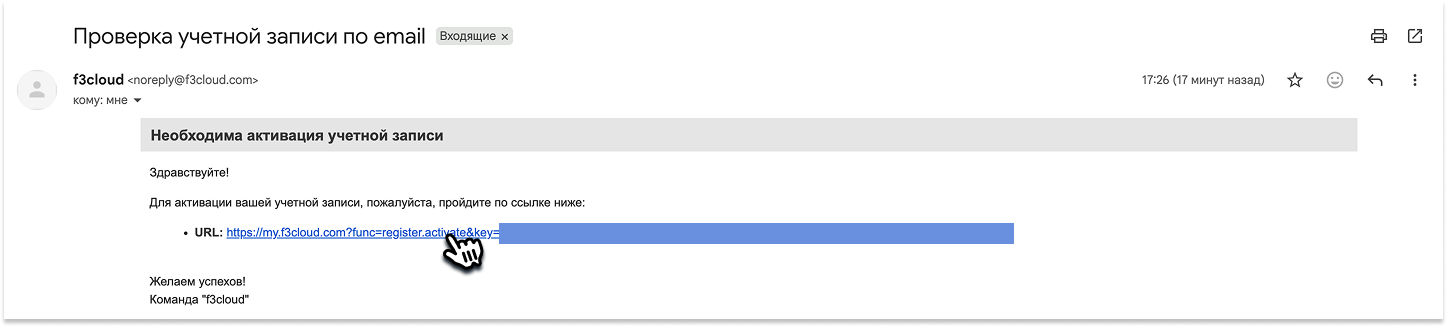
Once you have signed up, you will go straight to the client area, and a window will appear asking you to confirm your email. Click Ok, and within **a couple of minutes** an email from F3 Cloud will arrive at your address. Open it and follow the link inside.
The email confirmation message
We recommend not putting this step off. Important emails about your services, such as the details for connecting to a new server, are sent to a confirmed email address.
> **Email didn't arrive?.**
>
> If the email hasn't arrived, check your **Spam** folder.\
> You can send the email again from the client area.\
> If that doesn't help either, write to us at [support@f3cloud.com](mailto:support@f3cloud.com).
***
## 5. Welcome aboard
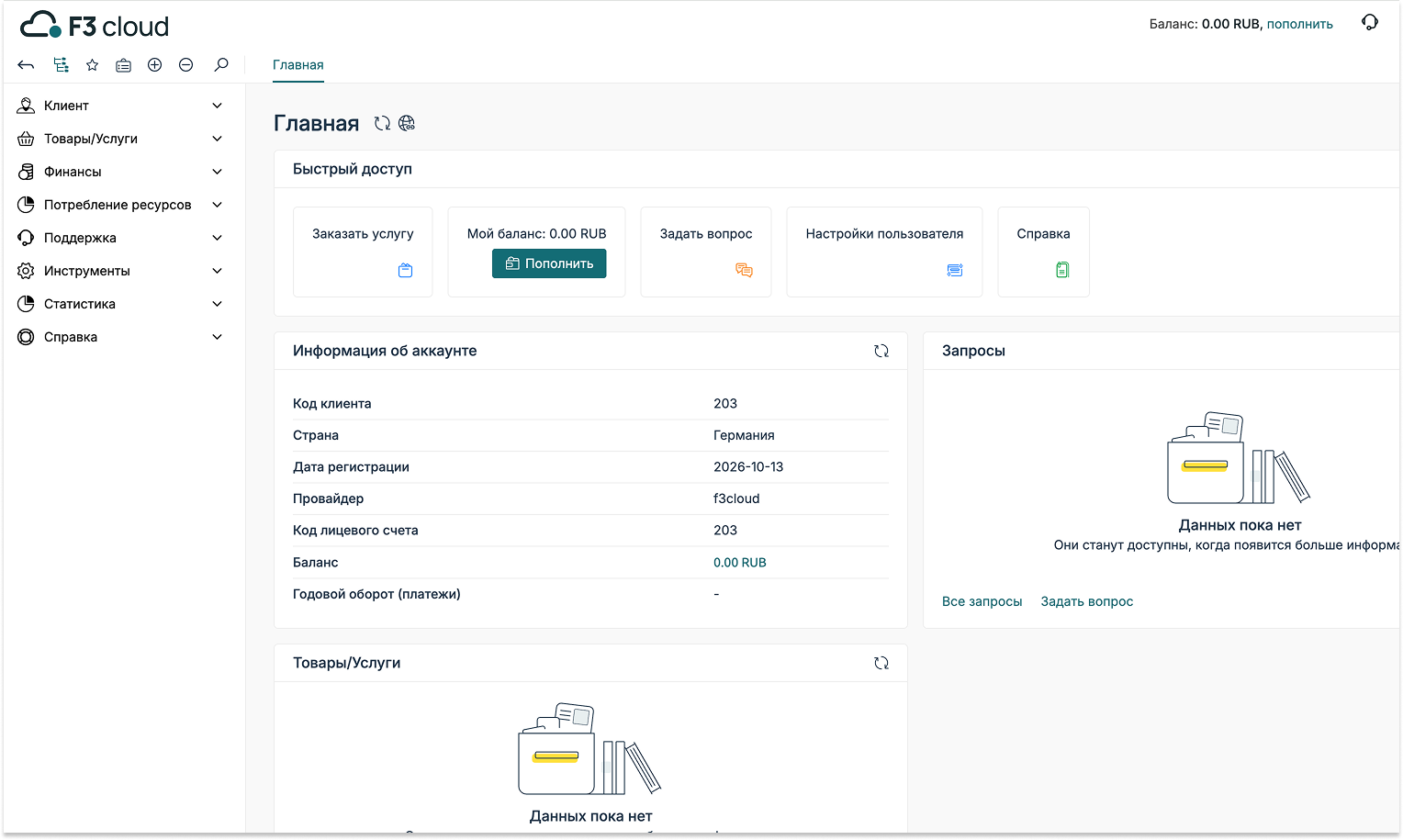
Congratulations, your account has been created! On the home page of the client area, you can top up your balance, ask our support team a question and go on to order your first server. We have explained how to do this in detail in the article [on ordering a VPS](https://docs.f3cloud.com/en/client-area/order-vps.md).