> The full list of articles is in [llms.txt](https://docs.f3cloud.com/llms.txt). Every page has a Markdown version: add .md to its address. This page as Markdown: [https://docs.f3cloud.com/en/ai/deepseek-installation.md](https://docs.f3cloud.com/en/ai/deepseek-installation.md).
# Installing DeepSeek R1 on a VPS with Ollama – choosing the model and server
How to install DeepSeek R1 on a VPS with Ollama without a graphics card. How the 1.5b–671b models differ, how much memory each one needs and which plan to choose, installing Ollama, downloading a model, working through the API, the Open WebUI web interface and an SSH tunnel, common errors.
**DeepSeek R1** is an open language model that you can run on your own server. Your conversations then never leave the server, the answers do not depend on how busy someone else's servers are, and you can use the model with no limit on the number of requests. The most convenient way to run it is with **Ollama**, a program that downloads models and gives access to them from the terminal and over an API. In this article we will work out what exactly you are running, how much memory it needs and how to avoid a mistake when choosing a server, and then install everything step by step. We checked the commands and the speed measurements on our **DE-RZ9-4** server with Debian 12, and the Ollama version at the time of testing was **0.40.7**.
***
## What actually runs on the server
The full DeepSeek R1 model is huge. It has 671 billion parameters and even in compressed form takes up about **404 GB**, so it will not fit on an ordinary VPS. What Ollama offers under the names `deepseek-r1:1.5b`, `7b`, `14b` and so on are distilled models. Here is how they were made. The large DeepSeek R1 solved a great many tasks, and smaller models built on the open Qwen and Llama foundations were trained to repeat its reasoning. As a result they take on the manner of the large model but remain tens and hundreds of times more compact. For example, the `8b` model is built on Qwen3 8B and trained on the updated version DeepSeek R1-0528.
All of these models are reasoning models. Before giving an answer they write out their train of thought, and in the terminal this block begins with the word `Thinking...`. This makes answers to difficult questions more accurate but also longer, because the model has to generate more text. The DeepSeek R1 weights are distributed under the MIT licence and are suitable for commercial projects, while the models based on Llama are additionally covered by the Llama licence.
DeepSeek also has newer models, such as DeepSeek V3.1 and V4. However, V3.1 exists only in the full 671B size, and in Ollama V4 is available only as a cloud model, so the R1 line is what remains for running on your own server.
***
## Why the model needs memory, not a graphics card
A language model is above all a huge set of numbers called weights. To generate each next word, or more precisely a piece of a word called a token, the processor has to go through all of the model's weights. Two important conclusions follow from this. First, the whole model must fit entirely in RAM, otherwise the system will start swapping it in from disk and the speed will drop many times over. Second, on a server without a graphics card the response speed depends above all on how fast the processor can read the weights from memory, so a smaller model answers noticeably faster than a large one.
By default, models in Ollama are compressed to roughly four to five bits per parameter, which is where their sizes come from. A model with 8 billion parameters takes up about 5 GB, and one with 14 billion about 9 GB. But you need more memory than the file weighs. The model needs room for the conversation context, and the system and Ollama itself need memory too. That is why it is worth choosing a server with a margin of a few gigabytes above the size of the model.
We checked in practice what happens without such a margin. On a test server with 1 GB of memory and a swap file, the smallest model, `1.5b`, which weighs 1.1 GB, downloaded without any problems, but after the question “How much is 17 times 23?” it managed to print only `Thinking...` and one word in **8 minutes**. All of the memory and most of the swap were in use, and the server practically came to a halt.
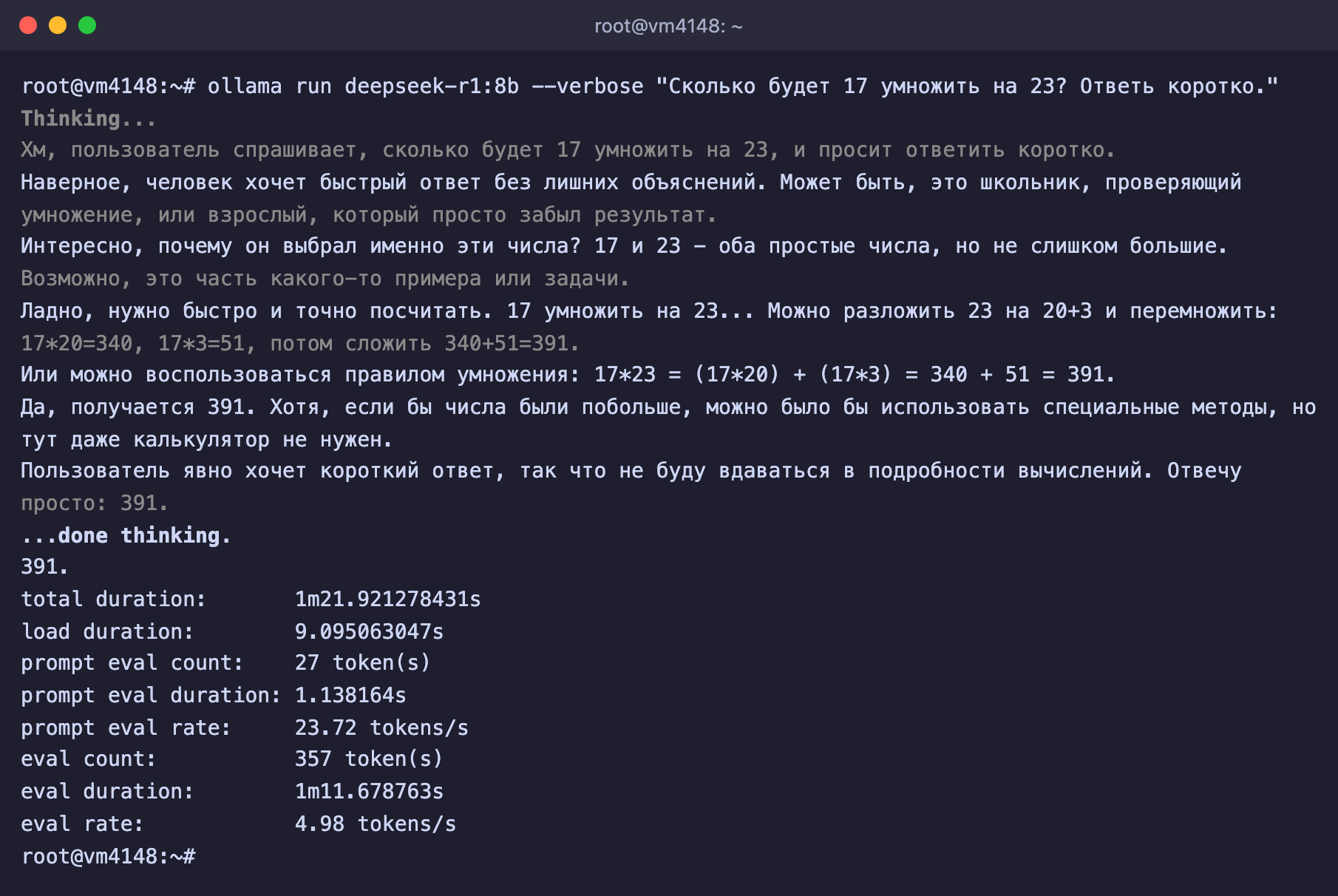
On the **DE-RZ9-4** server with 4 cores and 8 GB of memory, the picture is completely different. We asked both models the same question and looked at the generation speed that Ollama shows with the `--verbose` option. The `8b` model took up **5.9 GB** in memory and wrote about **5 tokens per second**. It correctly answered “391”, but first it reasoned for a long time, and the whole answer took **1 minute 22 seconds**. The `1.5b` model ran more than four times faster, at about **22 tokens per second**, and also gave the right answer, in 34 seconds. However, it ignored the request to answer briefly, wrote out three ways of multiplying and mixed English words into its Russian answer. This example shows well what size costs. The smaller model is faster, but it follows instructions noticeably worse and mixes up languages more often.
***
## Which model and server to choose
The model sizes are taken from the Ollama catalogue, and the plans are chosen so that there is memory to spare. Our VPS have no graphics cards, and all models run on the processor.
| Model | Size | Base | Plan |
| --- | --- | --- | --- |
| `deepseek-r1:1.5b` | 1.1 GB | Qwen 2.5 | **DE-RZ9-2**, 2 vCPU and 4 GB |
| `deepseek-r1:7b` | 4.7 GB | Qwen 2.5 | **DE-RZ9-4**, 4 vCPU and 8 GB |
| `deepseek-r1:8b` | 5.2 GB | Qwen3, version R1-0528 | **DE-RZ9-4**, 4 vCPU and 8 GB |
| `deepseek-r1:14b` | 9 GB | Qwen 2.5 | **DE-RZ9-8**, 8 vCPU and 16 GB |
| `deepseek-r1:32b` | 20 GB | Qwen 2.5 | **DE-RZ9-16**, 16 vCPU and 32 GB |
| `deepseek-r1:70b` | 43 GB | Llama 3.3 | needs a dedicated server |
| `deepseek-r1:671b` | 404 GB | full model | needs a dedicated server |
For a first try, `1.5b` is enough, but in our Russian-language test it was rather weak. A sensible choice for most tasks is the `8b` model. Ollama downloads it by default if you do not specify a size, and it is trained on the newest version, R1-0528. The `14b` and `32b` models are larger and usually cope better with difficult tasks, but they answer more slowly on a processor.
> **Not sure whether the plan is enough.**
>
> Start with a smaller plan and the `8b` model. If the answers suit you in quality but not in speed, you can move to a higher plan, and the server's data and IP address will be kept. You cannot move to a lower plan later, because the server's disk cannot be reduced.
***
## What you need
* **A server** with Debian 12 or Ubuntu 24.04 and the amount of memory given in the table above. If you do not have a server yet, order one using the [guide](https://docs.f3cloud.com/en/client-area/order-vps.md).
* **Free disk space**. Ollama itself takes up about 2 GB, plus the size of the model.
* **An SSH connection**, for example via [Termius](https://docs.f3cloud.com/en/vps/termius-connection.md). Commands are run as `root`.
***
## Step 1. Install Ollama
Ollama is installed with the official script in a single command.
```bash
# Install Ollama with the official script
curl -fsSL https://ollama.com/install.sh | sh
```
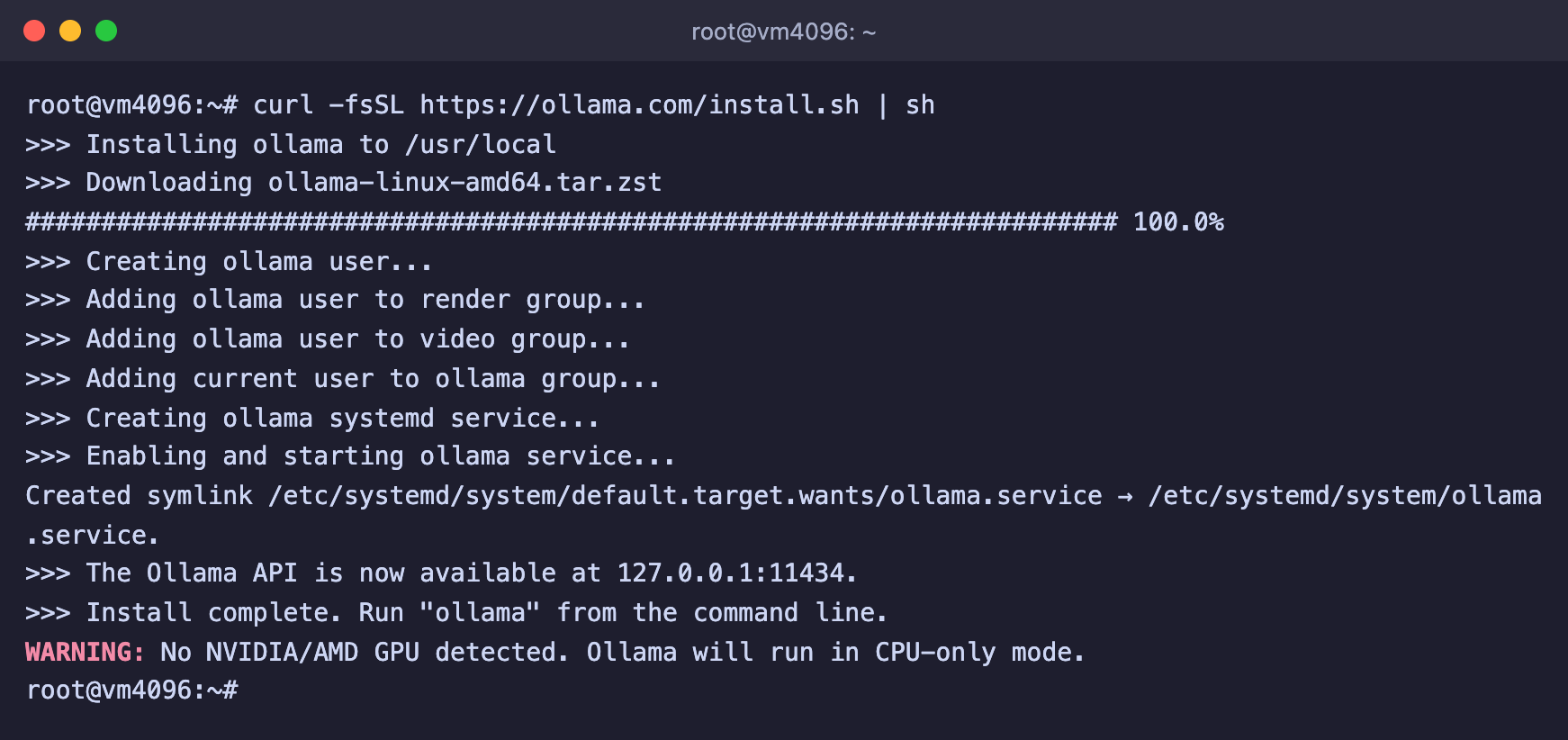
The script will download the program, create a separate user and service for it and start it. At the end it will report that the API is available at `127.0.0.1:11434` and warn that no graphics card was found. This is normal on a VPS, and the models will run on the processor.
Ollama is installed
***
## Step 2. Download the model
Specify the model you chose from the table. For example, for `8b` the command looks like this.
```bash
# Download the DeepSeek R1 8B model
ollama pull deepseek-r1:8b
```
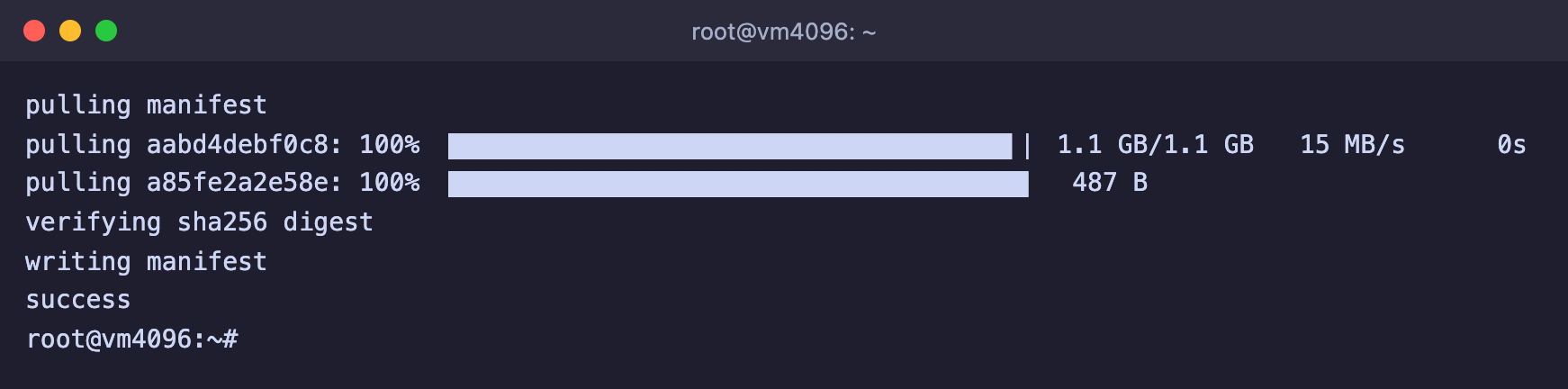
Ollama will show the download progress and print `success` at the end. On our server the `1.5b` model downloaded at about 15 MB/s.
The model is downloaded
***
## Step 3. Ask a question
Start the model in chat mode.
```bash
ollama run deepseek-r1:8b
```
An input line will appear. Type your question and press Enter. First the model will print a block of reasoning after the word `Thinking...`, and then the answer itself. To leave the chat, type `/bye`.
If you add the `--verbose` option, Ollama will show the time and speed after the answer. The main line here is **eval rate**, the number of tokens the model produces per second.
The 8b model's answer on DE-RZ9-4
You can also ask a single question straight away, without a chat. This is handy for scripts.
```bash
ollama run deepseek-r1:8b "Explain in simple words what DNS is"
```
***
## Working with the API
After installation Ollama runs as a service and accepts API requests on the server itself. There is no need to start `ollama serve` by hand. This way you can connect the model to your own bot, website or the [OpenClaw](https://docs.f3cloud.com/en/ai/openclaw-installation.md) agent.
```bash
# Request to the model through the Ollama API
curl http://127.0.0.1:11434/api/chat -d '{
"model": "deepseek-r1:8b",
"messages": [{"role": "user", "content": "Hello!"}],
"stream": false
}'
```
To reach the API from your own computer without opening it to the internet, use an SSH tunnel. Run the command on **your own computer** and keep the window open, after which the API will be available to you at `http://127.0.0.1:11434`.
```bash
# Forward the Ollama port from the server to your computer
ssh -N -L 11434:127.0.0.1:11434 root@SERVER_IP
```
> **Do not open port 11434 to the internet.**
>
> The Ollama API has no password. Anyone who reaches it will be able to use your server, download models onto it and take up all of its memory.
***
## Open WebUI web interface
Chatting with the model in the terminal is not very convenient, so people usually add a web interface to Ollama. The most popular option is **Open WebUI**, a familiar chat in the browser that looks like ChatGPT. It connects to Ollama on the same server and shows the models you have downloaded into it. We install the lightweight `slim` image. It weighs about 200 MB instead of 1.6 GB for the full one, because it has no built-in document processing or voice features, and an ordinary chat does not need them.
If Docker is not on the server yet, install it with the official script.
```bash
curl -fsSL https://get.docker.com | sh
```
Start Open WebUI.
```bash
docker run -d --network=host \
-e HOST=127.0.0.1 \
-e OLLAMA_BASE_URL=http://127.0.0.1:11434 \
-e WEBUI_SECRET_KEY=$(openssl rand -hex 32) \
-v open-webui:/app/backend/data \
--name open-webui --restart always \
ghcr.io/open-webui/open-webui:slim
```
The `HOST=127.0.0.1` parameter keeps the interface available only on the server itself, and `OLLAMA_BASE_URL` tells it where Ollama is running. On our test server Open WebUI started without errors and took up about **320 MB** of memory, so add these few hundred megabytes to the memory the model needs.
Open the interface from your own computer through an SSH tunnel. Run the command on **your own computer** and keep the window open.
```bash
# Forward the Open WebUI port from the server to your computer
ssh -N -L 8080:127.0.0.1:8080 root@SERVER_IP
```
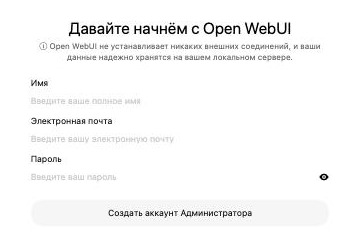
Open `http://localhost:8080` in your browser and click Get started (Давайте начнём). The form for creating the first account will open.
The first account in Open WebUI
> **The first account becomes the administrator.**
>
> It manages users and all Open WebUI settings. Create it right after the launch and choose a strong password.
After you log in, the chat opens. Open WebUI finds the models downloaded into Ollama by itself, and you can choose the model you need right in the input line.
Choosing a model in Open WebUI
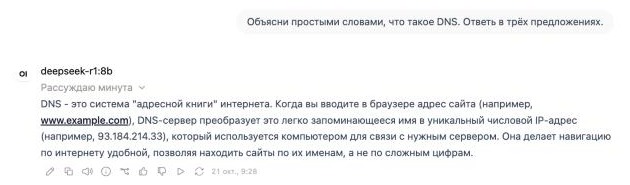
Open WebUI collapses the model's reasoning into a single line that you can expand with a click, and shows the finished answer below it.
DeepSeek 8b's answer in Open WebUI
> **The model needs almost the whole server.**
>
> On our DE-RZ9-4 other programs were running at the same time, the 8 GB of memory was no longer enough, part of it went into swap, and the answer in Open WebUI took more than two minutes. If you install the `8b` model, do not run anything heavy on the same server.
***
## Useful commands
```bash
# Downloaded models
ollama ls
# Models currently loaded in memory
ollama ps
# Unload a model from memory
ollama stop deepseek-r1:8b
# Delete a model from disk
ollama rm deepseek-r1:1.5b
# Status of the Ollama service
systemctl status ollama
```
***
## Frequently asked questions
The model answers very slowly
Check whether there is enough memory with the `free -h` command. If swap is in use (the **Swap** line), the model does not fit in memory. Take a smaller model or move to a higher plan. If memory is fine, only a faster processor with more cores or a smaller model will speed up the answers.
The model reasons for a very long time and produces long text
This is how reasoning models work. Ask for a short answer in your question. If you do not need the reasoning, for simple tasks you can use an ordinary model without the `Thinking...` block.
How to remove Ollama completely
Delete the models with the `ollama rm` command, then stop the service and remove the program.
```bash
systemctl disable --now ollama
rm -rf /usr/local/lib/ollama /usr/local/bin/ollama /usr/share/ollama
```
***
## Our resources
**Telegram channel:** [https://t.me/f3cloud_news](https://t.me/f3cloud_news)\
**F3 Cloud:** [https://f3cloud.com](https://f3cloud.com/en)